data jack

On-Campus Printing

Resources for:
icon Close

The following tutorial will guide you through the process of connecting a printer while on-campus. Faculty and Staff members should review the purchasing process before engaging with the process for connecting a printer.

Note

Wireless printing is not permitted on campus. The information below is for wired connections only.

Connecting a Printer for Students in the Residence Halls

Most new printers are plug and play compatible with Windows 10. When you receive your new printer, you can unbox it and remove any orange tape you see. After plugging in the power and turning the printer on, allow the printer to initialize (most new printers will have a display to show you it’s progress). When the printer finishes initializing, just connect the usb printer cable from the printer to your computer. Windows 10 should automatically install the printer for you.

close
Printer Purchasing Process for Faculty and Staff

All printer purchases for faculty and staff on-campus use must appear on OIRT’s list of approved printer models. For the most up to date list of approved printer models, please contact the Purchasing Department. The purchase of any printer not on the list must be pre-approved by the CIO.

Determining if a Printer will be Directly Connected or On-Network

Faculty and Staff Members have the option of either making a direct or network connection to the printer. A direct connection is when a printer is connected to a single computer and an on-network printer means that multiple parties can print to it. Generally speaking, unless a printer is shared by three or more employees, users should request a direct connect printer.

If you are planning to use a direct connection, simply purchase any printer contained on the Purchasing Department’s list of approved models and follow the instructions for “Installing a Local Printer” in the “Connecting a Printer for Faculty and Staff Members” section below.


If your new printer will be on-network, please ask your department to contact the SAMI Service Desk for USAN to investigate the viability of any data jacks in the vicinity of where the printer will be located. The full workflow for this process is shown in the following diagram.

close
Connecting a Printer for Faculty and Staff

Installing a Local Printer

Most new printers are plug and play compatible with Windows 10. When you receive your new printer, you can Most new printers are plug and play compatible with Windows 10. When you receive your new printer, you can unbox it and remove any orange tape you see. After plugging in the power and turning the printer on, allow the printer to initialize (most new printers will have a display to show you it’s progress). When the printer finishes initializing, you can just connect the usb printer cable from the printer to your computer. Windows 10 should automatically install the printer for you.

Connecting to a Network Printer

Employees are able to add network printers to their own machines.

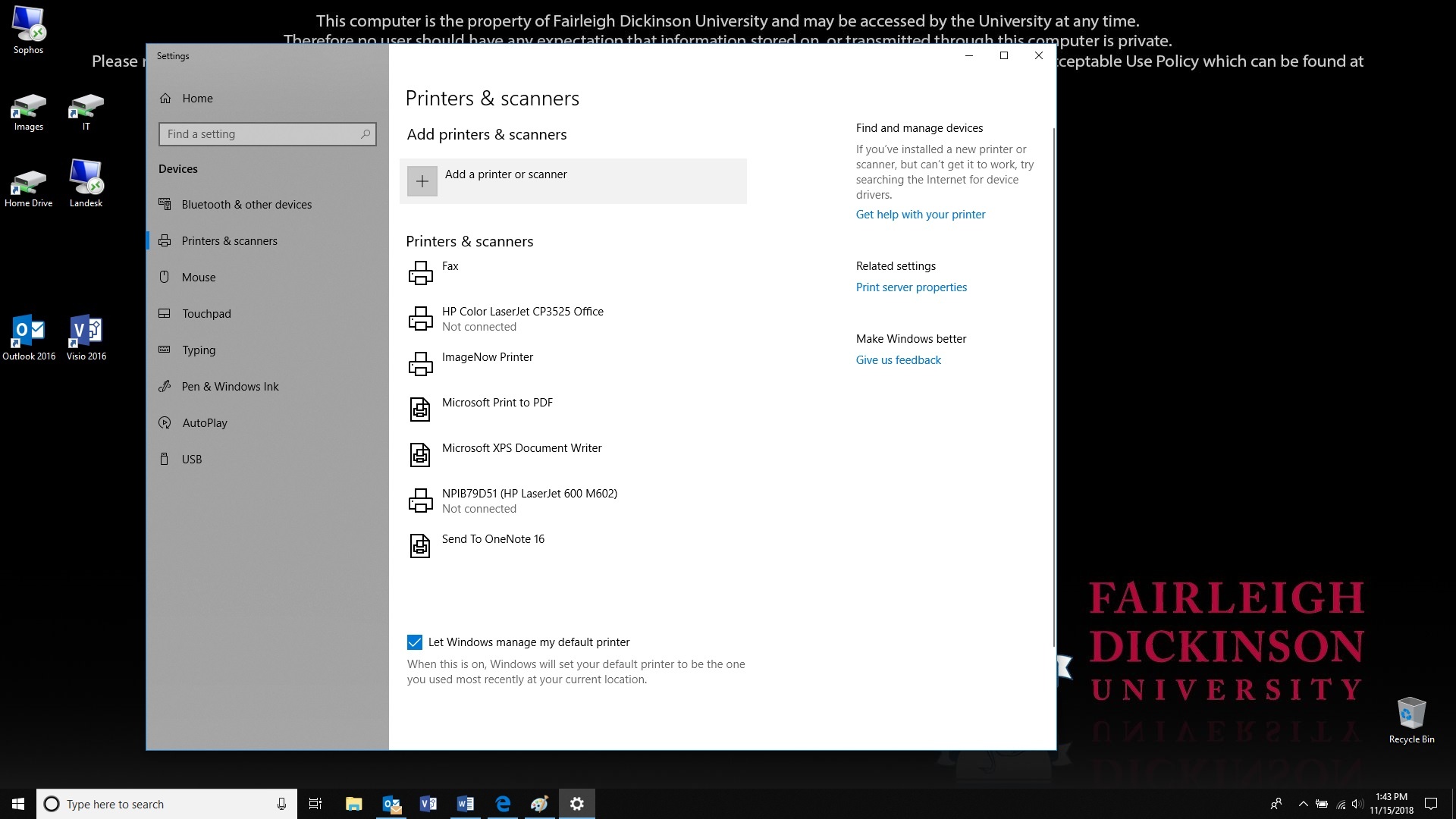
  1. Do a search for printers, and click on “Printers & Scanners”
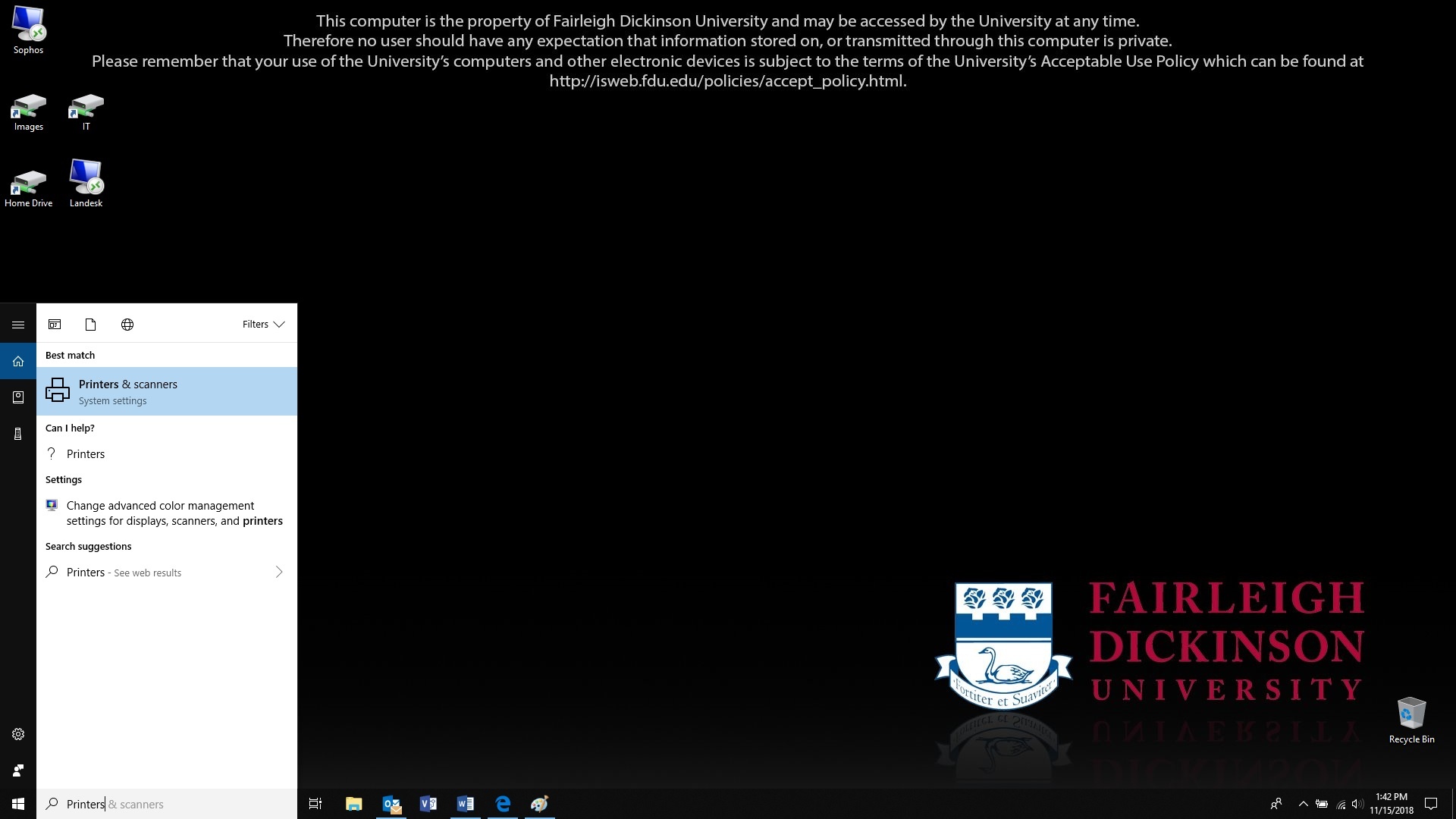
  2. Click on “Add a printer or scanner”

  3. The list will start to populate and if you find your printer you can click on it and then click on “Add device”, otherwise scroll down to the bottom of the list and select “The printer I wanted wasn’t listed”
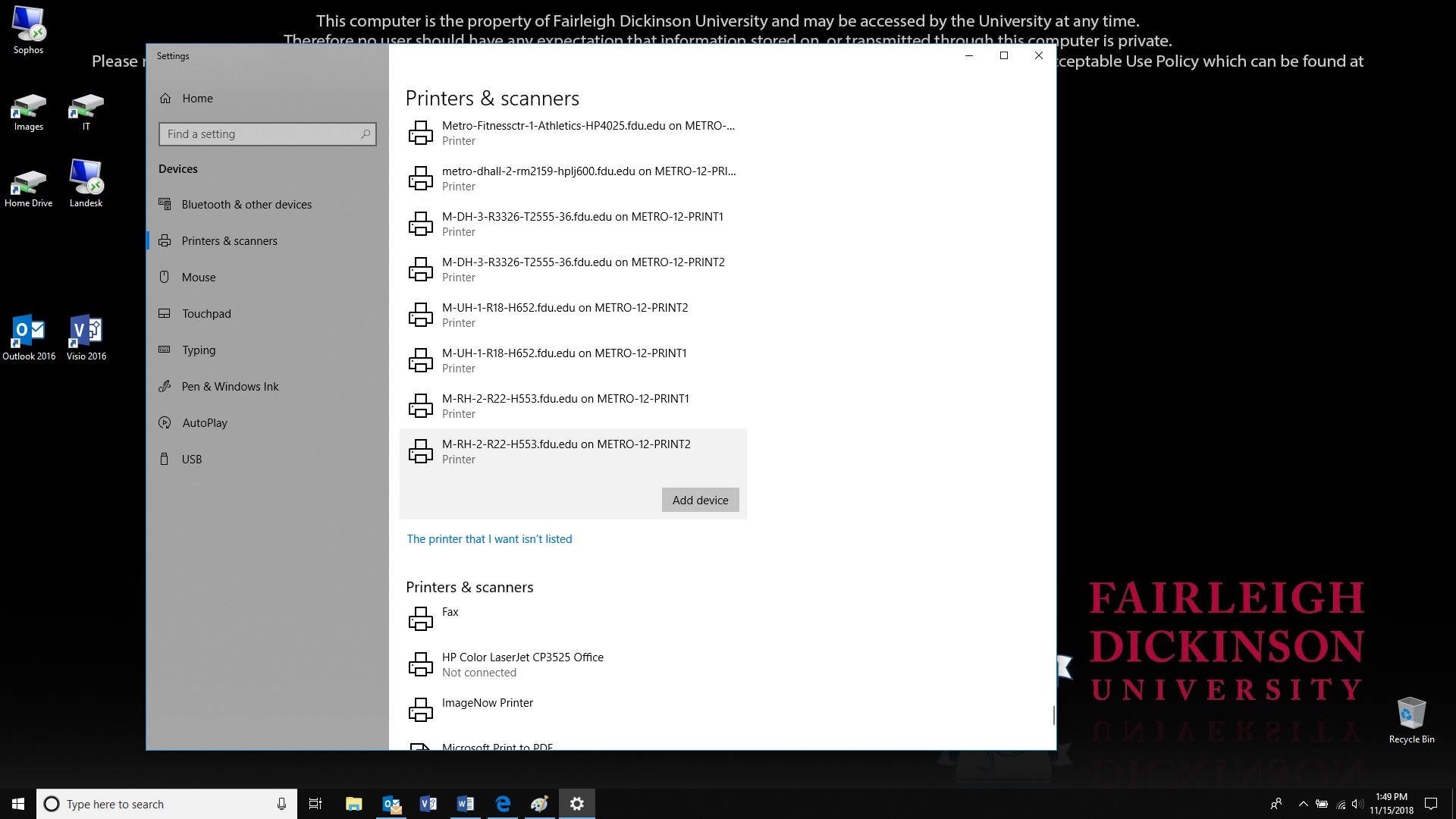
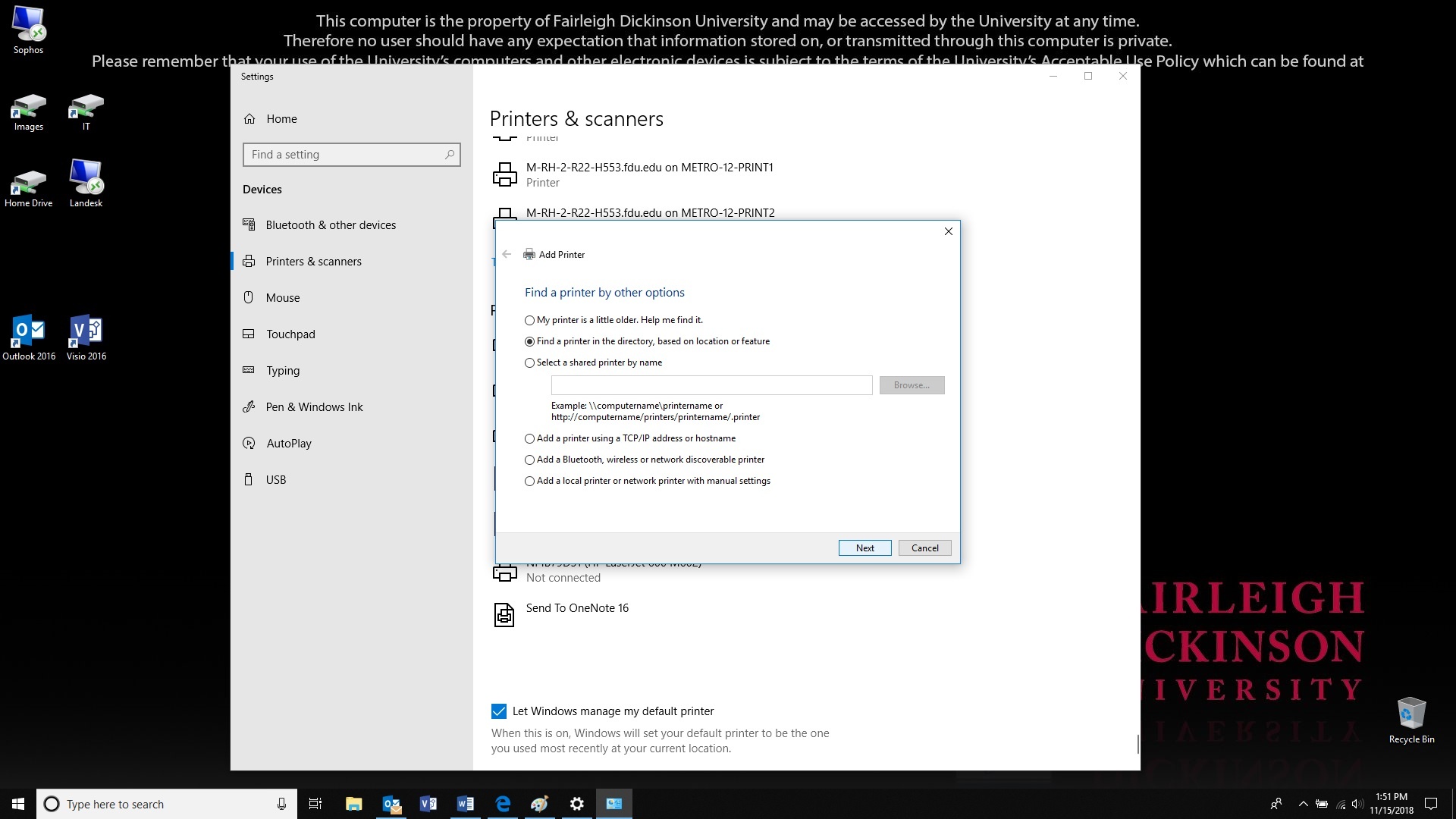
  4. In the new dialog box, select “Find a printer in the directory” and click “Next”
  5. Search for your printer and double click on it when you find it
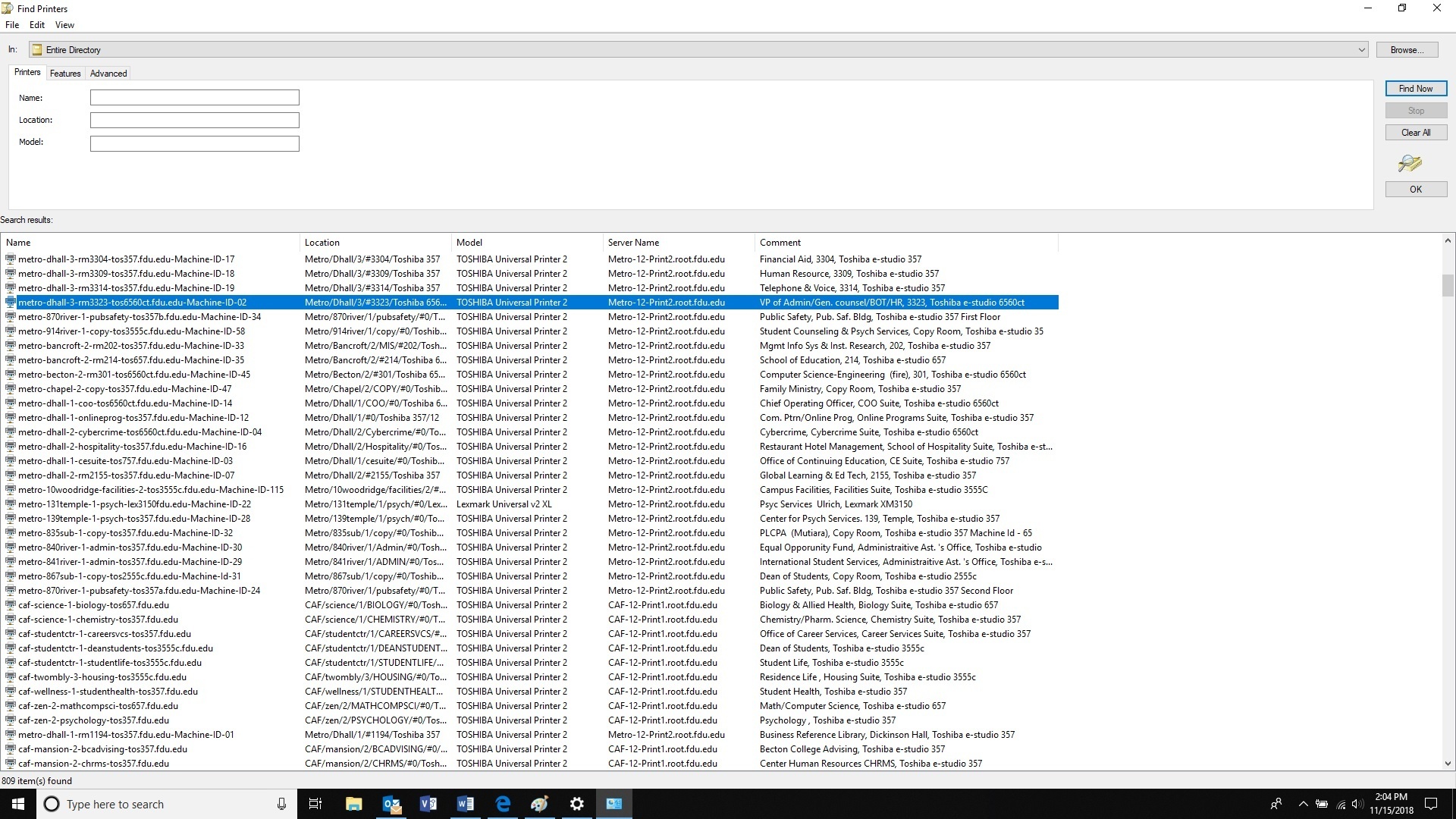
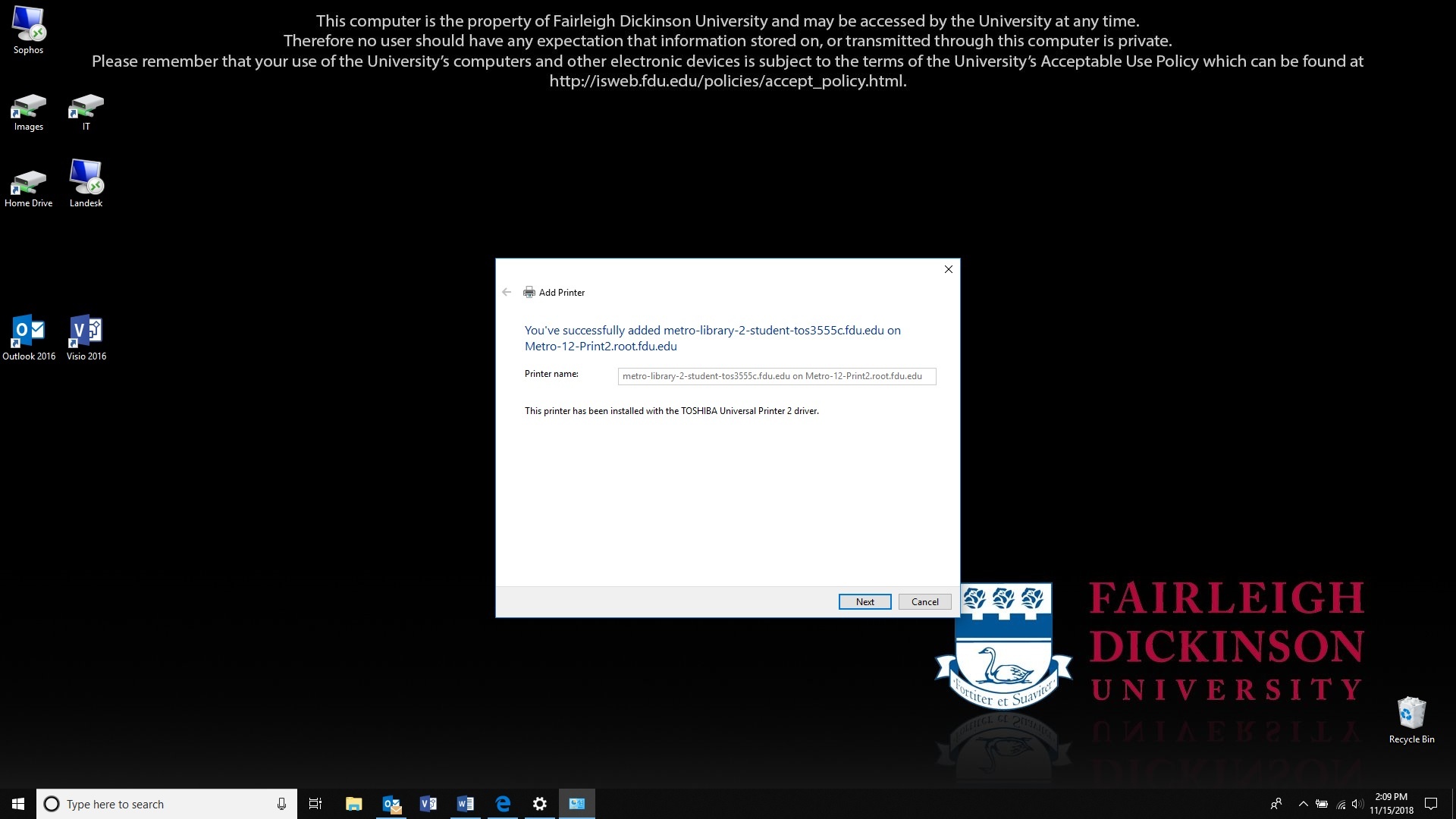
  6. A box will let you know that the printer was successfully installed. Click “Next”
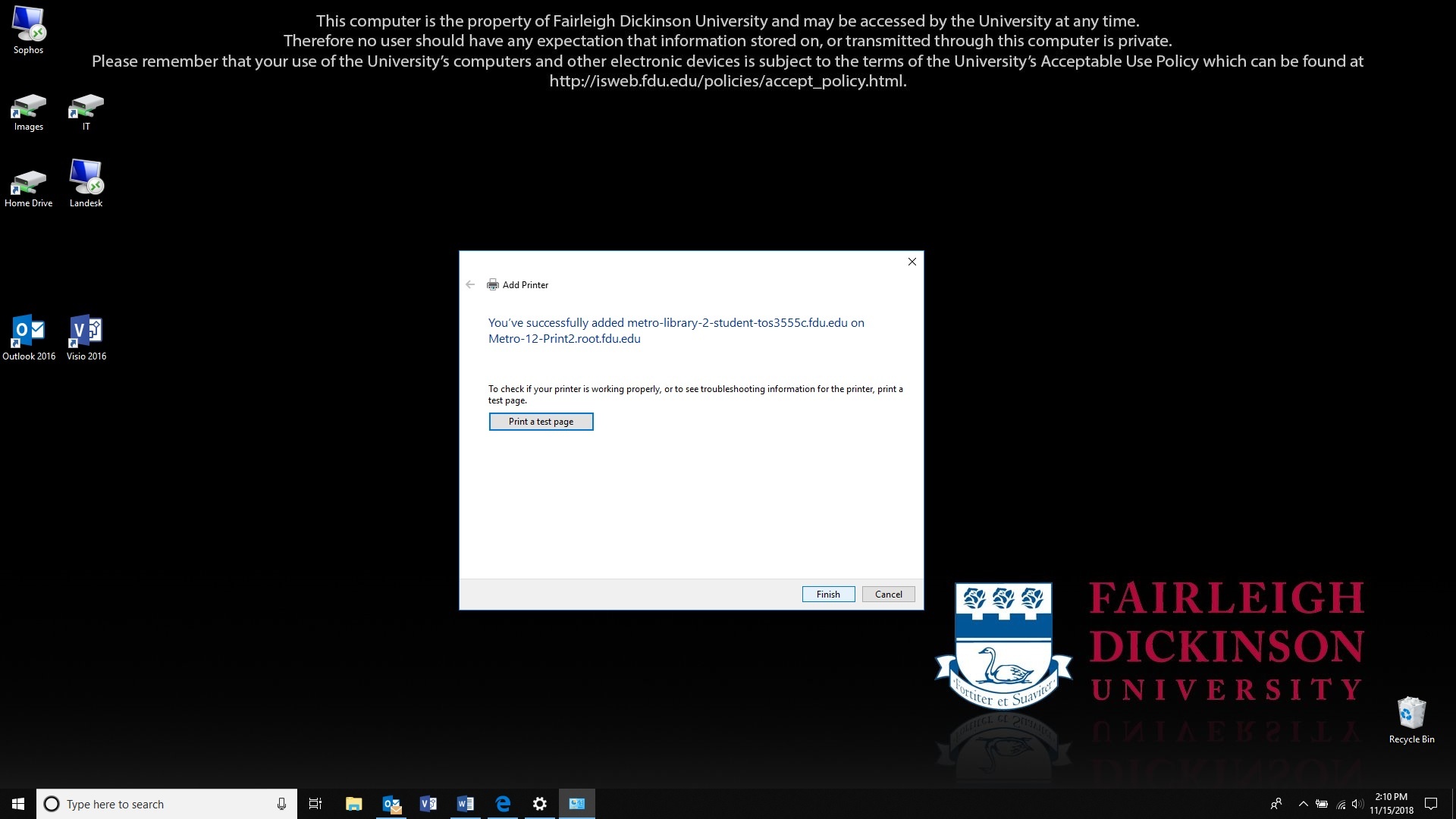
  7. You can click on “Print a Test Page” to verify you are connected to the right printer otherwise click on “Finish”
close
Last Modified:

Wired Network Requirements for Labs, Desktops, and Digital Displays

Resources for:
icon Close

Computing equipment in University computer labs, desktop computers assigned to employees or student workers, and all digital displays must connect to the FDU network through a wired (Ethernet) connection. This requirement applies across all departments and campuses. Laptop computers are not covered by this policy.

Why Wired Ethernet Is Required

University computer labs are provisioned for wired connectivity. Consistent performance and dedicated bandwidth help maintain standard system images, deliver software updates and security patches, and support sustained data transfers. Wireless connectivity does not meet these requirements for lab and desktop environments.

Wired and Wireless Connections

Wired Ethernet

A wired connection uses a physical Ethernet cable to connect a device to the network through a switch or router, which provides access to the internet.

Advantages

  • Typically faster and more consistent speeds.
  • Lower latency, which benefits real-time applications.
  • A wired connection is generally more secure because it is harder to intercept.
  • Unaffected by Wi-Fi congestion or radio interference.
  • Reliable for large file transfers and critical systems.

Tradeoffs

  • Requires physical cabling and is less flexible.
  • Cabling, labor, and infrastructure can make installation more costly.
  • Less convenient for mobile devices.
  • Equipment can be harder to move or reconfigure.

Wireless (Wi-Fi)

A wireless connection uses radio waves (Wi-Fi) to connect devices through a wireless access point to the network. These devices include laptops, phones, tablets, and Internet of Things (IoT) equipment.

Advantages

  • Mobility and flexibility within Wi-Fi range.
  • Can be easier to set up and expand.
  • No cable is needed at each device, reducing clutter.
  • Supports phones, tablets, laptops, and IoT devices.
  • Useful for guest access and temporary setups.

Tradeoffs

  • Speeds can be slower than wired connections and vary with the Wi-Fi standard and network load.
  • Higher latency can affect real-time applications.
  • Other devices and walls can interfere with a Wi-Fi connection.
  • Wireless connections can be less secure and more susceptible to eavesdropping if not properly secured.
  • Signal strength can vary with distance, creating weak-signal areas or dead zones.

Choosing the Right Connection

Wired is best when maximum speed, reliability, and security matter, especially for critical systems, large file transfers, and fixed workstations.

Wireless is best when mobility, flexibility, and convenience matter, especially for mobile devices, guests, temporary setups, and areas where running cables is impractical.

The Bottom Line

Both wired and wireless connections have a place. Modern networks often combine them to balance speed, security, flexibility, and coverage. At FDU, this general comparison does not change the requirement for labs, desktop computers, and digital displays covered by this policy: they must use wired Ethernet.

Requirements

  • Connect all lab computing equipment, including workstations, printers, and peripherals that require network access, through wired Ethernet.
  • Connect all desktop computers assigned to employees or student workers through wired Ethernet, regardless of location.
  • Connect all digital displays, including monitors in common areas, classrooms, and athletic venues, through wired Ethernet. Any ancillary device that requires internet access must also use a wired connection.
  • Do not use wireless connectivity in place of a required wired connection.

Exceptions

Any deviation, including a request to design or configure a lab or desktop environment for wireless connectivity, requires prior written approval from the Associate Vice President of Systems and Networking. Do not proceed with a wireless design or implementation until that approval is granted.

Cost of a Data Jack

The requesting department is responsible for the cost of providing an Ethernet data jack for an individual workstation.

Last Modified: