

Under FDU’s accessibility initiative, University communications must be prepared so they can be understood and used by everyone. These practices apply to any blast, bulk, or group email sent from an FDU account. Every Outlook email should be written and reviewed with accessibility in mind, whether it is sent from Windows, macOS, Outlook on the web, iPhone, or Android.
Make the Accessibility Checker part of your normal workflow and add alternative text (alt text) to every informative image. AI-generated descriptions are a starting point only; you are responsible for reviewing them for accuracy and context before sending.
Accessibility on Every Platform
Microsoft does not provide the same always-on warning option in every version of Outlook. Use the strongest available setting on your platform and complete an accessibility check before sending each message.
Make Accessibility Checks the Default
Outlook for Windows
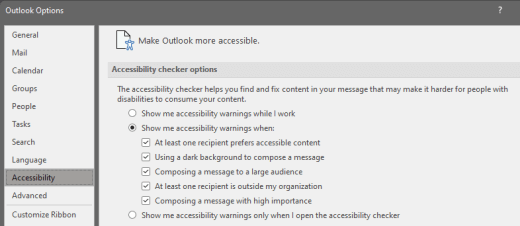
- Select “File” > “Options” > “Accessibility”
- Under “Accessibility checker options”, select “Show me accessibility warnings while I work”
- Review and correct any issues Outlook identifies before sending
Outlook for macOS
The Accessibility Checker runs in the background while you compose. Select “Check Accessibility” before sending. If the command is not on the toolbar, select “See more items” > “Customize Toolbar”, then add “Check Accessibility”.
Outlook on the Web
- While composing, select “Options” > “Check Accessibility” or “Message” > “Check Accessibility”
- Review and correct the issues in the Accessibility Checker pane
- To request accessible incoming email, open “Settings” > “General” > “Accessibility” and select “Ask senders to send content that’s accessible”
Outlook for iPhone and Android
Microsoft does not document a persistent Accessibility Checker setting for the mobile apps. Review each message manually. For every informative image, open the image’s context menu, select “Alt Text”, and enter a concise description of the image’s content and purpose.
Use AI-Generated Alt Text Carefully
Where automatic alt text is available in your version of Outlook, it can help create a first draft. Results may range from short descriptive tags to full sentences, so the sender must review and edit every suggestion for accuracy and context.

- In Outlook for Windows, select “File” > “Options” > “Accessibility”
- Under “Alt Text”, select “Enable the option to generate alt text using AI”
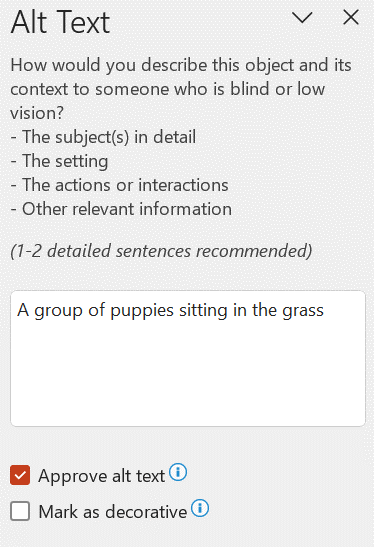
- Right-click an inserted image and select “View Alt Text”
- Edit the suggestion so it briefly explains the image’s meaning and purpose, removing any generated confidence note or disclaimer
- Select “Approve alt text” only after confirming the description is accurate
Writing Effective Alt Text
Keep alt text to one or two concise sentences. Describe what the image communicates in its email context. Do not use a file name, URL, or phrases such as ‘image of.’ Mark an image as decorative only when it provides no information.
Decorative Images
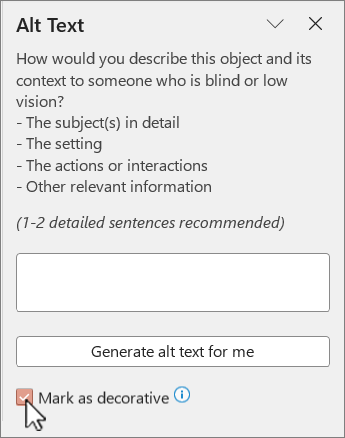
If an image adds visual interest but communicates no information, open the “Alt Text” pane and select “Mark as decorative”. Screen readers will then skip the image so recipients know they are not missing meaningful content.
Videos
When a video contains important visual information that is not explained by its audio, provide a text description of the video’s content and purpose. Whenever possible, include an audio-described version or secondary audio track for visual details.
Tables
Add concise alt text that explains a table’s purpose and the information it communicates. Do this even when the Accessibility Checker does not report missing table alt text.
Before You Send
- Add reviewed alt text to every informative embedded image
- Include your FDU signature or other contact information
- Use meaningful link text instead of phrases such as “click here”
- Do not rely on color or an image alone to communicate essential information
- Run the Accessibility Checker and resolve its findings
Microsoft Accessibility Resources
Learn how to write concise, meaningful alternative text and decide when an image should be marked as decorative.
Review Microsoft’s Outlook-specific guidance for accessible formatting, links, images, tables, and the Accessibility Checker.
 Feedback
 Copy Link


