


This guide explains two methods for downloading files from OneDrive using either the web version or the OneDrive client application.
Web Version
- Go to your web browser and navigate to office365.fdu.edu
- Sign in using your FDU account, enter your FDU username and password, complete DUO MFA verification by selecting “Approve”, and then select your Microsoft account (your FDU account)
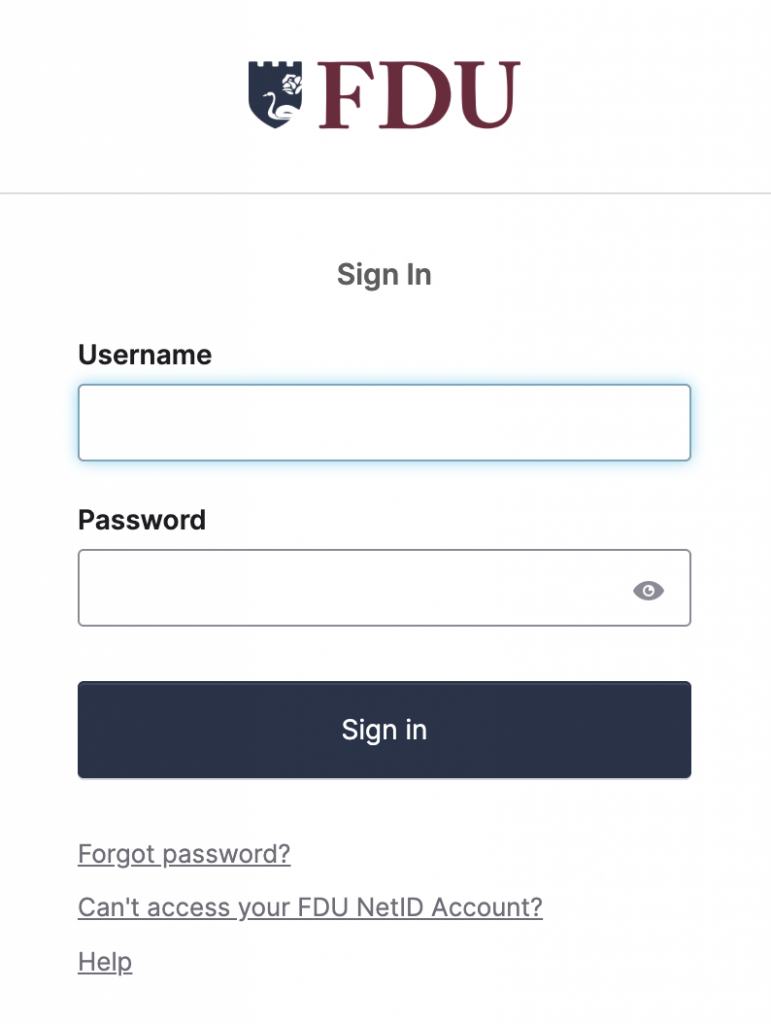
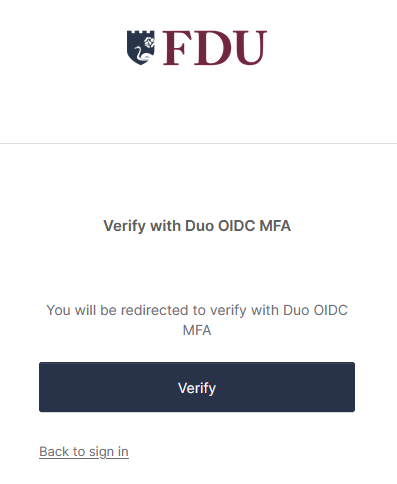
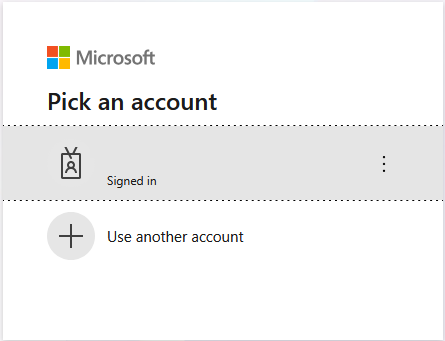
- After signing in, you will be taken to Web Outlook by default
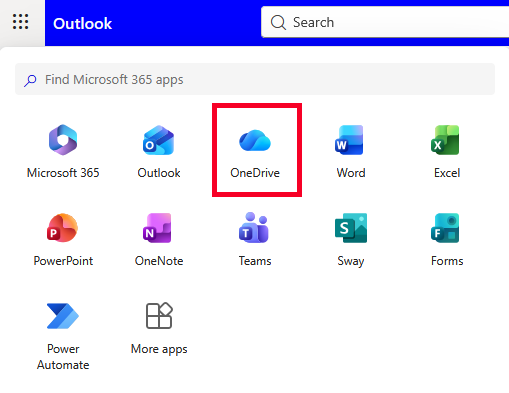
- Click the “App Launcher” (9 dots in the top-left corner)

- Click “OneDrive”
- In the left column, click “My Files”
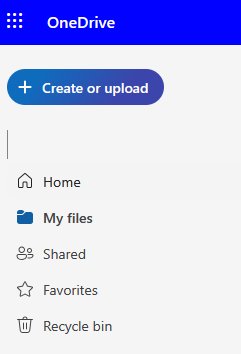
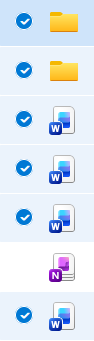
- All files on your OneDrive will be displayed under My Files. To select all files, hover to the left of “Name”

Note
OneNote files cannot be downloaded in bulk. If a downloaded folder contains a OneNote notebook, the .zip file will include an error message in a .txt file.
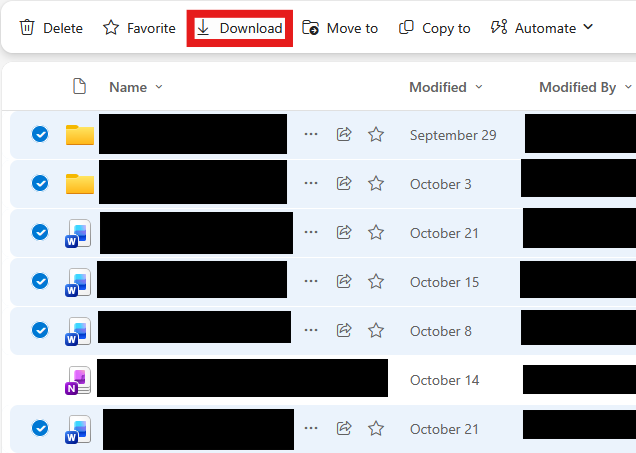
- Unselect any OneNote notebooks
- Click “Download” icon
- OneDrive will prepare a .zip file which will download to your computer
close
OneDrive Client
- Install the Microsoft OneDrive client for Windows or macOS

- After installation, open OneDrive on your computer
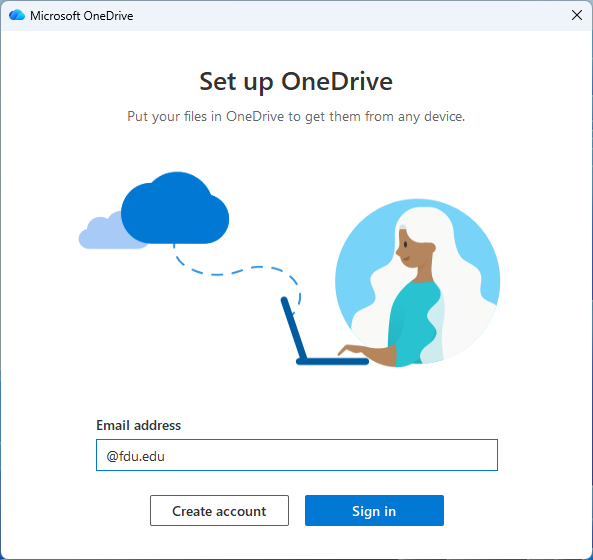
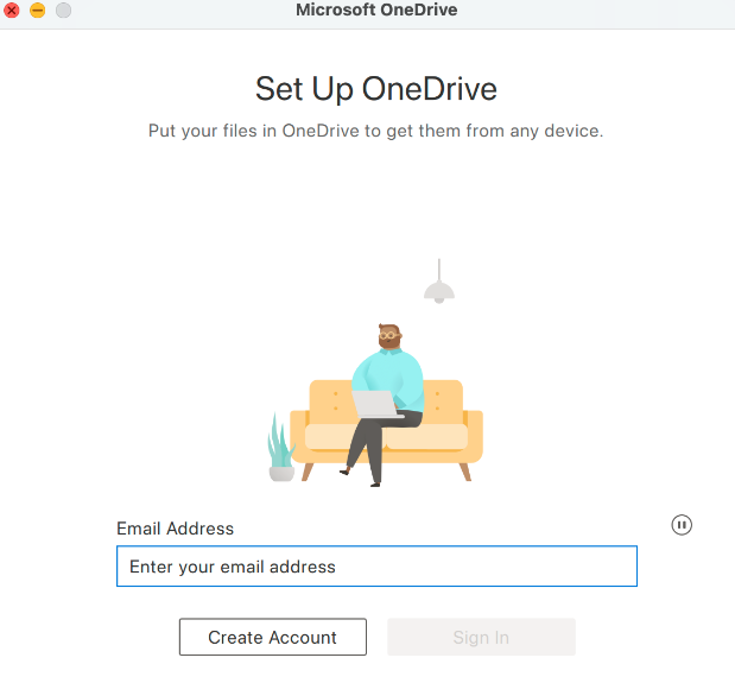
- When prompted, sign in using your FDU email and password
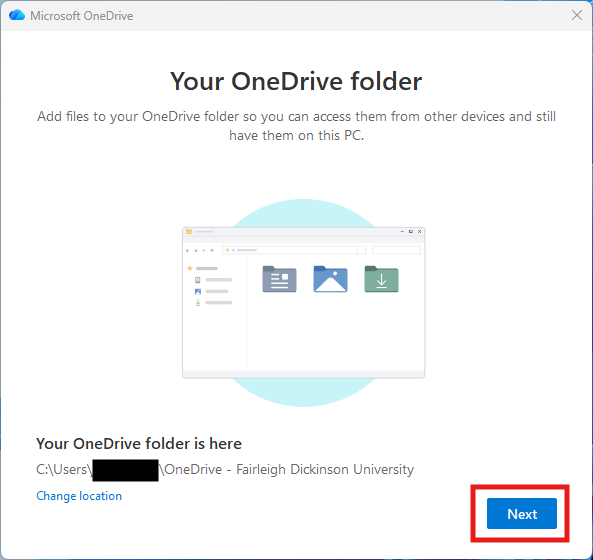
- Review the default OneDrive folder location and click “Next”
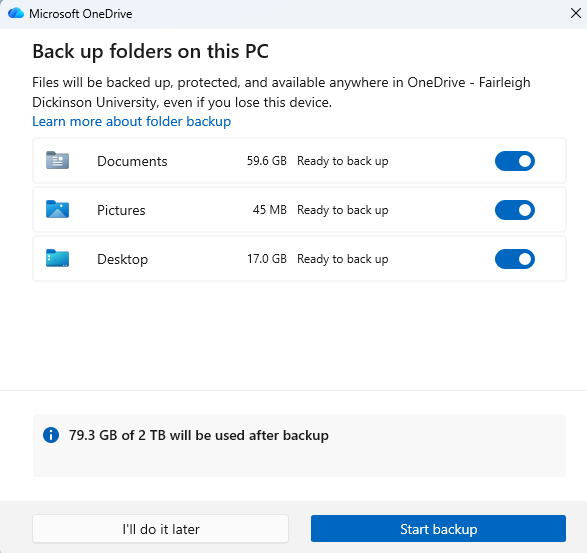
- When prompted to back up folders, click “I’ll do it later”
- In the “Get to know your OneDrive” window, click “Next”

- In the “Share files and folders” window, click “Next”

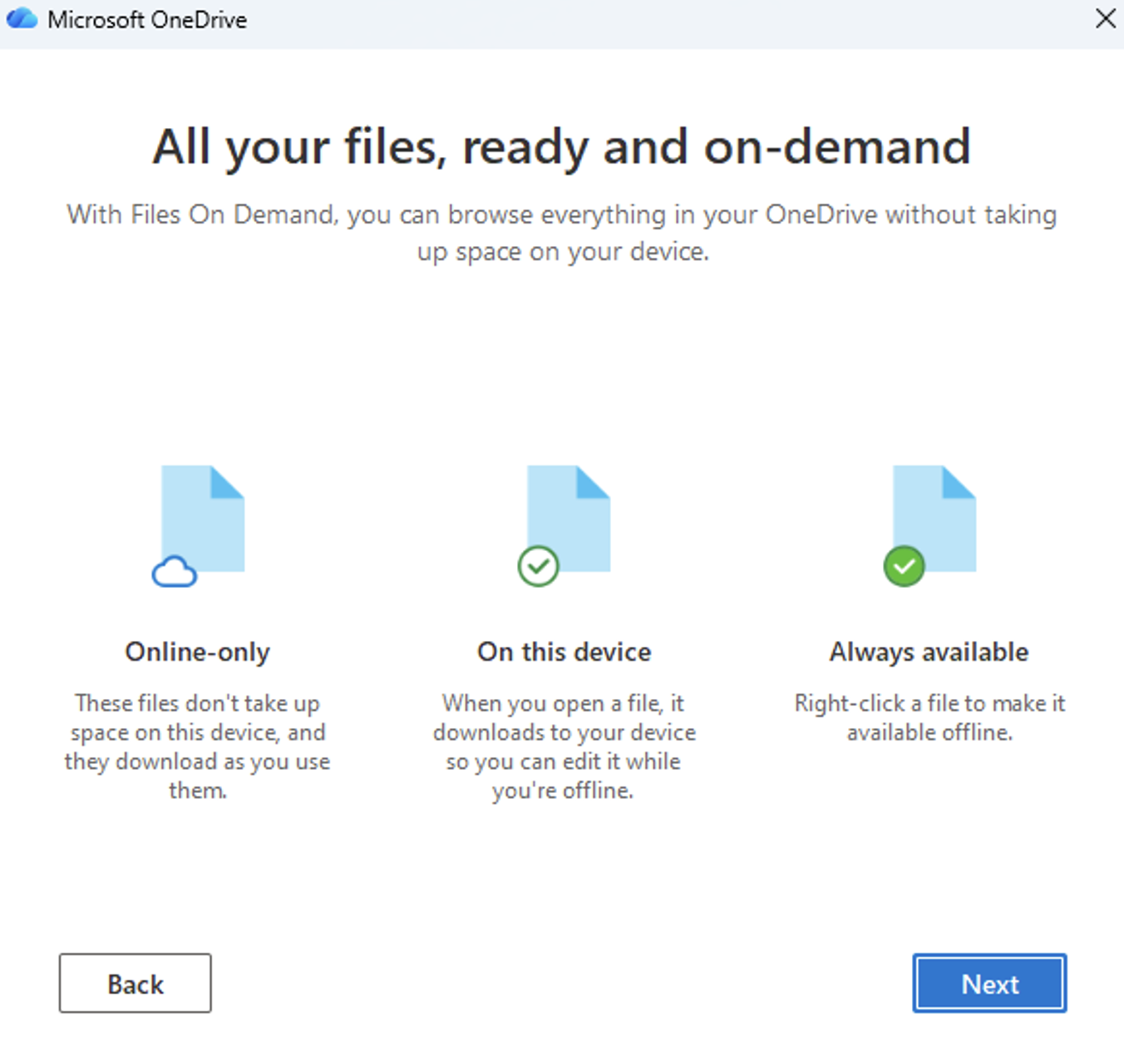
- In the “All your files, ready on-demand” window, click “Next”
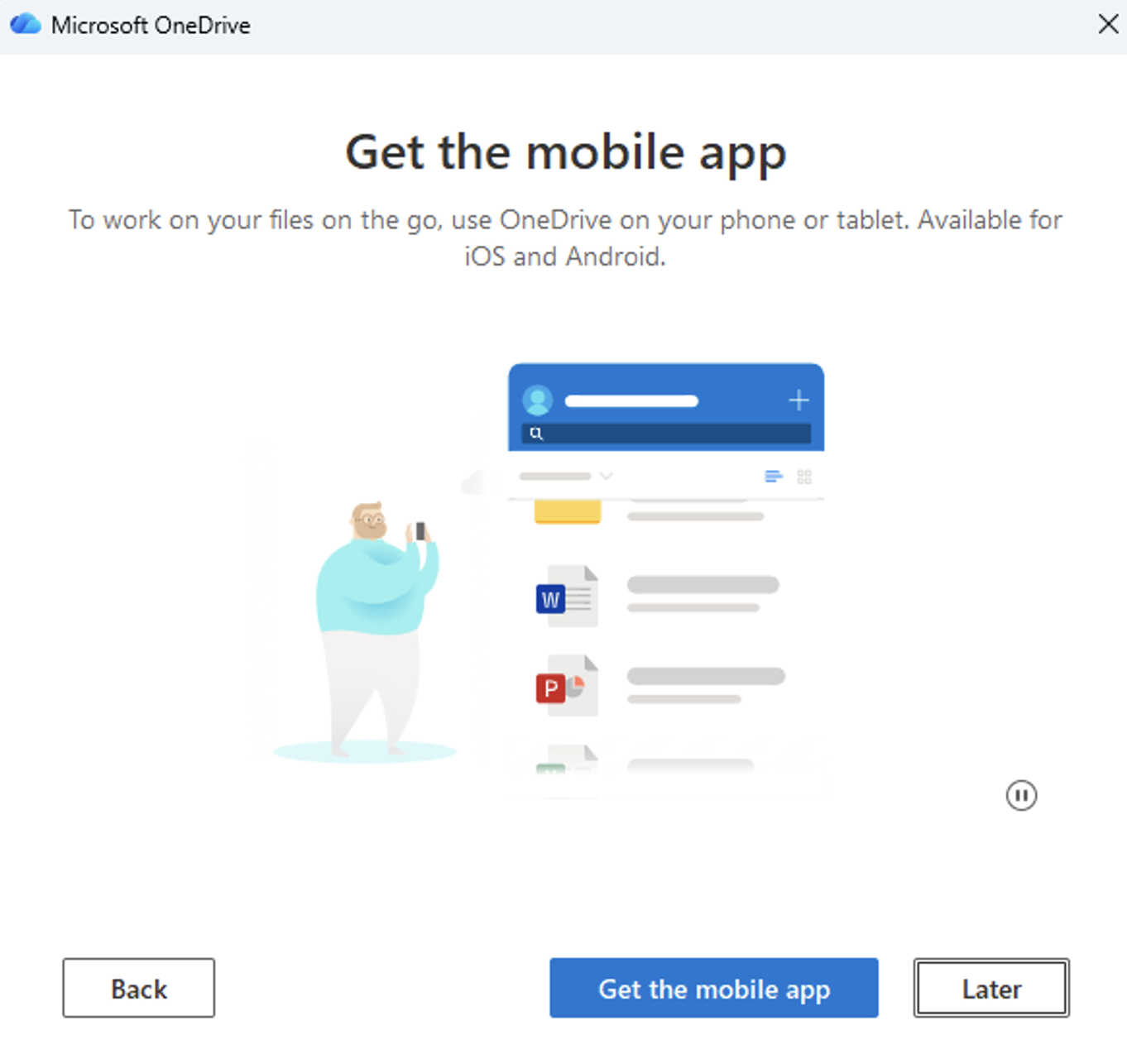
- In the “Get the mobile app” window, click “Later”
- When “Your OneDrive is ready for you” appears, click “Open my OneDrive Folder”

- OneDrive setup is now complete
- Locate your folder in OneDrive and drag or copy the files to your computer. Ensure files are saved outside the FDU OneDrive folder
After transferring your files, unlink your account using the steps below:
For Windows
- Click the “OneDrive” icon in the taskbar

- Click the “Gear” icon
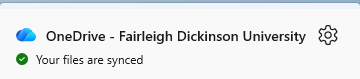
- Click “Quit OneDrive”
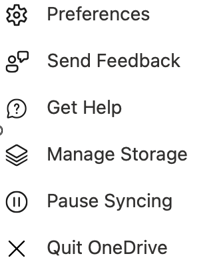
- Confirm by clicking “Close OneDrive”

Your OneDrive account is now unlinked.
For macOS
- Click the “OneDrive” icon in the top menu bar

- Click the “Gear” icon

- Click “Quit OneDrive”
- Confirm the action
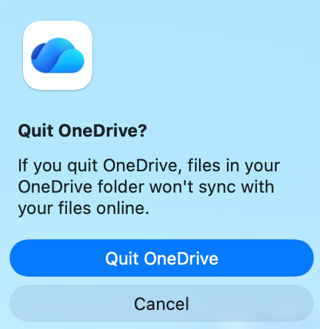
Your OneDrive account is now unlinked.
close
Download Limitations
- You cannot download files directly from the Shared view. Open the file and save a copy to your preferred location.
- The Download button may disappear if you refresh the page while viewing a folder. Go up one directory and return, or close and reopen the tab.
- Download limits include: 250GB file size limit; 10,000 total file limit; 10,000 files per folder.
- When downloading multiple compressed files (e.g., .zip or .mp4), the size limit is 10GB per .zip file and 20GB total.
- Files protected by sensitivity labels or IRM larger than 4MB will not be included in a bulk download. Download these files individually.
 Feedback
 Copy Link


