


All students, faculty, and staff can submit SoftDocs forms through FDU webpages or directly in SoftDocs Etrieve Central. Etrieve Central is a browser-based, mobile-friendly electronic forms and document management system.
- Students only see student forms
- Employees only see employee forms
If you cannot find or access a form you were instructed to complete, submit a service request through the SAMI Support Portal.
Accessing and Submitting SoftDocs Forms
When you click a link to a SoftDocs form on an FDU webpage, you may be prompted to log in using SSO to access the form. If the form is anonymous, you will not be prompted to log in.
You can also log in directly to SoftDocs Etrieve Central:
If prompted to log in using SSO, use your FDU NetID/email and password. You may briefly see a redirect to the Duo authentication page.
Etrieve Central Layout
Etrieve Central has two sections:
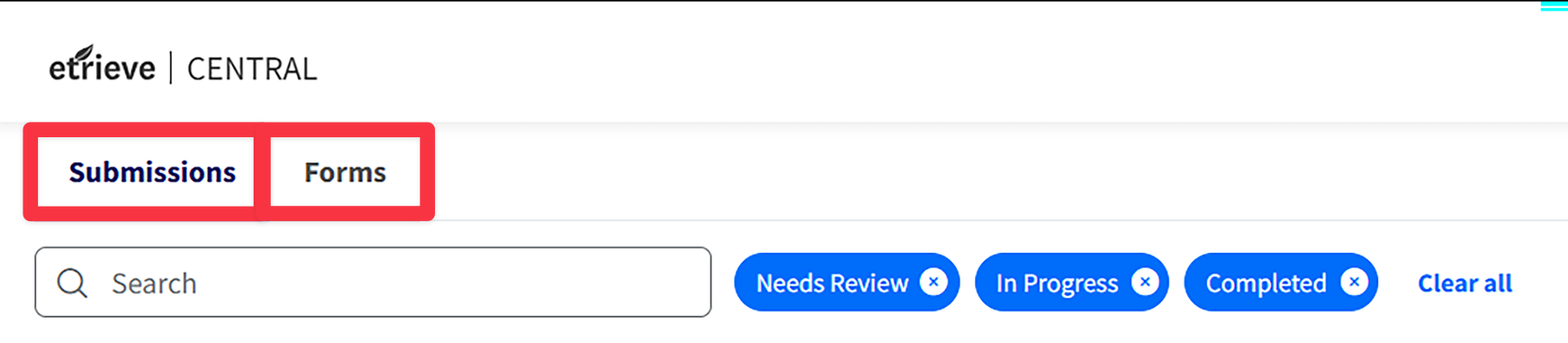
- Submissions: All forms that you initiated or otherwise took part in during an approval process
- Forms: A list of all forms you have permission to complete and submit
The Submissions Panel
This section automatically prioritizes items that need your attention. You can also change the filter:
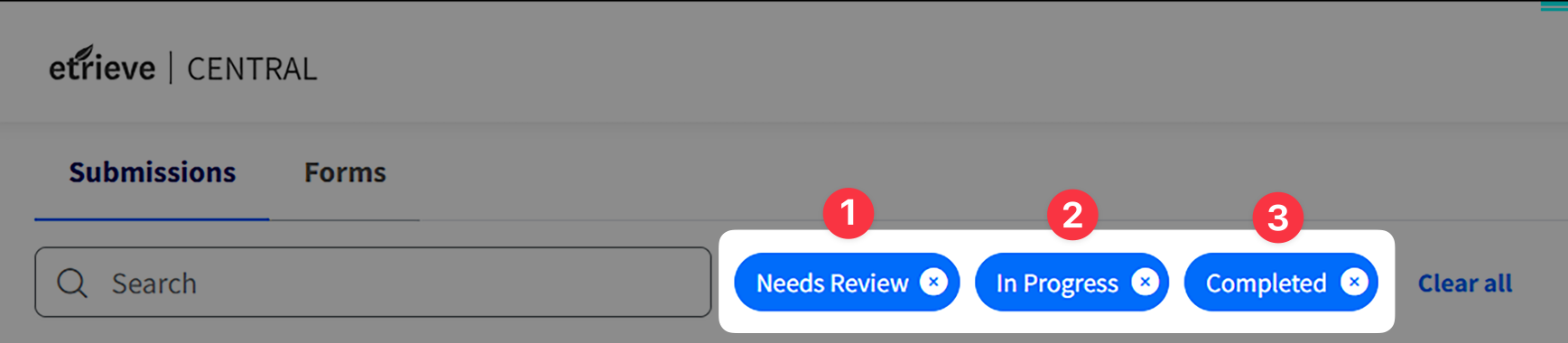
- Needs Review: Items requiring review (default view)
- In Progress: Forms you submitted, approved, or processed that are still in a workflow.
- Completed: Forms you submitted, approved, or otherwise processed
Note
If you have no forms in Needs Review, the system defaults to In Progress. If you have no forms in Needs Review or In Progress, the system defaults to Completed.
Use Search to find text that appears in the Package Name, Workflow, or Submitter columns. You can also sort and filter columns.

- Package Name: Typically a dynamic value that often includes information submitted by the form initiator (for example, Form Name + Student Name + Student ID)
- This value is frequently used in email notifications
- Workflow: How the form is routed (often shares the name of the form)
- Step: The current step where the form is sitting in the workflow (workflows often have multiple steps)
When you select a submission, the form opens in a new window with three sections:
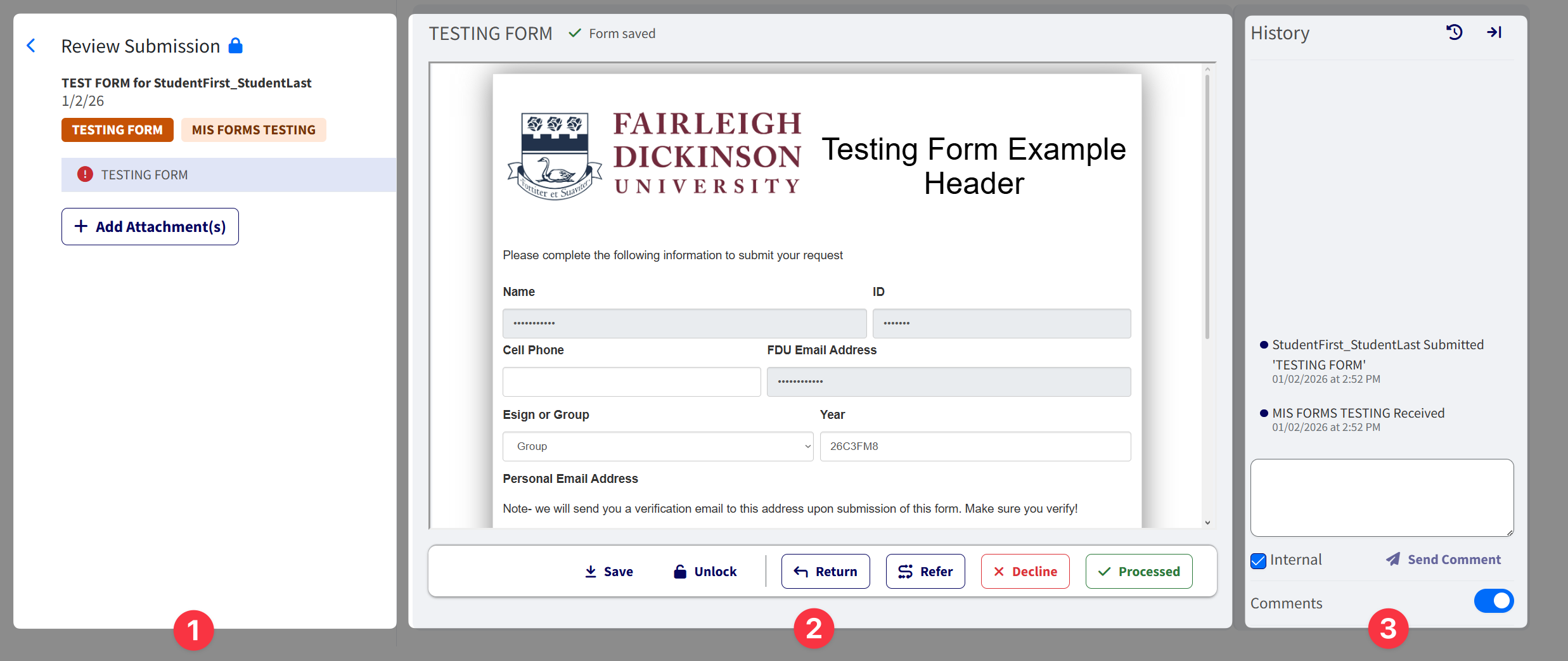
- Review Submission: Package information and attachments
- Content Panel: Form content and actions (for example, Approve, Decline)
- History: History, comments, and auditing
Tip
The history panel can be minimized using the minimize icon located on the top right.
The Forms Panel
- Locate the form you want to submit (organized by department)
- Fill out the form completely
- Click “Submit”
Note
Required fields left blank are highlighted in red. You’ll also see a prompt reminding you to enter text before submitting. At the bottom of the form, you can add attachments, download, or print.
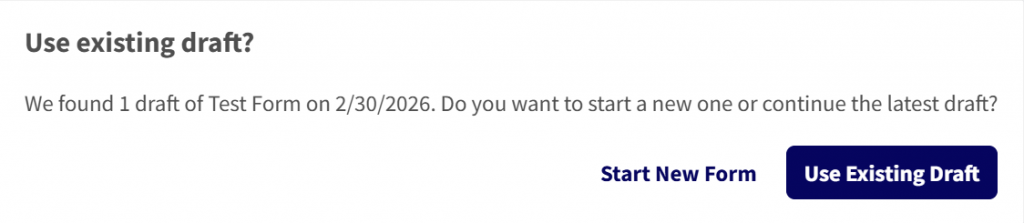
The Drafts dropdown stores incomplete forms. If you try to start a new form and already have a draft started, you’ll be reminded about your draft.
SoftDocs Approval Process
After a user submits a form, it advances to the next step in the workflow for approval.
Approvers receive an email when a form is awaiting their review.
Selecting “Needs Review” under the Submissions Panel also provides pending forms assigned to them individually or to their group.
Depending on the workflow, an approver can Approve, Decline, Return for correction, or Refer the form to another person.

- If a form is referred, the referred party takes the place of the current reviewer in the workflow
- Once the referred party approves, the workflow continues along its path
Note
Buttons are customizable, so one form may display “Processed” where another displays “Approved”.

Tip
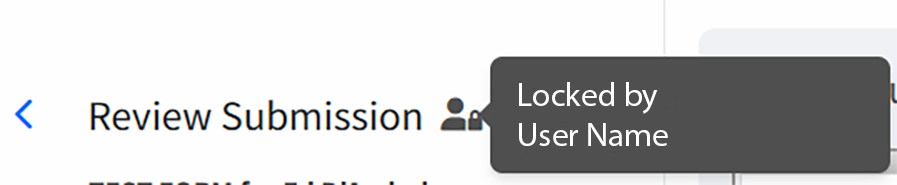
Forms can be locked or unlocked using the lock icon. You can also see who is locking the form using the same icon in the left panel.
When a form reaches the final approval step, the submitter may or may not receive an email (depending on the workflow configuration). Approved forms always appear under Submissions > Completed, for FDU SSO users, once the process is complete.
After the workflow finishes, the final document is stored in the Etrieve Content document management system. Departments that own the form can view filed documents in Etrieve Content if they have been granted access.
If access to Etrieve Content is needed, submit the SoftDocs Etrieve Account Request form. A supervisor must initiate the request. It then routes to the new Etrieve user for approval before arriving at MIS.
Softdocs Etrieve Account Request Form
SoftDocs Notifications
When a SoftDocs form is submitted, the first user or group in the workflow receives an email from FDU Forms (hostname: fdu-svc-softdocs@c.fdu.edu) containing a link to the SoftDocs package.
Email Notification Examples
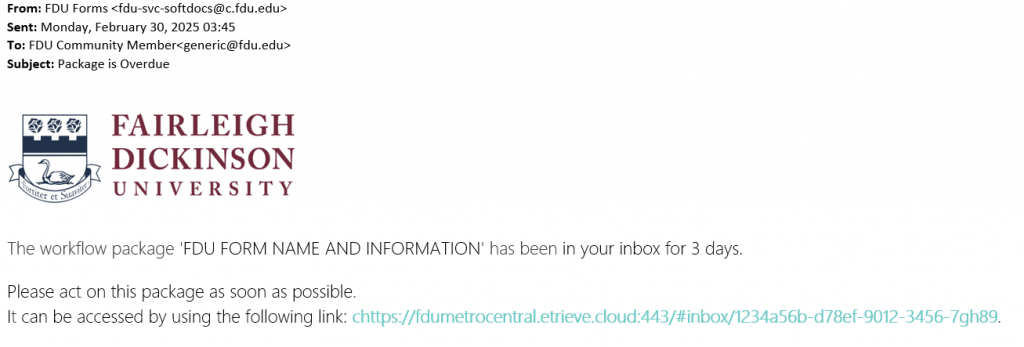
Overdue Notifications: If a package remains in a user’s inbox beyond the time limit defined in the workflow, SoftDocs sends a reminder email with the subject line “Package Overdue”.
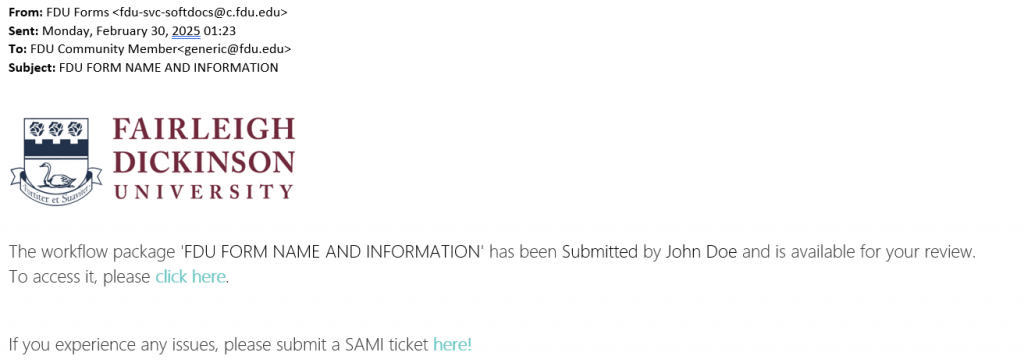
Submission Example: At each step in the workflow, all assigned users or groups receive an email notification. Each notification includes the name of the previous approver.
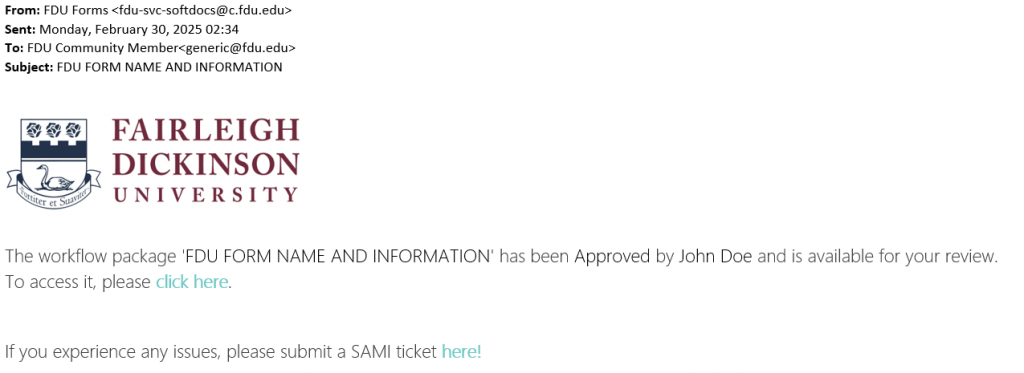
Overdue Notifications
If a package remains in a user’s inbox beyond the time limit defined in the workflow, SoftDocs sends a reminder email with the subject line “Package Overdue” to prompt the user to take action.
 Feedback
 Copy Link


