Microsoft

Reporting Phishing or Junk Emails

Resources for:
icon Close

The Report Message add-in works with Outlook to allow you to report suspicious messages to Microsoft and manage how your Microsoft 365 email account treats these messages.

Messages marked as junk by your Microsoft 365 email account are automatically moved to your Junk Email folder. However, spammers and phishing attempts are continually evolving. If you receive a junk email in your Inbox, you can use the Report Message add-in to send the message to Microsoft, helping improve spam filters. If you find an email in your Junk Email folder that is not spam, you can use the add-in to mark it as legitimate, move it to your Inbox, and report the false positive to help Microsoft enhance the filters.

What is Junk Email?

Junk email, often referred to as spam, consists of messages you do not want to receive. These emails may advertise unwanted products or contain content that is offensive. If you select the Junk option, a copy of the message may be sent to Microsoft to improve spam filters, and the message will be moved to your Junk Email folder.

What is Phishing?

Phishing is a tactic used to trick you into disclosing personal information, such as bank account numbers and passwords. Phishing messages often appear legitimate but contain deceptive links that lead to fake websites. If you select Phishing, a copy of the message may be sent to Microsoft to improve filters, and the message will be moved to your Junk Email folder.

For more information and tips on spotting phishing emails, please refer to the following support article:

How to Spot a Phishing Scam

Microsoft has recently updated the process for reporting phishing or junk emails in Microsoft 365 Outlook and classic Outlook clients. With this update, a new Report Message button is now available in a dedicated tab within the Outlook client.


Outlook Web and Desktop Client
Classic Outlook

Reporting a Message as Phishing/Junk

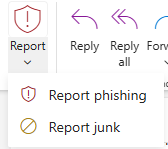
By default, the Report button is inactive (grayed out). To activate the button and report a message as phishing or junk, the email must first be highlighted.

To report a message as Phishing or Junk:

  1. Click on the email message you want to report
  2. Click the “Report” button
  3. Select either “Report phishing” or “Report junk” to properly submit the message
Note

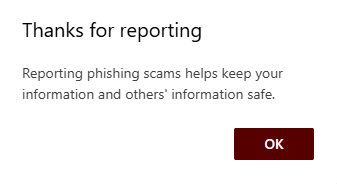
Clicking Report Phishing will delete the email.

  1. Click “OK” on the confirmation window

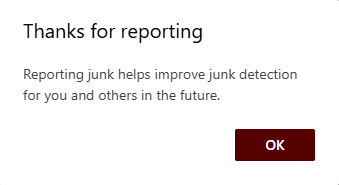
A secondary window will appear, explaining that regularly reporting junk emails helps improve junk email filtering in the future.
What is a Legitimate Email?

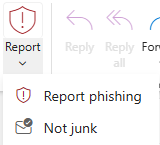
A legitimate email is one that comes from a sender you know, are expecting, or that has been mistakenly marked as junk. If this happens, you can use the Report button to mark the message as Not Junk. This will move the message from your Junk Email folder back to your Inbox.

Reporting Messages as Not Junk:

  1. Click on the “Junk Email” folder in Outlook
  2. Select the email message you want to report as “Not Junk
  3. Click the “Report” button
  4. Select “Not Junk” to properly report the message
Tip

If a legitimate email has been mistakenly reported as phishing, please open a SAMI Support ticket by clicking the Get Support button below.

Last Modified:

Software Compliance & Distribution Policy

Resources for:
icon Close

In accordance with FDU’s Acceptable Use Policy for Computer Usage, no employee shall copy or distribute software that violates copyright laws. All employees shall be aware that software and the accompanying documentation is generally owned by the manufacturer and the license only grants the user the right to use the software. Unlicensed software installations, also known as software piracy, are unacceptable at FDU.

The primary user of each computer shall take responsibility of keeping records of licenses for which software is installed. The University’s Computing Services Department shall also track licenses for software installed by the Computing Services Department though the purchase of high volume or site licenses. Users are advised that the software installed on University-owned computers may be audited internally (by the University) or externally (by software manufacturers or other anti-piracy software firms) at any time. Software found not to be in compliance with copyright laws will be removed and replaced with a licensed copy.

Computing Services will provide certain software that is commonly used by the majority of the University’s employees, including but not limited to word processing, spreadsheet, and anti-virus software. Some software manufacturers allow for non-concurrent use of a license on an office computer and an employee’s home computer. Computing Services will not provide non-concurrent licenses at off premise sites due to the inability to track these licenses.

In order to provide the best possible service and support, and to reduce the cost of software site licenses, Computing Services, in conjunction with the Center for Learning and Teaching with Technology, has standardized on Microsoft Office Professional and Symantec Endpoint Protection.

Popular Software Titles and Guidelines for Faculty and Staff to Obtain:

  • Microsoft Office for Windows or Macintosh: Available through standard deployment of leased or owned equipment or by request for any University-owned PC or Mac.
  • Microsoft Visual Studio: Installed in Labs. Available by request for staff and faculty machines.
  • Adobe Acrobat: Available by request for staff and faculty machines.
  • SAS: Installed in Labs. Available by request for staff, faculty and student machines.
  • SPSS (Base): Installed in Labs. Available by request for staff and faculty machines.
  • SPSS Advanced Modules: Available by request for staff and faculty machines.
  • Adobe Products: Faculty and staff may purchase Adobe products at level three pricing with the University’s CLP Membership No. 4400062846.
  • Symantec Endpoint Protection: Available through standard deployment of leased or owned equipment or by request for any University-owned PC or Mac.
  • Other products: Faculty and staff may obtain pricing and submit orders to Purchasing. If assistance is needed, contact Computing Services.

Software Quality Assurance and Compliance Policy for Network Server & Lab Installations

It is no longer possible for individuals to install software on staff or faculty desktops or lab computers. Laptops or Macintosh users have administrative rights and individuals can install additional licensed software to laptops.

Instructors wishing to have a software application installed in a lab for use by 20 or more people simultaneously must provide Computing Services the original installation media, installation guide, and the appropriate proof of license. Note that the licenses for some software may limit our ability to install it on the network. These materials must be provided a minimum of sixty days before the software is needed. Because it is impossible to predict how the software will interact with our network and other software already installed, we cannot guarantee that a program will work on our system.

For programs that will be used by less than 20 people, the instructor may install the application on up to 5 machines in a lab not normally used for classroom instruction, plus an “instructor’s machine” in one of the teaching labs. If fewer licenses are owned, then only that many licenses may be installed. The instructor will be told which machines to install the program on and will be given a password which can be used to disable the security on the machine for the duration of the installation procedure. Software installed in this way will only be available on those designated machines. Computing Services will make a reasonable attempt to keep these designated systems functioning with the additional software, but in the event that the machine needs to have it’s base configuration and software restored from backup, the instructor will be contacted and will need to reinstall the application.

In all cases, software must be owned or licensed by the University, even if the application is only to be used for demonstration purposes. No software owned by an individual will be installed on the systems.

Last Modified: