

FDU Network Share Mounter lets faculty and staff quickly connect to their FDU DFS network shares from the macOS menu bar. Once the shares are mounted, you can access them in Finder. Use the steps below to mount, unmount, or view your network shares.
Note
If you are off campus, connect to the FDU VPN before mounting your network shares.
- Locate the Network Share Mounter icon in the macOS menu bar


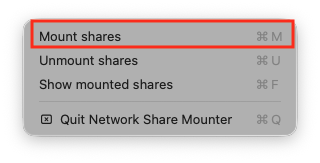
- Click the Network Share Mounter icon and select Mount Shares
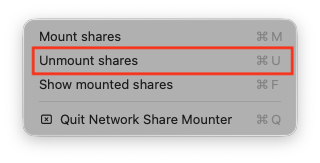
- Click the Network Share Mounter icon and select Unmount Shares when you no longer need access
- Click the Network Share Mounter icon and select Show Mounted Shares to open a Finder window displaying your network shares
Get Help
If you need help connecting to the FDU VPN or accessing your network shares, submit a request through SAMI Support.
 Feedback
 Copy Link


