Resources

Explore our comprehensive IT resource library to discover a wealth of helpful information tailored to your needs. Utilize our filters to refine your search by role at FDU, department, or specific service for a more personalized experience.

Support
Resources Header

Using Respondus LockDown Browser and Monitor

Resources for:
icon Close

LockDown Browser is a specialized browser that secures the testing environment in Blackboard Learn. When students use LockDown Browser to take a test on Blackboard, they are prevented from printing, copying, navigating to other websites, accessing other applications, or closing the test until it is submitted for grading. Tests designed to work with LockDown Browser cannot be accessed using standard web browsers.

System Requirements 

Windows

  • Windows 10 (including x86 32-bit and 64-bit processors and ARM 64-bit processors using x86 emulation), Windows 8, and Windows 7
  • 2 GB RAM
  • 200 MB of free Hard Disk space

Windows 10S

Windows 10S is not a compatible operating system.

macOS

  • macOS 10.12 to 10.15
  • 2 GB RAM
  • 200 MB of free Hard Disk space

iOS

  • iOS 11.0+

Older Operating Systems

LockDown Browser and Respondus Monitor may continue to run in older operating systems that have reached “end-of-life” but students may encounter unexpected results.

close
Setting up and Using Respondus LockDown Browser Monitor
  1. Log into your course in WebCampus and deploy a test. This step is important, as you will not be able to use Respondus LockDown Browser unless you have created and deployed a test
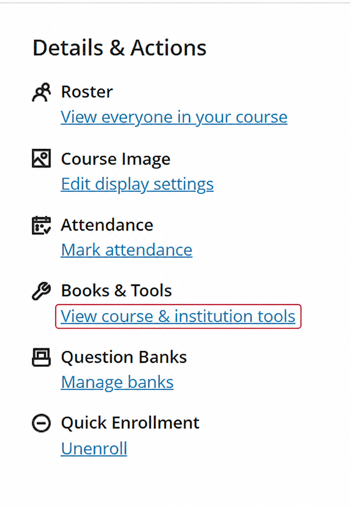
  1. From the Course Details and Actions right-hand navigation menu under Books & Tools select View course & institution tools
Blackboard Books & Tools menu with View course & institution tools outlined.
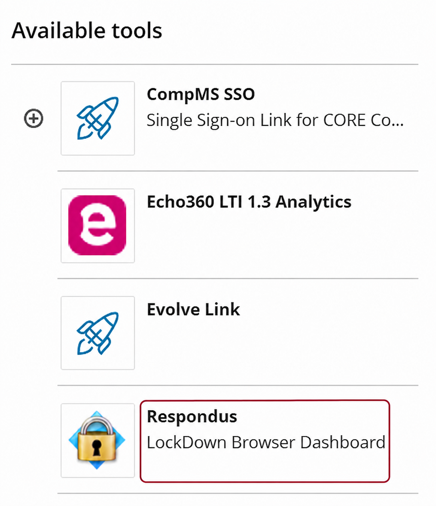
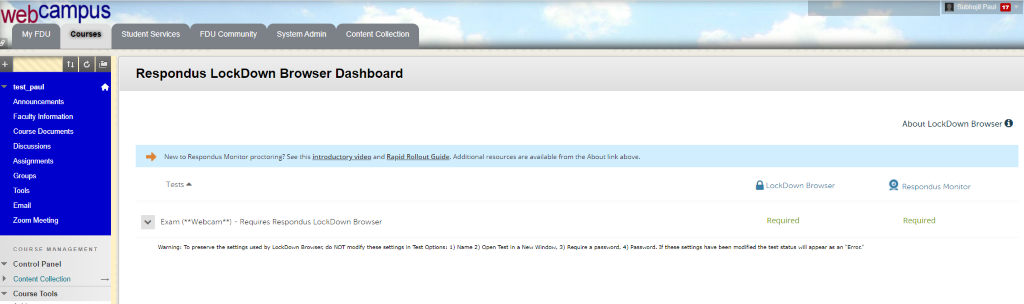
  1. From Available Tools, select Respondus LockDown Browser Dashboard
Blackboard Available tools list with Respondus LockDown Browser Dashboard outlined.
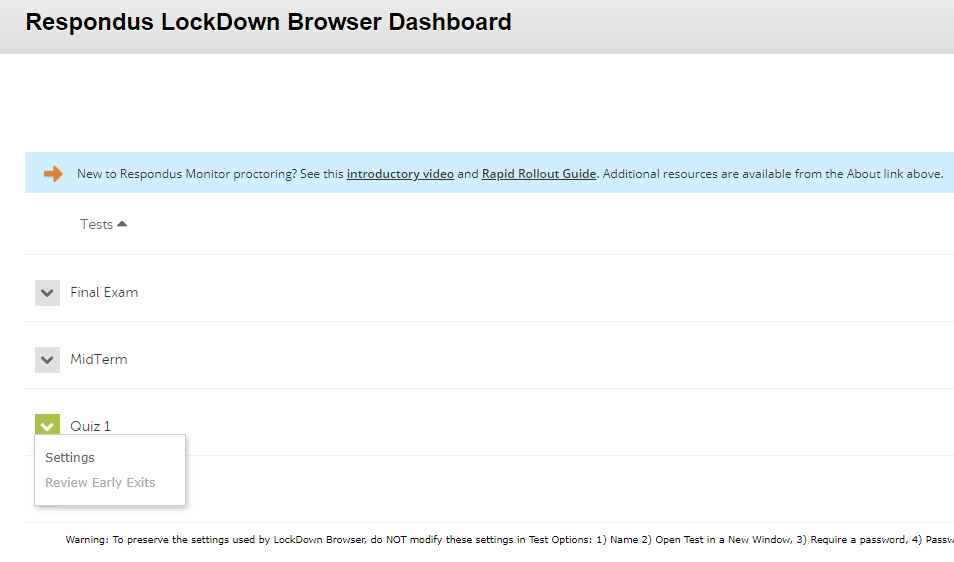
  1. Click the arrow next to the exam you want to implement “Lockdown Browser” and click on “Settings
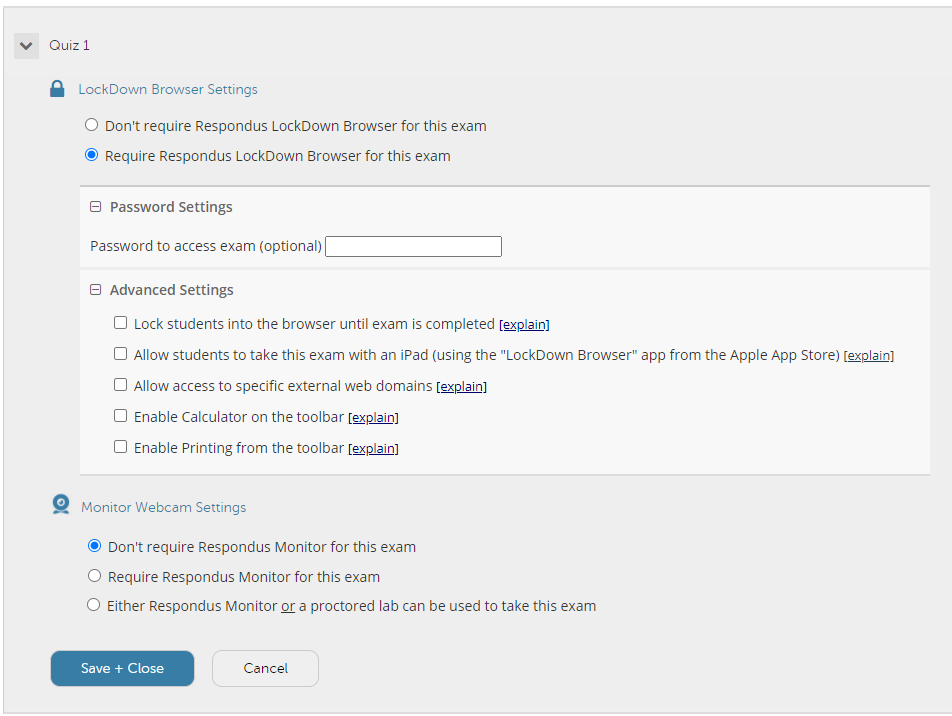
  1. Click “Require Respondus LockDown Browser for this exam
  1. Click “Advanced Settings” and choose the options that you want to enable for the exam
  1. The first setting will prevent students from exiting the browser until the exam is completed
  1. The second setting will allow students to take the exam with an iPad, using the free LockDown Browser app
  1. The third setting will allow students to access a list of specified web domains during the test
  1. The fourth and fifth settings allow instructors to provide students with a calculator or print function in the LockDown Browser toolbar

Tip

For additional information, select the explain link that follows each setting

  1. Click “Save and Close” to apply the settings
close
Respondus Monitor 

Respondus Monitor is a webcam feature for LockDown Browser that records students during online, non-proctored exams. When this feature is enabled for a test, students are required to use a webcam and microphone with LockDown Browser. After the exam is complete, an instructor can review the details of the assessment, even the recorded videos.

To give students the option to either take the exam with a webcam or in a proctored testing lab, select Either Respondus Monitor or a proctored lab can be used to take this exam. A test password will then be required to access the test in proctored settings.

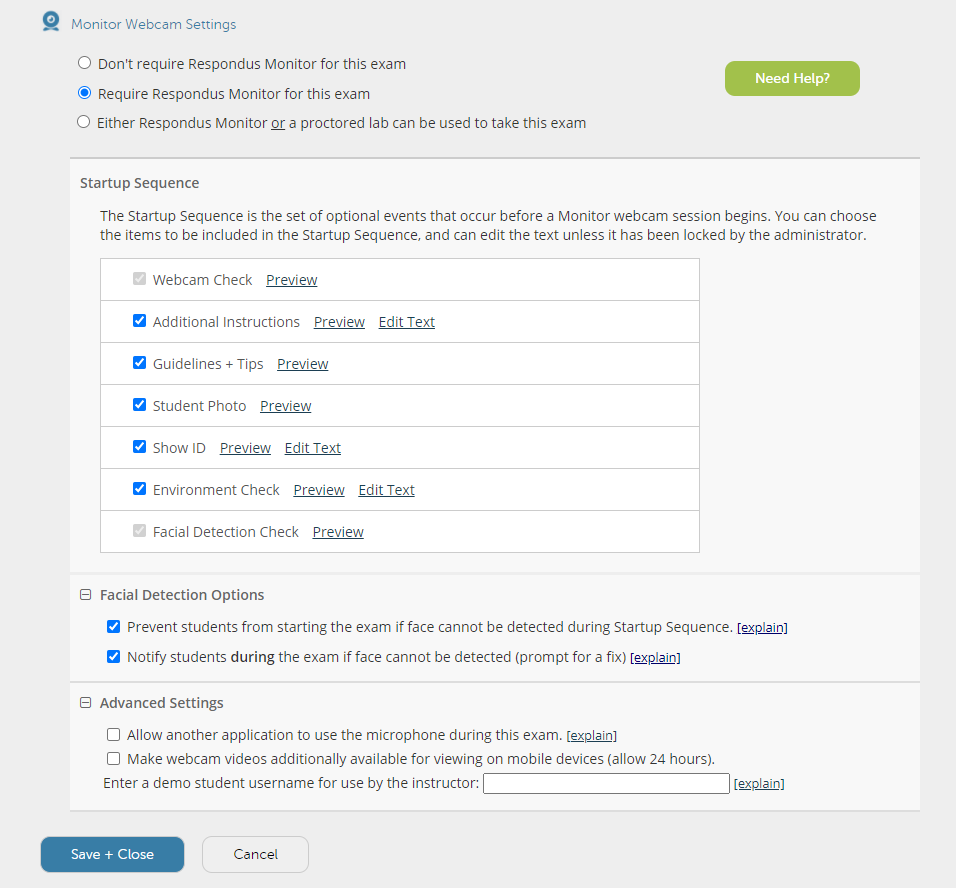
  1. Click “Respondus Monitor for this Exam
  1. Then select the items to be included in the “Startup Sequence”, the steps a student must complete before the start of an exam
  1. Choose “Save and Close

Your exam will now require the use of LockDown Browser and Respondus Monitor.

close
Installing the Chromebook Extension

LockDown Browser for Chromebook minimally requires the version of ChromeOS that Google makes available via their Long Term Support (LTS) channel. For more information:

Long Term Support Channel Update for ChromeOS

Respondus recommends keeping your Chromebook updated to the most recent version that is available via Google’s ChromeOS “Stable” Channel:

Chrome Releases

To install the new extension on a student-owned Chromebook, students must use the regular LockDown Browser installation link provided by your school. They will not be able to find the app by searching the Chrome Web Store directly. The installation link will redirect them to the Chrome Web Store, where they should select “Add to Chrome” to install the LockDown Browser extension.

close
Last Modified:

Using UC Softphone with Multiple Lines

Resources for:
icon Close

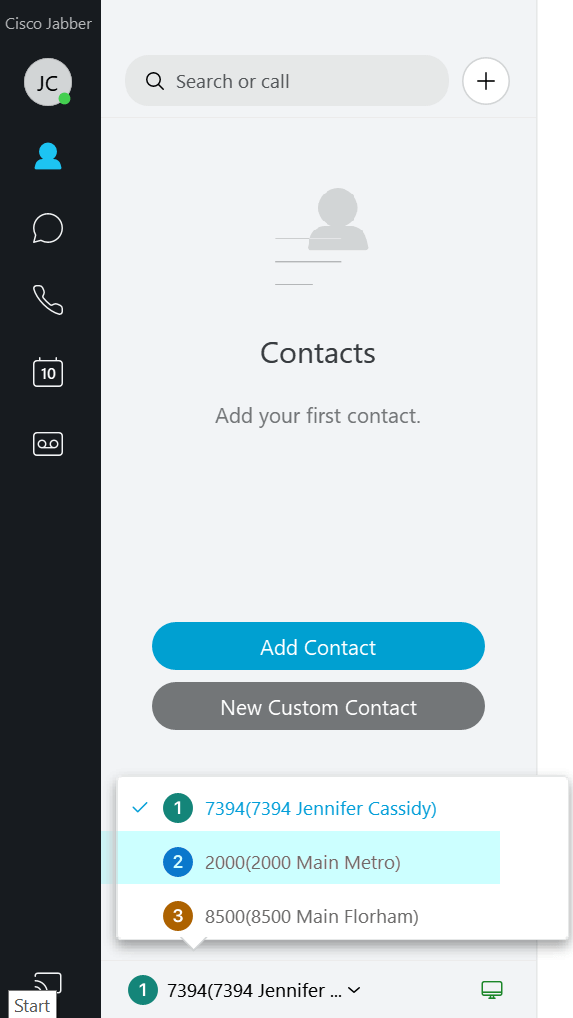
When multiple lines are enabled in Unified Communications (UC) Softphone, a drop down of the available lines will be displayed near the bottom of the “Contacts” windows.


To Make a Call

  1. Click on the arrow near the number displayed.
  2. Choose the line (Number) you desire to call from.
  3. Make the call as normal.

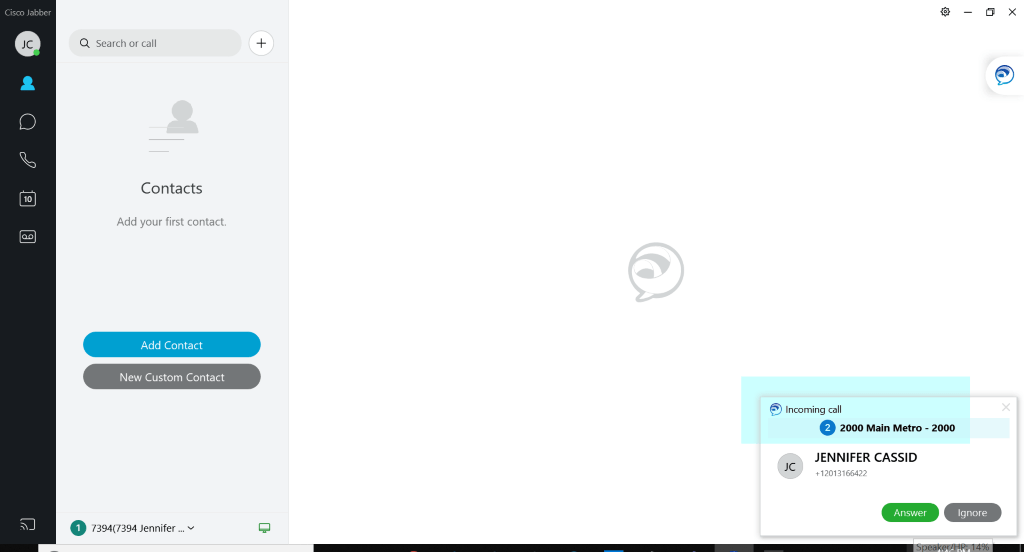
When receiving a call, the caller ID will display the line from which the call is coming from.

A call can be made or received from all the available lines.

Last Modified:

Vendor Access Policy for Networking & Computing

Resources for:
icon Close

As the demand for access by on-site vendors increases, Fairleigh Dickinson University has created a Vendor Access Policy for Networking and Computing. The intent of the policy is to define the categories of non-employees that are on our campuses and provide rules and guidelines around their networking & computing needs. All business units should utilize the Contract Review Process which has been instituted by the Office of the General Counsel prior to initiating any of the below processes. Fully executed contracts that have been reviewed and approved may be requested by members of OIRT prior to providing any access for the non-employees below.

Effective Date: 3/1/2023
Last Revision: 1/14/2024

Contractors/Consultants

The University employs individuals from companies that perform work on behalf of the University and expressly for the University. Examples could be an employee from a staffing agency working within IT to augment the staff in assisting with a series of projects, or an individual hired from an agency to work within Human Resources to assist in processing forms. These individuals are hired under contracts and are held tothe terms and conditions of those contracts. In most cases, working as part of the University, these individuals need computing functionality identical to those of university hired staff, as they are acting on behalf of the University & fulfilling a role specific to the University. All work done by these individuals is part of the university’s data property, and therefore, these individuals should be provided with University issued devices such as desktop/laptop computers, landline phone extensions, etc.

Individuals hired from companies outside of the University to conduct business on behalf of the University must meet the following guidelines and are provided with the following access:

  1. The hiring manager or department head must complete an HR Personal Information Notice (PIN) to begin the process.
  2. Contractors/Consultants will always be issued a University NetID in the format of Firstinitial.Lastname@v.fdu.edu.
  3. Once the NetID has been created & communicated to the hiring manager, a Vendor Employee Technology Form must be completed if the contractor/consultant needs access to certain FDU systems. The form to be found in the Staff and Faculty Forms tile of SAMISupport.

SAMI Support

  1. All Contractors/Consultants are required to complete the Written Information Security Program (WISP) training immediately after an account is provisioned. Validation of completion is needed within the first 30 days.
    1. WISP training reminder on day 15
    2. WISP training daily reminder every day after day 15
    3. Disable account day 30 with an email sent to the manager
  2. All contractors/consultants must read and accept the following additional policies:
    1. Policy for the acceptable use of email
    2. Acceptable use policy for computer usage
    3. FDU alert policy
    4. Password policy
  3. Contractors/Consultants will be able to sign up for FDU Alert through Colleague Self-Service. Instructions can be found here:
  1. Contractors/consultants issued a university managed laptop/desktop are entitled to an email address without the vendor designation at the request of the hiring manager. This would be requested by the manager through the Vendor Employee Technology Form by clicking the “Convert Vendor NetID” box.

Note

It is strongly recommended that contractors/consultants be issued University managed equipment. Access to certain systems may be denied if personal equipment is used.

  1. Contractors/consultants must be terminated at the end of their contract using the same methodology utilized for current faculty and staff. It is the unshared responsibility of the managing department to submit termination paperwork per the HR process for any contractor/consultant who had been issued a NetID.

Volunteers

The University utilizes volunteers in non-paying positions during the school year. Examples of these roles include but are not limited to preceptors & chaplains. These individuals do not need access to any University systems with the exception of email. As such, they need access to Internet services & email but they do not require an FDU managed laptop/desktop.

Volunteers must meet the following guidelines and are provided the following access:

  1. Volunteers will be issued a NetID in the format of Firstinitial.Lastname@v.fdu.edu to be able to authenticate to FDU’s wireless network (and wired network in the future).
  2. Volunteers are required to complete the Written Information Security Program (WISP) training immediately after an account is provisioned. Validation of completion is needed within the first 30 days.
    1. WISP training reminder on day 15
    2. WISP training daily reminder every day after day 15
    3. Disable account day 30 with an email sent to the manager
  3. All volunteers must read and accept the following additional policies:
    1. Policy for the acceptable use of email
    2. Acceptable use policy for computer usage
    3. FDU alert policy
    4. Password policy
  4. Volunteers will be able to sign up for FDU Alert through Colleague Self-service. Instructions can be found here:
  1. All volunteer accounts will expire at the end of the fiscal year and must be renewed by their FDU manager by completing a PIN form.
  2. Volunteers must be terminated at the end of their contract using the same methodology utilized for current faculty and staff. It is the unshared responsibility of the managing department to submit termination paperwork per the HR process for any contractor/consultant who had been issued a NetID.

On-Campus Vendors

The University outsources various functions to entities (Vendors) that operate independently but work exclusively on our campuses and provide services for our faculty, staff & students. These employees are individually managed by their corporate entities and are largely held accountable by their corporate management.

While on campus, employees of these vendors might need access to the Internet to interact with their corporate websites or communicate with their corporate managers. In many cases today and in most all cases in the future, these employees will need to authenticate through the University’s network in order to conduct their business. The University has established a process whereby the Fairleigh Dickinson University department responsible for that vendor completes the Human Resource forms necessary in order to create a non-employee record within our Colleague system.

Employees of on-campus vendors must meet the following guidelines and are provided the following access:

  1. Vendor employees will be issued a NetID in the format of Firstinitial.Lastname@v.fdu.edu to be able to authenticate to FDU’s wireless network (and wired network in the future).
  1. Vendor employees will be able to add their contact information to FDU Alert by sending an email to fdunotify@fdu.edu
  2. All vendor employee accounts will expire at the end of the fiscal year and must be renewed by their FDU manager by completing a PIN form.
  3. Vendor employees must be terminated through FDU’s systems when they either are removed from their assignment at Fairleigh Dickinson University or are terminated by their employer using the same methodology utilized for current faculty and staff. It is the unshared responsibility of the managing department to submit termination paperwork per the HR process for any contractor/consultant who had been issued a NetID.

Elevated Vendor Privileges

From time to time, the employee of an on-campus vendor might have justification for having access to FDU email or a need to access systems and/or applications that reside behind FDU’s firewalls. If such a case is identified, the FDU department responsible for that vendor would need to contact the Director of Systems with a formal request for additional vendor access. The FDU department must present solid business justification for the elevated access. The Director of Systems will review each request and either approve or reject the request based on business needs and security posture. The Director of Systems might consult with the Data Security & Incident Response Team before providing an answer.

Employees of on-campus vendors approved for elevated access must meet the following guidelines and are provided the following access:

  1. Vendor employees will be issued a NetID in the format of Firstinitial.Lastname@v.fdu.edu to be able to access FDU’s wireless network (and wired network in the future).
  2. All vendor employees are required to complete the Written Information Security Program (WISP) training immediately after an account is provisioned. Validation of completion is needed within the first 30 days.
    1. WISP training reminder on day 15
    2. WISP training daily reminder every day after day 15
    3. Disable account day 30 with an email sent to the manager.
  3. Vendor employees will be able to sign up for FDU Alert through self-service. Instructions can be found here:
  1. All vendor employees with elevated access must read the following additional policies:
    1. Policy for the acceptable use of email
    2. Acceptable use policy for computer usage
    3. FDU alert policy
    4. Password policy
  2. If the vendor employee needs to access FDU systems and/or applications, issuance of a University managed laptop/desktop may be required. This would be at the expense of the requesting department.
  3. Upon departmental request, vendor employees will only be provided access to the specific University Systems and applications approved by the Director of Systems.
  4. All vendor employee accounts will expire at the end of the fiscal year and must be renewed by their FDU manager by completing a PIN form.
  5. Vendor employees must be terminated through FDU’s systems when they either are removed from their assignment at Fairleigh Dickinson University or are terminated by their employer using the same methodology utilized for current faculty and staff. It is the unshared responsibility of the managing department to submit termination paperwork per the HR process for any contractor/consultant who had been issued a NetID.

Last Modified:

Vendor Security Assessment

Resources for:
icon Close

This Vendor Cybersecurity Assessment Form is designed to evaluate and assure the strength and comprehensiveness of the cybersecurity practices followed by our vendors. By completing this form, the FDU Point of Contact will help us to understand the existing cybersecurity measures better, identify potential areas of vulnerability, and maintain a reliable, secure network within our FDU ecosystem. This rigorous assessment is crucial in our broader cybersecurity strategy, minimizing risks and fortifying data security.

Warning Warning

The form below is not compatible with dark mode. For an optimal experience, disable dark mode either in your device’s system settings or directly from the FDU IT website.

Last Modified:

Video Conversion

Resources for:
icon Close

Multimedia Services acknowledges the occasional need to present video materials originally produced in outdated formats. Common conversions include transitioning from VHS, DV, DVD to more current digital formats like .mp4 or .mov. While we do not directly offer conversions of physical media, we facilitate these processes by outsourcing to a trusted vendor specialized in such conversions, ensuring that your valuable content is updated and accessible in modern formats.

Last Modified:

Video Production Services

Resources for:
icon Close

When scheduling a video production on or off Campus, it is important to provide a detailed description of what is expected, and what is most important. This will allow the Multimedia Services to anticipate any issues depending upon the location.

Off Campus Video Production

When recording off campus it is important to communicate the exact event location and contact information of anyone who is overseeing the venue. For secure office buildings it will be necessary that security be advised that a video crew will be arriving and to include the name(s) of the crew and the nature of the production. Also, it should be noted that recording in certain areas, both public and private locations may be prohibited or require a permit.

Additional Costs

Due to the nature of some off-campus productions there may be some additional costs, such as tolls, parking and fuel.


Last Modified:

Video Project Concept Assistance

Resources for:
icon Close

Creative Collaboration and Conceptualization

If you have a basic concept and a target audience in mind but are unsure about the visual direction of your video, our team is here to help. We excel in assisting clients through the creative process, ensuring that your initial idea is developed into a clear, effective video that aligns with your goals.

Utilizing Inspirational Examples

Sharing examples of videos that resonate with your vision can be incredibly beneficial for your project. These references help us understand the style, tone, and messaging you aspire to communicate to your audience. By analyzing these examples, we can collaboratively create a unique and tailored video that meets your specific needs and expectations.

Last Modified:

Ways to Lead Productive and Inclusive Zoom Classes

Resources for:
icon Close

Here are 5 ways to lead productive & inclusive Zoom Classes with your students.

  1. As facilitator, plan ahead. Identify partners to help fill Zoom Class roles. If you can, identify a:
    • Co-host in case you have technical problems
    • Moderator: to monitor and respond to chats
    • Coordinator: to keep track of time and take notes
  2. Share rules of engagement at the start of your class
    • Keep your video on
    • Mute yourself unless speaking
    • Introduce yourself before you speak
  3. Ensure all students have equal access to shared content
    • Share content ahead of class or by using Zoom chat
    • Think agenda, slides, notes, reference materials
  4. Be sure students have an equal chance to engage
    • Invite student s to speak up, and do this at multiple points during the class
  5. Be intentional about class activities
    • Conduct activities that work for all students, ensuring a similar experience
Last Modified:

Webcampus

Resources for:
icon Close

New Blackboard Base Navigation Interface

Logging into Webcampus

  1. Login to Webcampus using your FDU NetID credentials

Login to Webcampus

  1. Check your courses under the “My Courses” module
  2. Select the class you wish to view the content
  3. You will be taken to your course announcements page with links to other portions of your class

Blackboard Documentation

Blackboard Learn for Instructors Documentation

Additional WebCampus Resources for Faculty

A SharePoint library containing a series of MS Word tutorials intended to provide new and existing faculty with some basic guidance on using WebCampus to administer an online course.

WebCampus Tutorials for Faculty

  • Anyone with the link who is an FDU Faculty member and can sign on to Office 365 should be able to view these files. Adjunct faculty members should first visit the OERA “Faculty Resources” SharePoint site and request access.
  • Files are arranged in a logical sequence from “top to bottom”, but faculty can browse the “Description” column to locate documents that address specific needs.
  • Screenshots of “sample” Blackboard materials as well as links to a selection of supplemental videos and other resources from Blackboard’s Help site are included.

Supported Hardware

Minimum hardware and software requirements

MinimumRecommended
Operating SystemWindows 7 or higher
Mac OSX 10.8 or higher
Windows 10
Mac OS 10.12
Processor1 GHz processor2 GHz or faster processor
Memory512 MB of RAM2 GB of RAM or higher
Monitor Resolution1024 x 7681024 x 768 or higher
Free Hard Disk Space5 GB of free disk space20 GB or higher of free space
Internet ConnectionDSL or Broadband (high-speed) Internet connection with a consistent minimum speed of 2 MbpsBroadband (high-speed) Internet connection with a speed of 4 Mbps or higher
JavaJava may be necessary to use Blackboard
close
Installing the Chromebook Extension

LockDown Browser for Chromebook minimally requires the version of ChromeOS that Google makes available via their Long Term Support (LTS) channel. For more information:

Long Term Support Channel Update for ChromeOS

Respondus recommends keeping your Chromebook updated to the most recent version that is available via Google’s ChromeOS “Stable” Channel:

Chrome Releases

To install the new extension on a student-owned Chromebook, students must use the regular LockDown Browser installation link provided by your school. They will not be able to find the app by searching the Chrome Web Store directly. The installation link will redirect them to the Chrome Web Store, where they should select “Add to Chrome” to install the LockDown Browser extension.

close
Last Modified: