Explore our comprehensive IT resource library to discover a wealth of helpful information tailored to your needs. Utilize our filters to refine your search by role at FDU, department, or specific service for a more personalized experience.
Effective September 1, 2026, requests for IT assistance with employee moves of up to five people must be coordinated through the Facilities department, preferably by someone with budget authority. Follow the process below to ensure the move is approved, assessed, and supported.
Employee Move Request Process
Before submitting a request, the employee must obtain approval to move from their department’s Vice President or Dean
Follow these easy to use instructions for encrypting Word, Excel, and Acrobat files using built-in features.
Encrypting Word & Excel Documents
For Word and/or Excel files, first click on File on the upper left-hand corner
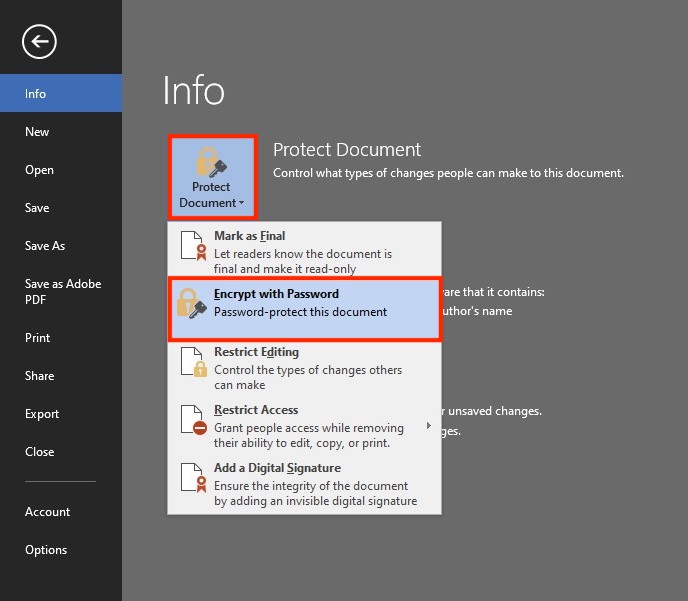
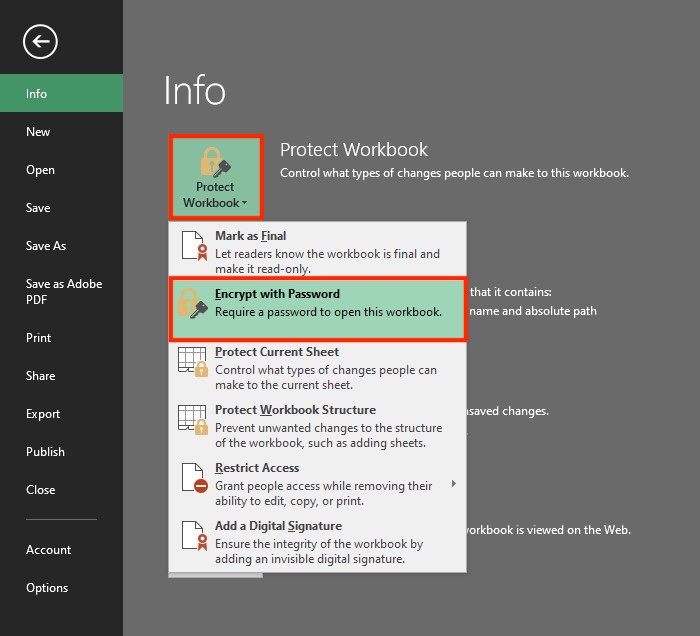
Under the Info tab, click on Protect Document for WordandProtectWorkbook for Excel followed by Encrypt with Password
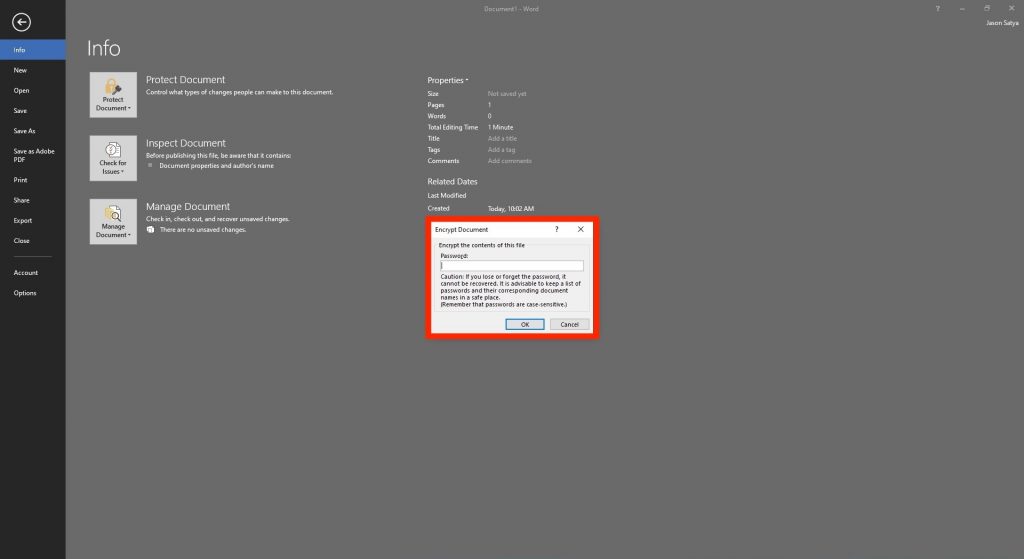
Enter a password in the pop-up window. Re-enter the password in the next window to confirm
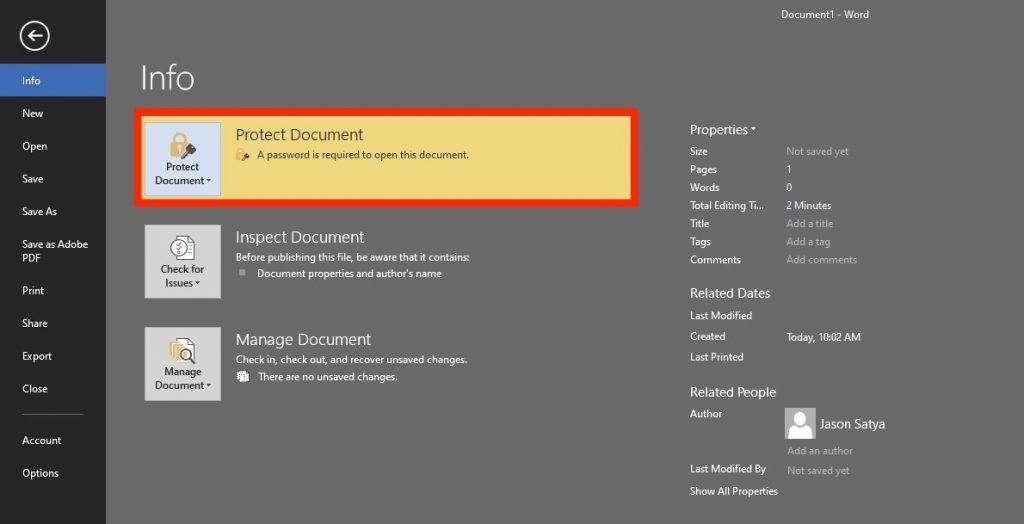
The below message will confirm your document has been password-protected
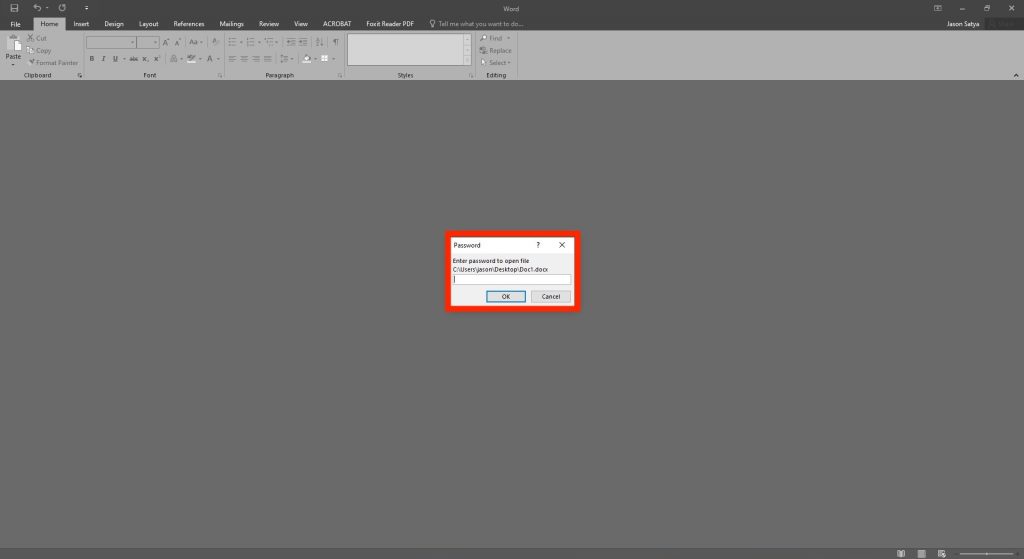
To open a password-protected file, double-click on the file and enter the created password
close
Encrypting PDF Files
NOTE:
Adobe Acrobat Pro DC or Adobe Acrobat for macOS is needed to encrypt PDF files with a password. This feature is not available in the free version of Adobe Acrobat Reader DC.
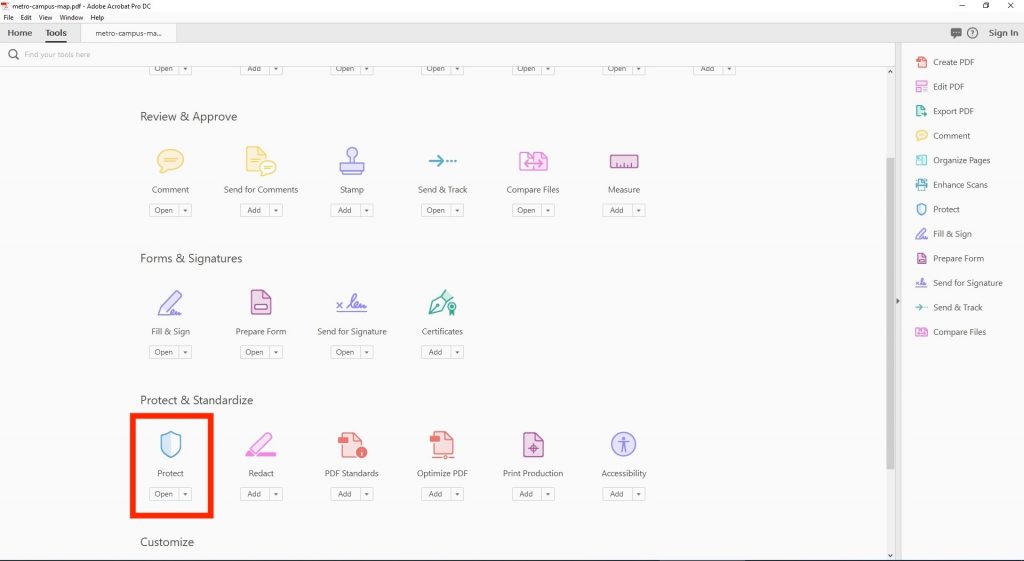
Select Toolson the Navigation Taband then select Protect
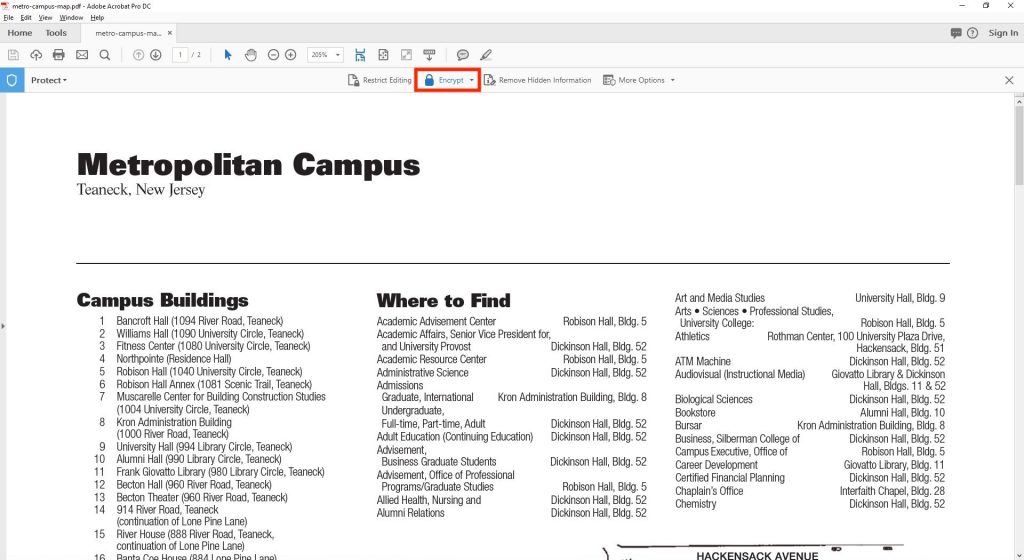
On the Protect Tab select Encrypt
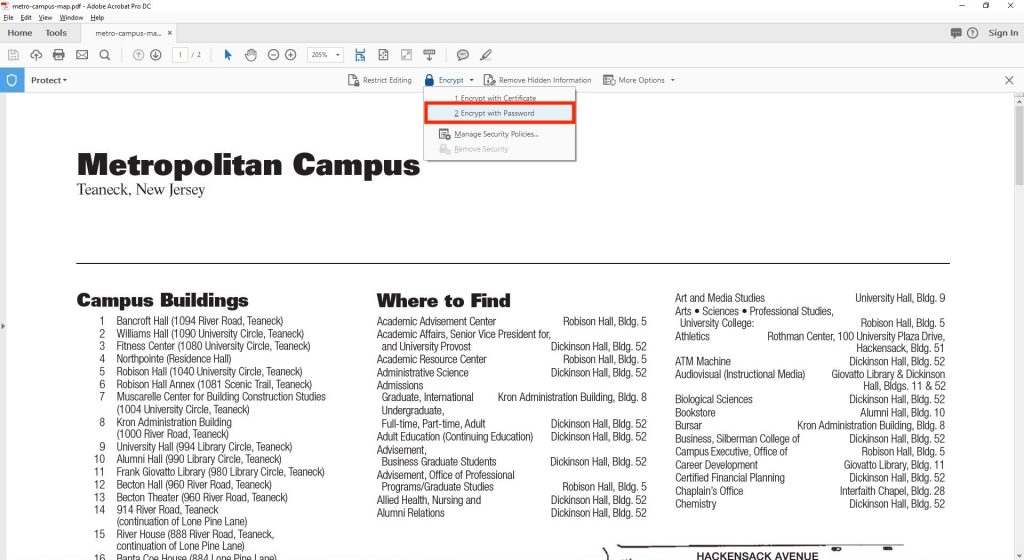
Select Encrypt with Password. Then select Yes on the security pop-up window
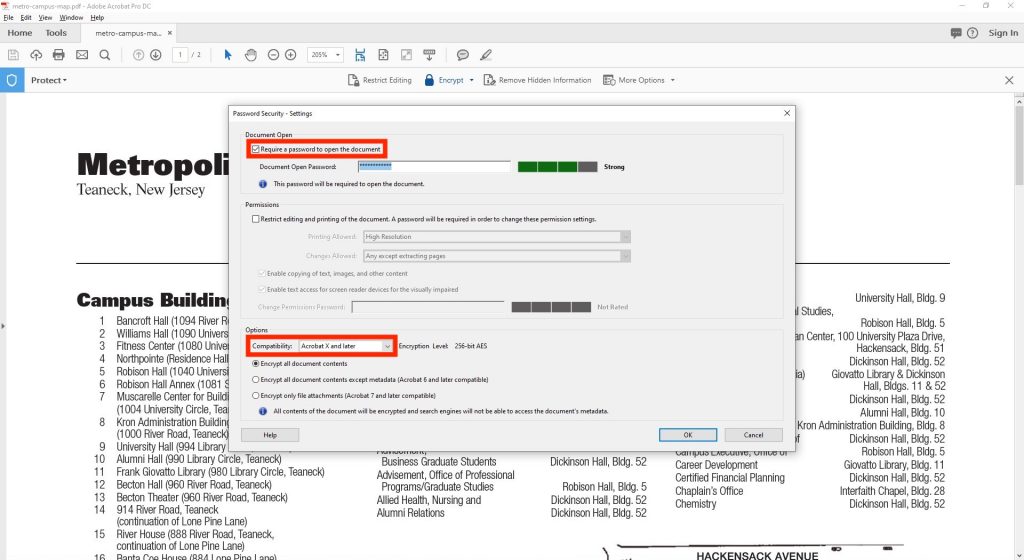
Check Require a Password to Open the Document and then choose a strong password. Under compatibility, choose Acrobat X and laterto change the encryption method to 256-bit.
Confirm the password when requested. Please note that the document WILL NOT be fully encrypted until it is saved
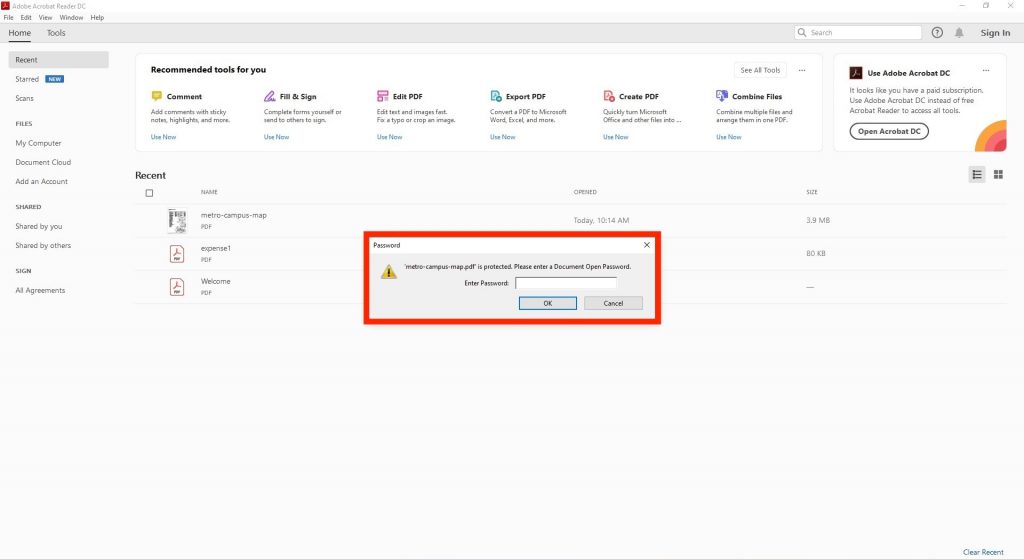
To open the file, double-click the file and enter the created password.
To maintain a secure and productive Microsoft Teams experience at Fairleigh Dickinson University, it’s important to understand how to manage external communication requests, recognize brand impersonation attempts, and report suspicious content. This guide offers clear, step-by-step instructions to help you stay secure while using Teams.
Managing Incoming Requests from External Users
To ensure your Teams environment remains secure, review and manage requests from individuals outside of FDU before accepting any communication.
Steps to Manage External User Requests:
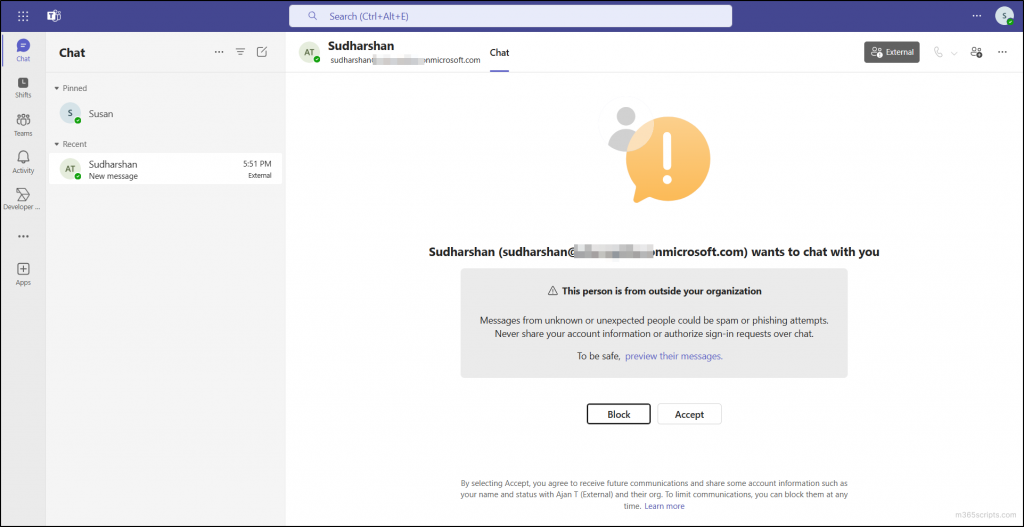
Initial Notification: When someone outside FDU tries to initiate a chat, you will receive a notification indicating they are external to your organization
Review the Request: Examine the name and any provided details. Be cautious of unfamiliar or suspicious names
Choose an Action:
Click “Accept” if you recognize the individual and have a valid reason to communicate
Click “Block” if the person is unfamiliar or seems suspicious. Blocking prevents further contact
Protecting Against Brand Impersonation in Teams Chat
Microsoft Teams now detects potential brand impersonation attempts automatically. This feature alerts you if an external user’s message seems suspicious.
Steps to Protect Yourself:
First Message Analysis: Teams evaluates the external user’s name and email for impersonation risks
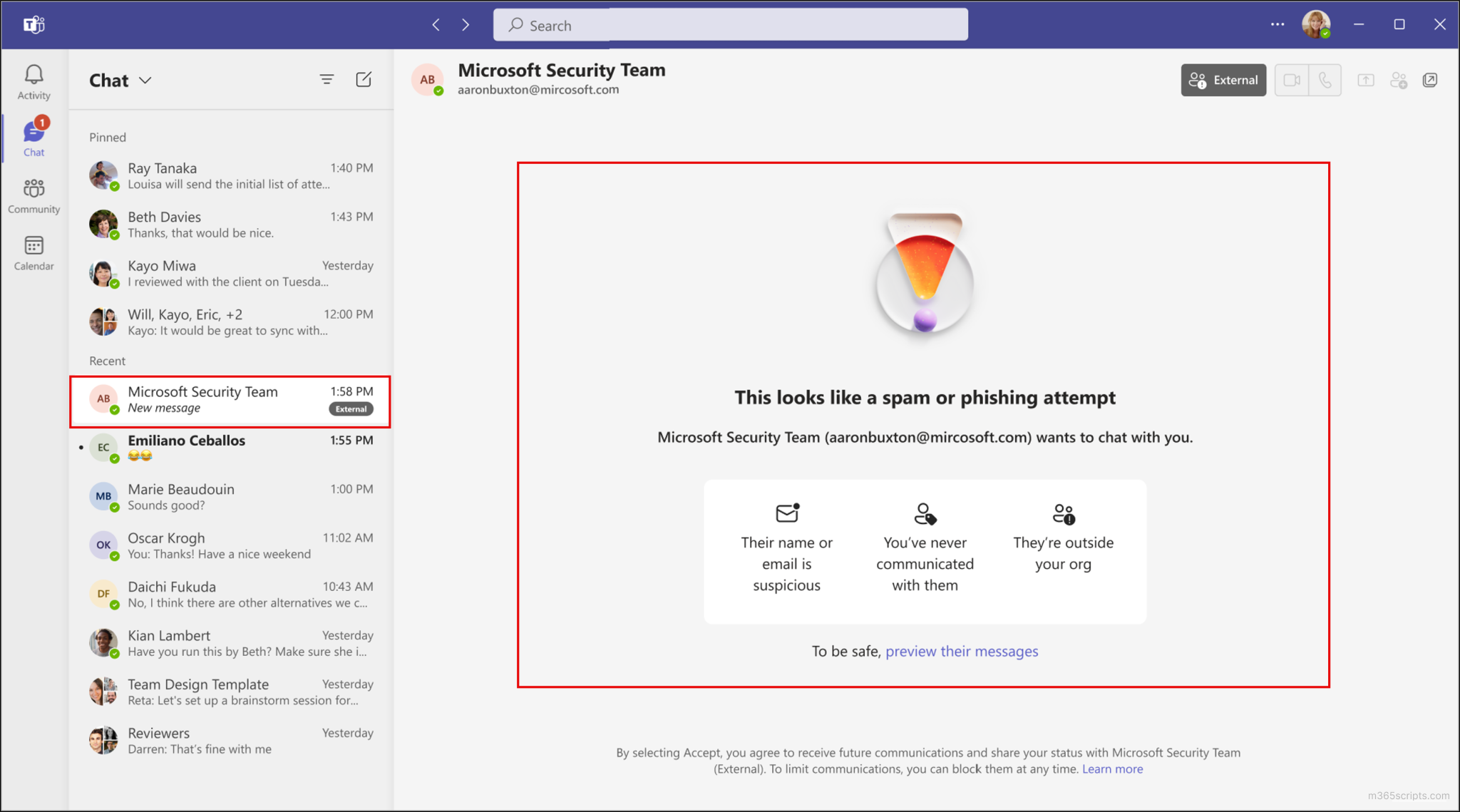
High-Risk Alert: If a potential threat is detected, Teams will display a prominent warning with one or more of the following:
The sender’s name or email resembles a known FDU entity
No previous communication history with the sender
The sender is outside your organization
Review the Message Content: Click “Preview their messages” and read the message carefully. Watch for urgent requests or unusual links/attachments
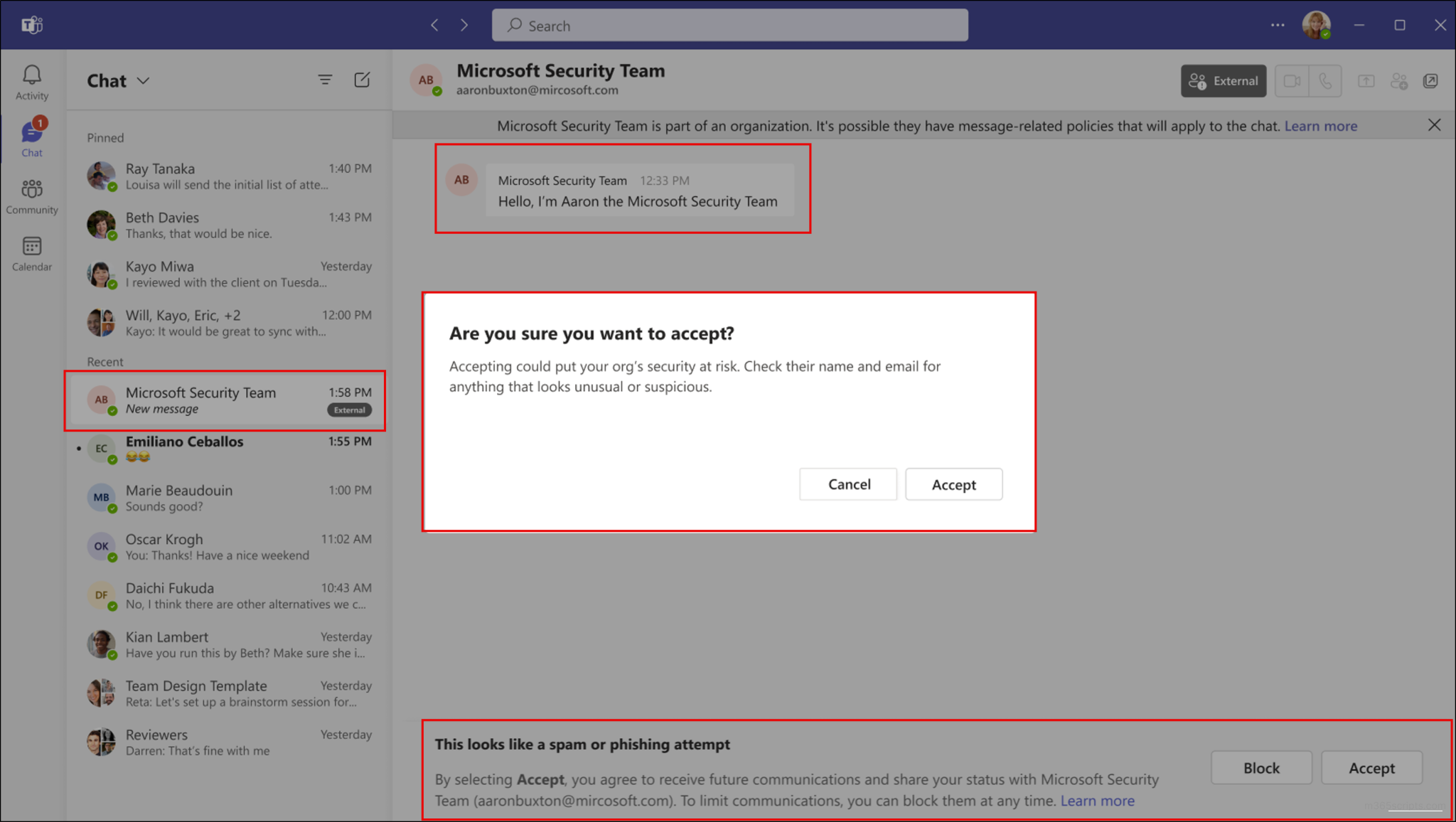
Second Warning (If Applicable): If you proceed to accept, Teams may display another warning about the associated risks
Make Your Decision: Use the alerts and message content to decide whether to continue the conversation
Reporting Suspicious Content
Reporting suspicious messages, calls, or users within Teams helps FDU’s security team manage potential threats effectively.
Reporting Messages from Internal User:
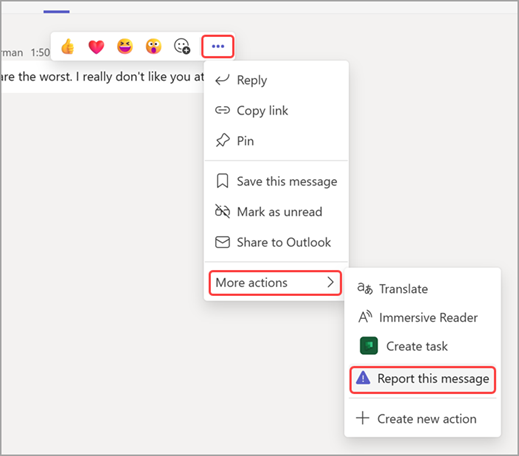
Hover Over the Message: Place your cursor over the suspicious message.
Click the “More options” (…) icon > More actions > Report this message.
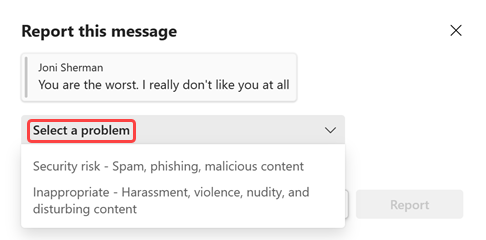
In the dialog that opens, verify Security risk – Spam, phishing, malicious content is selected, then click “Report”
In the confirmation dialog, click “Close”
Reporting Messages from External Sender:
If you receive a suspicious message from an external sender (e.g., @outlook.com, @live.com), the “Report this message”option in Teams will not be available.
To report a suspicious message from an external source, you must create a SAMI support ticket:
Click “Get Support” button located at the bottom of this article
Create a support ticket and include all relevant details about the suspicious message
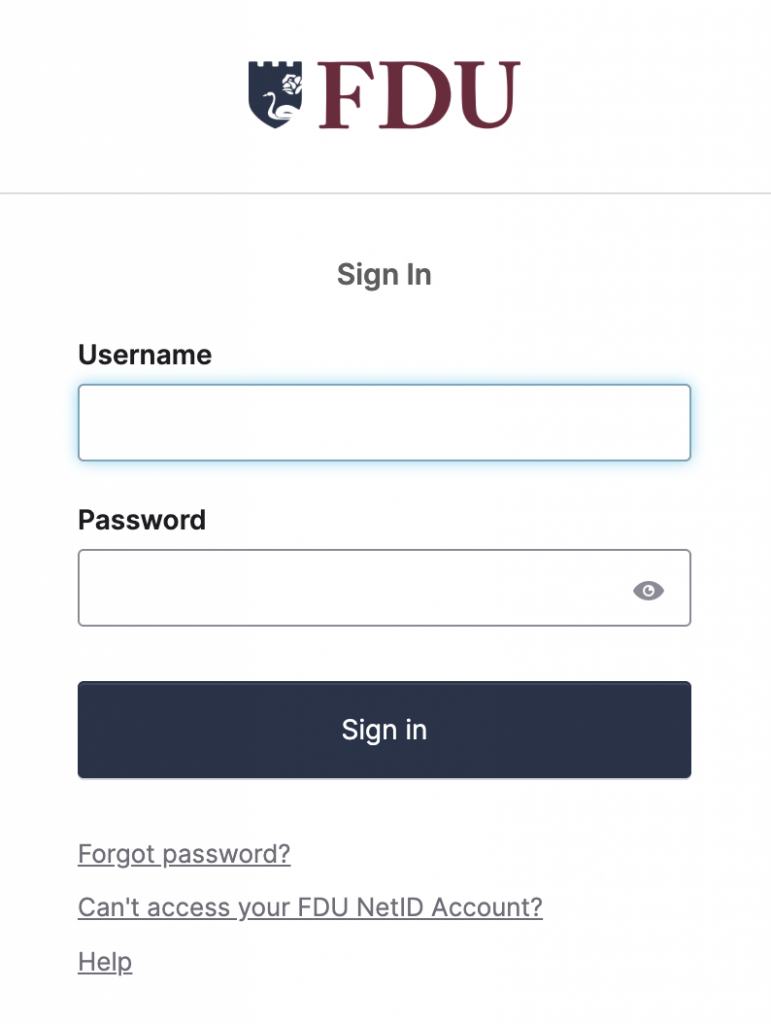
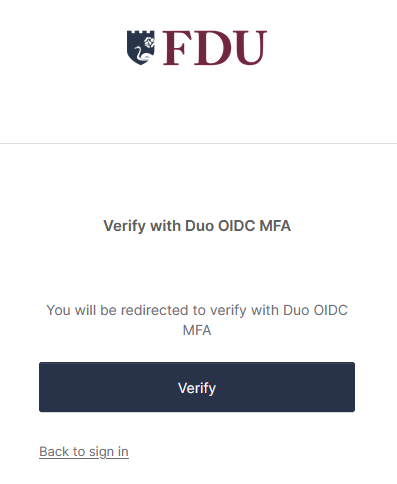
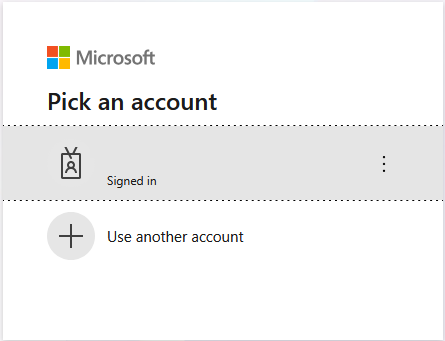
Sign in using your FDU account, enter your FDU username and password, complete DUO MFA verification by selecting “Approve”, and then select your Microsoft account (your FDU account)
After signing in, you will be taken to Web Outlook by default
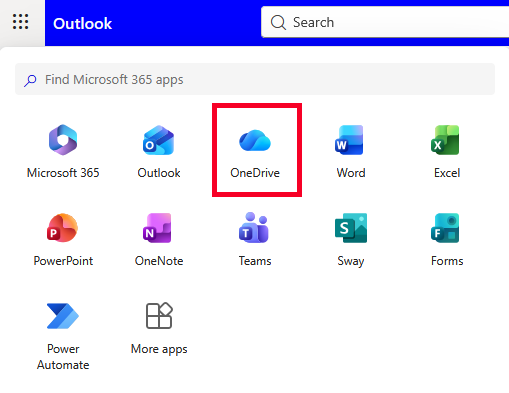
Click the “App Launcher” (9 dots in the top-left corner)
Click “OneDrive”
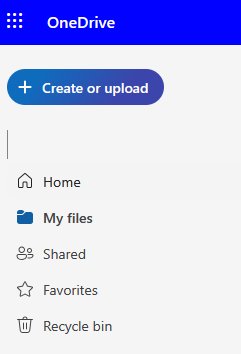
In the left column, click “My Files”
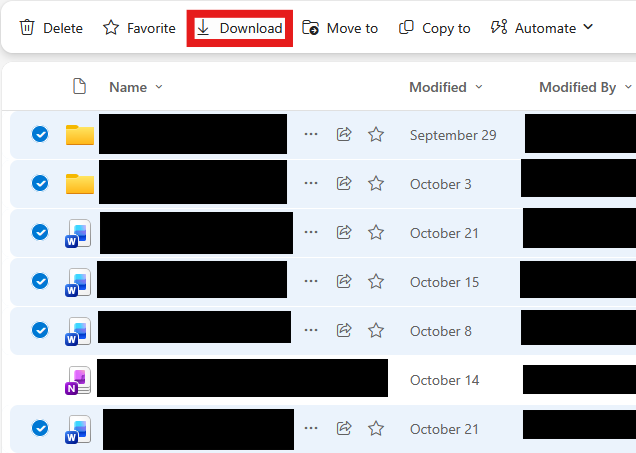
All files on your OneDrive will be displayed under My Files. To select all files, hover to the left of “Name”
Note
OneNote files cannot be downloaded in bulk. If a downloaded folder contains a OneNote notebook, the .zip file will include an error message in a .txt file.
Unselect any OneNote notebooks
Click “Download” icon
OneDrive will prepare a .zip file which will download to your computer
close
OneDrive Client
Install the Microsoft OneDrive client for Windows or macOS
In the past, website subscriptions and renewals were approved by University Systems and Security (USAS), as the department held the role of both Information Security and Networking. An email would be sent to the department, and approval would be gained via an email response.
With the separation of Information Security from University Systems and Networking (USAN), a new process has been created to better serve those within the FDU community that utilize external websites for services.
Moving forward, requests for website subscriptions and renewals should be requested through this form below:
If information is missing, a representative of the SAMI Service Desk might reply inquiring more about the request. When all information has been gathered, the ticket will be forwarded to our Information Security Officer. They will review the request, engage the Networking team if necessary, and then either approve or deny the request (via email response) or inquire further, before closing out the ticket.
We hope this new process will help identify, track, and move requests quickly through the process.
Revised: May 1, 2025 Last Revised: February 1, 2024 Prior Revision: February 1, 2024
1. POLICY STATEMENT
FDU has implemented the FDU Alert system to expand and enhance its emergency notification methods. In the event of an emergency, FDU Alert may be used to provide pertinent information and instructions to FDU students, faculty and staff through voice, text messaging and/or E-mail. FDU Alert uses a mass notification system that sends emergency messages instantly and simultaneously to registered mobile phones, wireless devices and E-mail addresses.
Reason For Policy
This policy establishes the proper use and testing of the FDU Alert Emergency Notification System (FDU Alert).
Who Should Read This Policy
Members of the University Community including Students, Faculty, Staff, as well as all other individuals who have been registered to receive FDU Alert emergency notifications.
Website Address For This Policy
The website for this policy as well as other related FDU Alert information can be found at the following URL or by clicking on Web Shortcuts on the top right of the FDU Homepage.
These definitions apply to these terms as they are used in this policy.
Emergency
A sudden unforeseen crisis, usually involving danger, which requires immediate action.
FDU Alert System
The University’s emergency notification system is designed to alert, warn and inform registered members of the University Community of what to do in case of an emergency, a disaster, a crisis or any other situation that affects the FDU community. For example, receiving these alerts and messages could keep you from driving to campus only to find that a power failure has closed the campus.
FDU Alert Authorizer
Individual who has the authority to assess an emergency and activate the FDU Alert Emergency Notification System; this individual is authorized to contact an authorized Sender.
FDU Alert Sender
Individual who has been trained and is authorized to facilitate the actual sending of an Emergency Notification message.
Crisis
An unstable event or situation of extreme danger or difficulty, which is often sudden or unexpected, that disrupts the normal operations of the institution or its educational mission and threatens the well-being of personnel, property, financial resources and/or the reputation of the institution.
Timely Warning
Refers to the need to provide timely notification to the University Community after it is determined there is a credible threat to campus persons or property or when information is considered vital to the University community.
SMS
Refers to the Text Messaging method of FDU Alert delivery.
FDU Alert Spokesperson
An individual may be identified to respond to, and act as University spokesperson, to inquiries by students, faculty, staff, parents and others about an FDU Alert. Inquiries may be forwarded to the FDU Alert Spokesperson via the special call forwarding alert hotline.
3. OVERVIEW
Any time that an emergency situation arises, either on campus or in the immediate area of the campus, that in the judgment of an FDU Alert Authorizer poses an ongoing or continuing threat to the campus community, a campus “Timely Warning” will be issued. This warning may be issued through the FDU Alert system by one, all, or a combination of the following delivery methods.
Voice mail or telephone notification
E-mail
Posted on the University website
Posted notices
Public address announcements
Direct contact with individuals
Whenever possible, the FDU Alert Authorizer will consult with the University Director or Associate Director of Public Safety or another Authorizer prior to using FDU Alert messaging capabilities.
In an emergency, and upon activation by Authorizers and Senders, FDU Alert will send notifications to registered individuals at one, some, or all of the following registered points of delivery.
Work Phone
FDU E-mail
Cell Phone
SMS (Text Message)
Alternate E-mail
Home Phone
Parent/Significant Other E-mail
Parent/Significant Other Phone
Parent/Significant Other SMS (Text Message)
Parent/Significant Other Cell Phone
To provide the safest possible environment for students, faculty, staff, and visitors to FDU campuses, the University will strive to provide timely, reliable notifications by all possible means in the event of emergency. Generally, an emergency is any incident that involves the possibility of death, serious injury, or the threat of death or serious injury to people, or to University facilities, materials or property.
Fairleigh Dickinson University uses a variety of methods to provide emergency and safety information, including mass notification systems, web pages, door-to-door assistance from on-site staff and Residence Hall assistants, over-the-air broadcasts, and a consolidated communications system. Collectively, these capabilities are called “FDU-Alert“.*
The communication system permits broadcast messages to be sent quickly as voice calls to office, local home, or cell phones, and as text messages to cell phones or University and external E-mail accounts. This system will be used to announce and provide guidance in an emergency or crisis and to communicate relevant critical updates.
If an emergency occurs near but not on an FDU campus, and in other situations in which emergency responders determine and report that no apparent or imminent threat to that campus exists, an advisory may be posted on informational web sites, E-mails, or text messages only. In these cases, you may not receive an emergency notification directly to your phone.
University administration or individual campuses may, as an authorizer deems appropriate, use the communications system for other urgent messages related to administration or operation, such as campus closings due to adverse weather, unusual situations, or utility outages.
*More information about these services, as well as current emergency status or preparedness information for FDU, is planned for availability on the University’s emergency preparedness website once established.
4. POLICY
Proper Use of FDU Alert
FDU Alert is offered not to replace but to augment existing emergency notification methods, which include: University-wide broadcast E-mails, online updates via web and coordinated use of public media outlets, fire alarms, public address systems, and signs.
Any time that a serious situation arises either on campus or in the immediate area of the campus that in the judgment of the University Director or Associate Director of Public Safety, and whenever possible, in consultation with other members of the UEMT as applicable, poses an ongoing or continuing threat to the campus community, a campus “Timely Warning” will be issued. This warning may be issued through the FDU Alert system, voice mail or telephone notification, E-mail, posted on the University website, posted notices, public address announcements, and direct contact with individuals.
If, in the opinion of the local law enforcement authority, a message would hinder the police response or investigation and the local law enforcement authority has requested that we not send out a message, no message may be sent without the specific authorization of the President, or FDU legal counsel.
Limited Use of FDU Alert
Although the use of other emergency notification method(s) will be determined on a case-by-case basis, FDU Alert should only be used in the following situations:
an imminent threat of physical danger to the campus community;
a campus closure; and
certain Campus Crime Alerts as determined by Public Safety;
off-campus events that could impact health, safety, life or access to a campus.
The above situations can include but are not limited to ongoing criminal incidents, fires, chemical leaks, pandemics, campus-wide utility failures (such as gas, electrical, or water), and extreme weather conditions that result in a campus closure (e.g. snow/ice storms) or pose an imminent threat of physical danger to the campus community (e.g. tornado within close proximity to campus).
FDU Alert Authorizers
Only the people in the following positions have the authority to activate the FDU Alert emergency message system and author an appropriate message:
President of the University
University Provost & Senior Vice President for Academic Affairs
Senior Vice President for Finance & Administration
Campus Executives
Deputy Campus Executive, Metropolitan Campus
Associate Vice President for Communications
Executive Director of Communications and News
Director of Public Safety, Florham Campus
Assistant Director, Public Safety, Florham Campus
Director of Public Safety, Metropolitan Campus
Campus Investigator, Public Safety, Metropolitan Campus
Campus Executive, Vancouver Campus
Business Manager, Vancouver Campus
FDU Alert Authorizers (“Authorizers”) have the authority to activate the system without consulting other Authorizers; however, when circumstances permit, an Authorizer should consult with at least one other Authorizer before sending a message.
FDU Alert Authorizer Responsibilities
Responsibility of Creating FDU Alert Messages
Authorizers have the responsibility to write and disseminate the appropriate message to be sent by Sender. For consistency, simplicity, and to minimize confusion, whenever possible, the Authorizer should base the message on one of the sample alert messages included in the Standard Operating Procedures manual.
This responsibility carries forward to writing and disseminating subsequent messages that must be sent to keep the recipients apprised of the status of the emergency event through to the conclusion of the emergency event with the transmission of an “All Clear-Resume Normal Schedule” message.
In the event more than thirty (30) minutes has passed while an emergency event is in progress, and there is no new information to communicate, the Authorizer should write a message(s) stating that the status of the emergency event remains the same, e.g., “Investigation continues, will communicate updates as new information becomes available.”
Messages should be written to support text to speech. Minimum or preferably no use of abbreviations and acronyms should be used. All messages must include an appropriate lead-in, for example, “!!FDU Florham Emergency Alert!!,” which includes where appropriate, the campus affected. Examples of these lead-in statements are included with the sample messages in the FDU Alert Confidential Operations Manual.
Responsibility of Authorizer to Prepare Additional Information
Alert Notifications and Updates Published via the FDU Website
Detailed messages and updates regarding the FDU Alert can also be made available on the University Website. Should it be necessary or appropriate to post additional information on the FDU website, it is the responsibility of the Authorizer to work with the Vice President for Communications or designee, to prepare and post the information on the University website in a timely manner. As this information will have wide and general exposure, it is critical to ensure that the information is current, correct, adequate, and consistent with the University messaging strategy.
It is the responsibility of the Authorizer, or designee as assigned by the Authorizer and the Vice President for Communications or designee, to keep vigil over the messaging to ensure accuracy and timeliness and message removal upon event termination.
FDU Alert Spokesperson to Other Inquiries
FDU Alerts will stimulate telephone inquiries to the switchboard, Residence Life, Public Safety, Enrollment Services & other key offices. Callers should be directed to the University mailbox for announcements and updates. In the unusual event where it is determined to be necessary to have a Spokesperson available for call handling, callers will be directed to a special hotline with ultra-call forwarding setup to transfer to the FDU Alert Spokesperson.
The FDU Alert Spokesperson is an individual identified by the FDU emergency response teams to respond to inquiries by students, faculty, staff, parents, and others about an FDU Alert. Inquiries will be forwarded via the special call forwarding alert hotline.
The following are attributes for The FDU Alert Spokesperson:
Must provide contact information (and back up) to the switchboard and emergency management teams
Must be available to take calls continuously throughout the emergency*
Must be aware of the event and current activities and commentable actions
Must be media aware
Must have the power to speak to the event with autonomy and authority
*A special phone number with Remote Call Forwarding will be utilized for this purpose.
Emergency Event Status Reports on the FDU Website
The FDU Website Homepage provides an FDU Alert Icon under Web Shortcuts that links to a dedicated webpage containing information on the current status of the University’s operations. As referenced above in Section 4.3.1.3, in the event there is an emergency, the Authorizer will work with the Vice President for Communications or designee to prepare and post a message providing current information concerning the emergency event and the status of the University’s operations, which will be posted on the website.
FDU Alert Senders
FDU Alert Senders (“Senders”), upon the request of Authorizer(s), have the authority to activate the system, enter messages under the direction of the FDU Alert Authorizer(s), and initiate the send message process. All FDU Alert Senders are provided with appropriate access to the secured FDU Alert emergency notification system and necessary training.
Sender names and contact information are included in the FDU Alert Operations Manual.
FDU Alert SendersResponsibilities
Senders are required to respond to Authorizer requests to facilitate the timely activation of the FDU Alert System. Senders acknowledge that time may be of the essence and will fulfill the request or immediately notify another Sender to fulfill the request. The transfer of such transfer of control requires Authorizer and/or emergency response team acknowledgment.
FDU Alert Senders will advise the FDU Alert Authorizer(s) when the message send process has been initiated and the sender can confirm delivery of such messaging.
Message Content
Any message sent using FDU Alert should be as brief as possible and should, if appropriate, typically contain the following information:
The reason for the message;
Any response required;
Location (campus) of event;
The duration of the emergency and any relevant dates and times;
Methods to obtain further information; and
When circumstances permit, before sending a message, Authorized Senders should consult with the relevant University administrator(s) regarding message content.
While brevity and abbreviations will reduce a message size, care must be taken to ensure that all messages are brief, concise, accurate, and understandable. Sample messages are included in the FDU Alert Confidential Operations Manual.
After Message Review
After a message is sent using FDU ALERT, the Authorized Senders and the University Emergency Management Team will meet as appropriate to discuss the emergency, the results of the alert, and compliance with the FDU Alert Policy.
FDU Alert System Testing
System Wide Delivery Testing
Once every Fall and Spring semester, a live test of the FDU Alert system will be conducted. During the test, one or more messages will be transmitted to every individual registered in the system using every delivery method for each point of contact (phone, e-mail, SMS, etc.) The FDU Alert message(s) sent during the test will clearly state “THIS IS A TEST,” so that it is clear that there is no actual emergency.
FDU Alert Senders
At least once per calendar month, FDU Alert senders will test the FDU Alert system by sending themselves a test message. The message sent during this test will clearly state “THIS IS A TEST BY AUTHORIZED SENDER,” so that it is clear that there is no actual emergency
Service Provisioning
Regular Reminders to University Community to Register/Update FDU Alert Individual Database Record
The effectiveness of any alert system depends upon the accuracy of the contact information in its database. All students, faculty, and staff will therefore receive notices/reminders prior to the semester’s scheduled test to review/update their emergency contact information. Emergency contact information can be modified at any time by logging onto Self-Service.
5. EMERGENCY LEVELS AND INSTITUTIONAL MESSAGING GOVERNANCE
The following are three levels of emergencies and suggested methods of communications and notifications for each. No other use of this FDU Alert System is permitted.
Level 1 Emergency – Informational
Circumstance:
incident has occurred
incident is contained and/or well defined
continuing activity/investigation
caution conditions exists
timely follow up communications required
Examples include:
natural disaster
aircraft crash, or similar event, near campus
major structural collapse
snow closings
elevator accident
must know information – (e.g. “Because of bad weather the University will close at…” and “An electrical cable to the SUB has been damaged and electrical power will not be restored until…”)
The “Authorizer” should use the following formats: E-mail/WWW/Text Messaging/Posted Notices/Public Address Announcements. Based on the event and any unusual circumstances, voice messaging may be used at the “Authorizer’s” discretion…
Level 2 Emergency – Life and Safety Alert
Circumstance:
incident has occurred and/or is continuing
incident is contained but may be extensive
cautions exist
continuing/on-going activity/investigation
timely follow up communications required
Examples include:
bomb threat
contained/small scale explosion/fire
act of violence on campus
fire confined to an area
contained/small hazardous material spill or release
buildings without electricity, heat or water
major building flooding
The “Authorizer” should use the following formats: E-mail/WWW/Text Messaging/Posted Notices/Public Address Announcements/Direct Contact with Individuals as necessary.
Level 3 Emergency – Imminent Life or Safety Alert – Immediate Action Required
Circumstance:
incident has occurred and/or is continuing
scope of incident may be undefined
alert action required
cautions exist
continuing/On-going activity/investigation
time is of the essence follow up communications
Examples include:
evacuations
on-going violent campus demonstrations
intruder alerts
radiological incident
contained or uncontained hazmat/hazardous material spill or release
large explosion/fire
aircraft crash, or similar event, on campus
acts of terrorism
confirmed explosives devices
The “Authorizer” should use all available formats: Voice Message/Voice Mail/E-mail/WWW/Text Messaging/Posted Notices/Public Address Announcements/Direct Contact with Individuals as necessary
No other use of this FDU Alert System is permitted.
The Confidential Operations Manual is provided to all members of the University Emergency Management Team. The following information will be included in the Confidential Operations Manual.
Notification Process
FDU Alert Authorizer Contact List
FDU Alert Sender Contact List
Recipient Groups
FDU Alert Activation Options Screen
Sample Messages
Neal Sturm Vice President and CIO sturm@fdu.edu
Gail Lemaire Office of Risk Management gail_lemaire@fdu.edu
FDU provides remote access to many software applications typically found in university computer labs. This new Virtual Desktop Infrastructure (VDI) gives users access to a Windows desktop environment along with many General Lab Software, without requiring downloading and installing programs on a user’s personal equipment. The service, called FDU Anywhere, is powered by University Systems and Networking (USAN) and can be found at anywhere.fdu.edu.
Using FDU Anywhere is like walking into one of FDU’s computer labs. Upon logging in with your FDU NetID and password, you will have access to the virtual platform. To find a list of currently available software on FDU Anywhere, use the FDU Software Catalog. A listing of available Free and Open Source software can also be found by visiting the FDU Software Catalog.
The FDU Software Catalog provides an up-to-date catalog of software available to Faculty, Staff, and Students at the university:
FDU Anywhere is a powerful resource with a lightweight footprint. In order to utilize FDU Anywhere, you must have the following:
Any device with a browser that supports HTML 5 will work. HTML 5 is supported by almost all desktop and mobile browsers including Google Chrome, Apple Safari, Microsoft Edge, and Mozilla Firefox
An internet connection
FDU NetID credentials
Tip
Your system hardware specifications may impact the performance of FDU Anywhere, such as systems with less than 8GB of memory.
Network Requirements
For the best experience, while using FDU Anywhere, your network should:
Have a download speed of at least 5Mb/s or more
If your download speed falls below 5Mb/s, the connection could become unstable and cause issues with your stream
Have an upload speed of 5Mb/s or higher
An upload speed of 5Mb/s is enough to use a basic mouse, keyboard, and controller. More bandwidth-heavy devices such as webcams, microphones, and external storage devices can use up to 100Mb/s
Wired network connections are preferred over Wi-Fi network connections whenever possible
Wired network connections are more stable and offer more bandwidth over Wi-Fi
For graphics-intensive applications, like Adobe Creative Cloud and Autodesk, we recommend using a wired network connection instead of Wi-Fi, ideally with a bandwidth of 5 Mbp/s.
Wi-Fi networks with 5Ghz rated wireless connections are preferred over 2.4Ghz wireless routers and provide better performance.
VPN Applications and Connections
Warning
The use of any VPN Software within FDU Anywhere is not allowed. Using a VPN client in FDU Anywhere may interrupt your session and disable your access for approximately 15 minutes.
Testing your Connection
Your experience with FDU Anywhere greatly depends on your internet connection. Testing your connection can help you identify and correct most issues.
To test your Internet connection speed, click the link below:
For the best overall experience using FDU Anywhere, Google Chrome is the browser of choice.
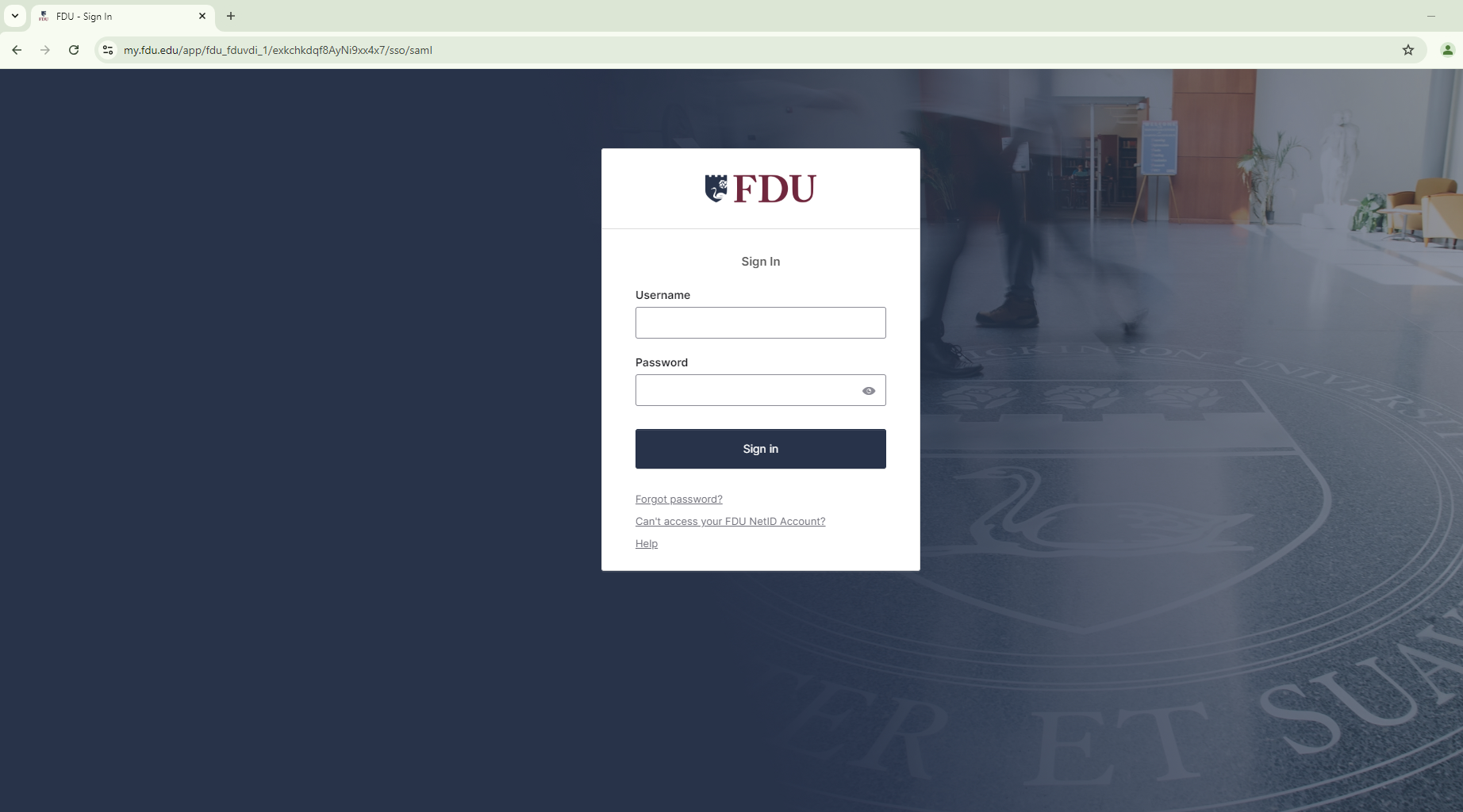
Use your FDU Credentials (NetID and associated password) to complete the login to the FDU Anywhere
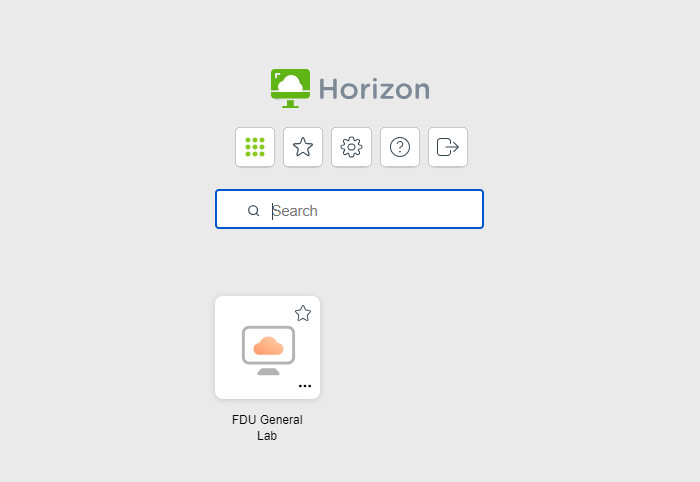
General Lab
Note
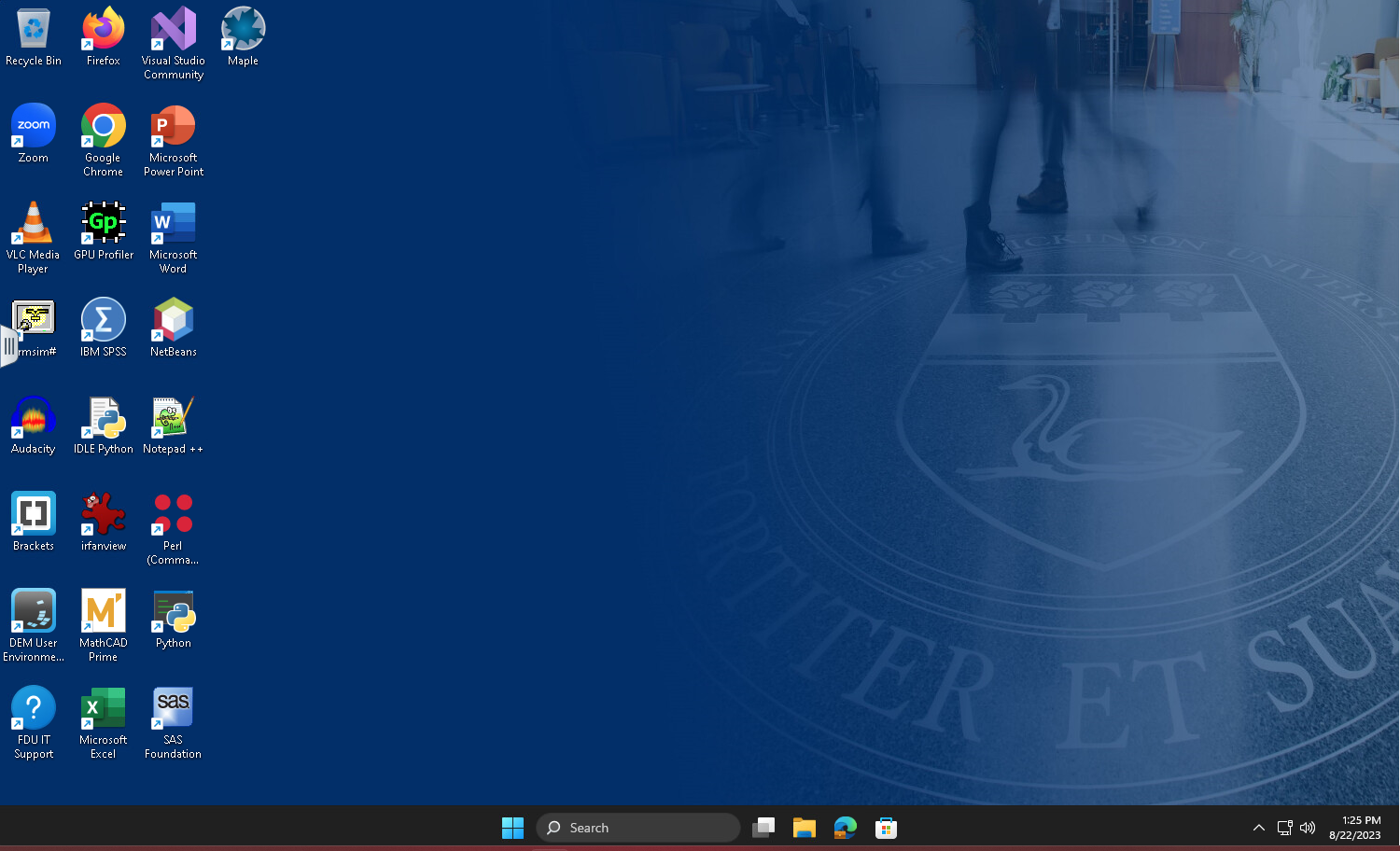
When you login to the General Lab experience, it may take about 60 seconds to get to the desktop. This is because your profile is being created or loaded.
The selected app or desktop opens in a new browser tab
Note
Depending on your screen resolution, your desktop experience view may differ from the picture above.
Log Out of FDU Anywhere
Logging out is a critical step in making sure others continue to be able to easily accessFDU Anywhere services. To log out of FDU Anywhere, follow these steps:
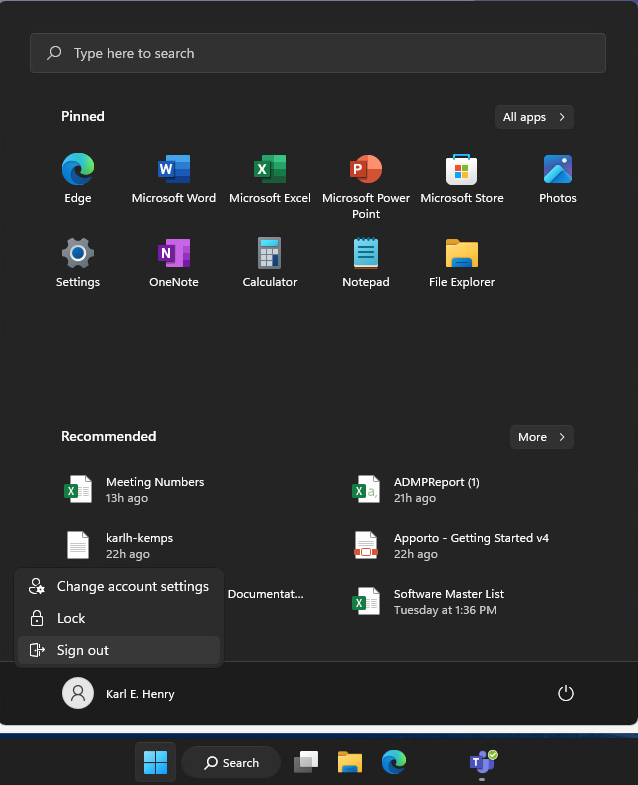
Click the Windows “Start” button
Click your “Name“
Click “Sign Out“
On the upper left-hand side, click the “Hamburger” menu icon
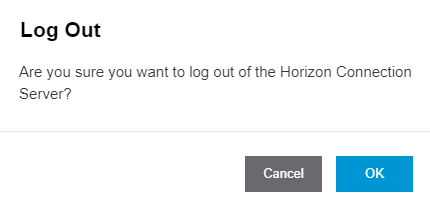
Click “Log Out“
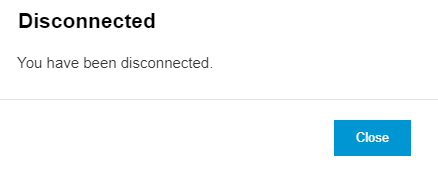
Click “OK” to confirm Logout
Automatic Session Logout Policy
To help make FDU Anywhere as available as possible to all students, accounts that have been inactive (or idle) for 15 minutes will automatically be logged out.
There are many ways in which you can access and save files within FDU Anywhere. Fairleigh Dickinson University highly recommends saving all files on your FDU Microsoft 365 OneDrive which is accessible within FDU Anywhere. There will be a first-time setup and initialization process required to use OneDrive within FDU Anywhere.
Setup and Initialization Process
Accessing your Microsoft 365 OneDrive account is done easily by following these instructions:
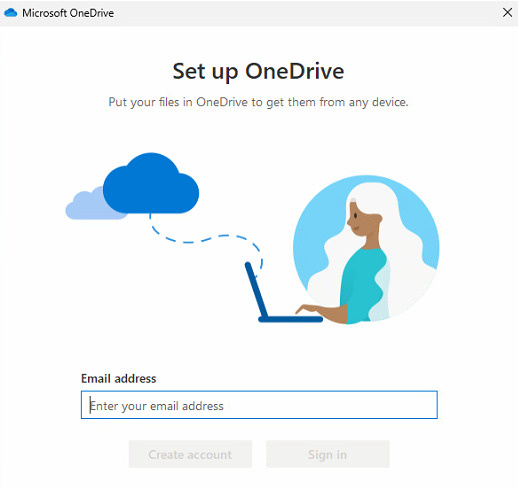
From the FDU Anywhere General Lab, single click on the “OneDrive” icon found on the Windows desktop
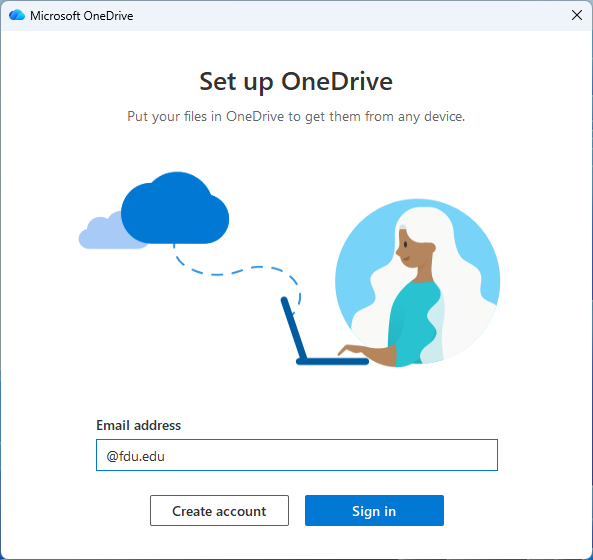
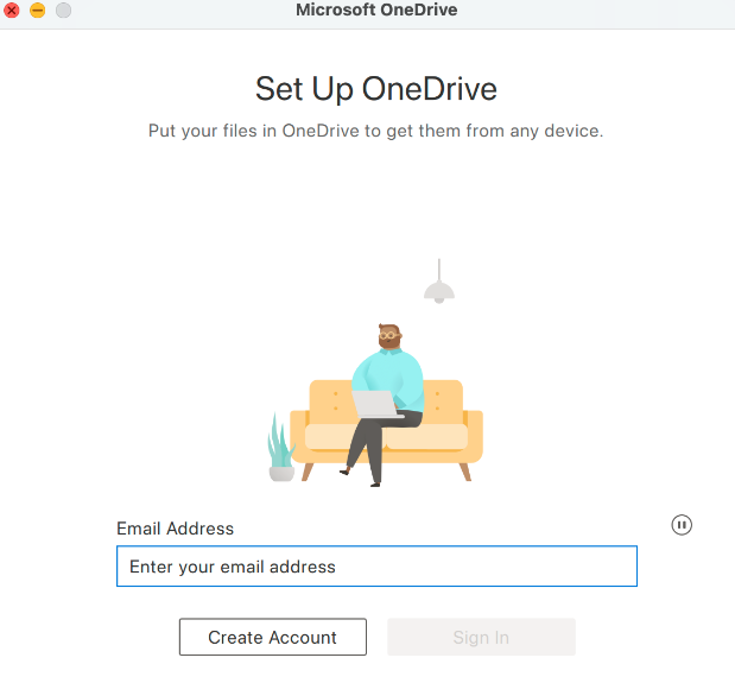
Enter your FDU NetID and click “Next”
Follow the FDU standard single sign-on prompts to complete the login process
Note
Your FDU NetID may already be filled in, just click Sign in.
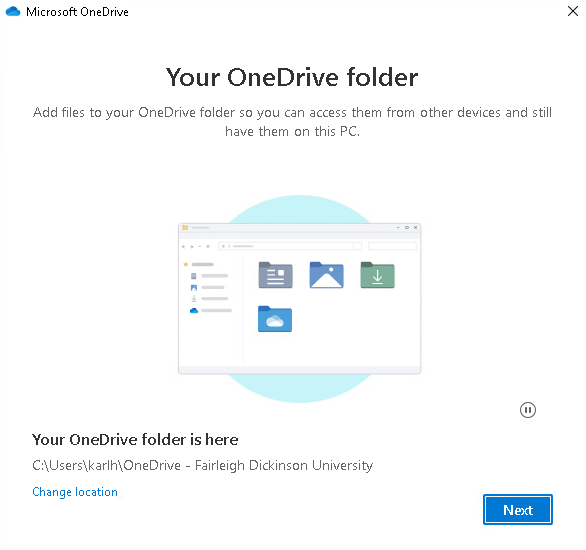
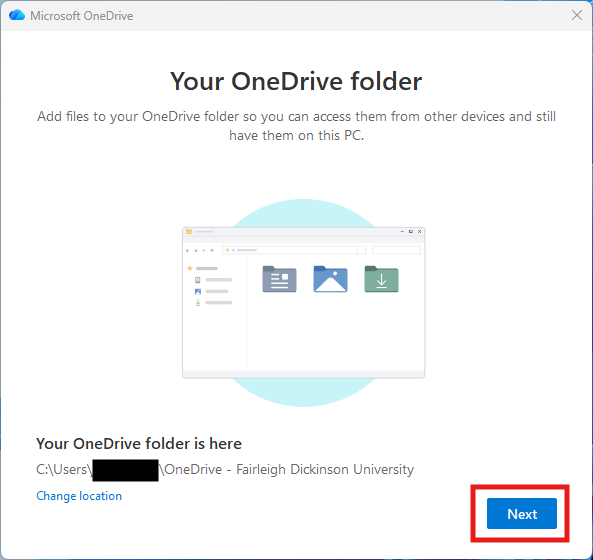
You have successfully logged into OneDrive, click “Next“
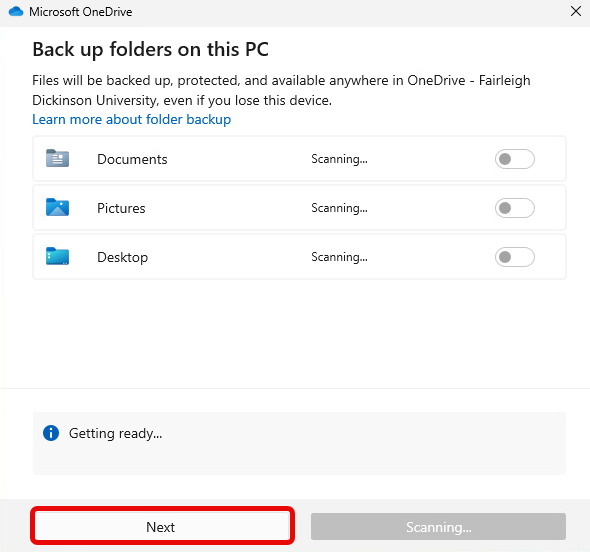
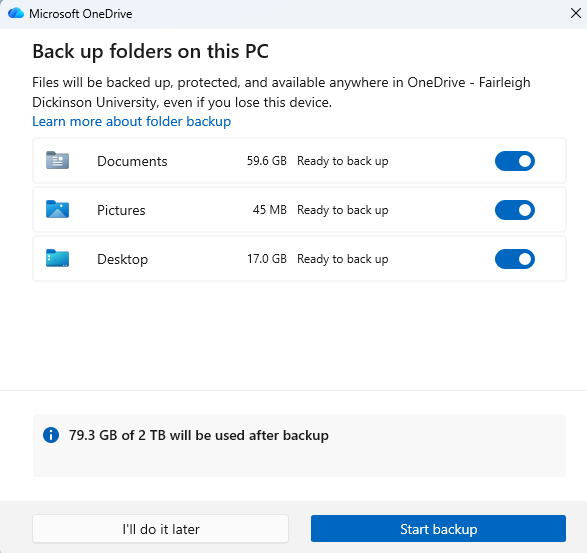
Microsoft OneDrive may prompt you to backup your folders, click “Next” to skip this step
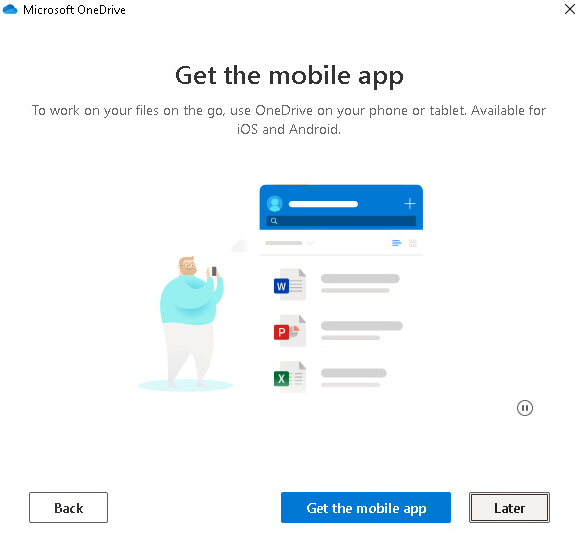
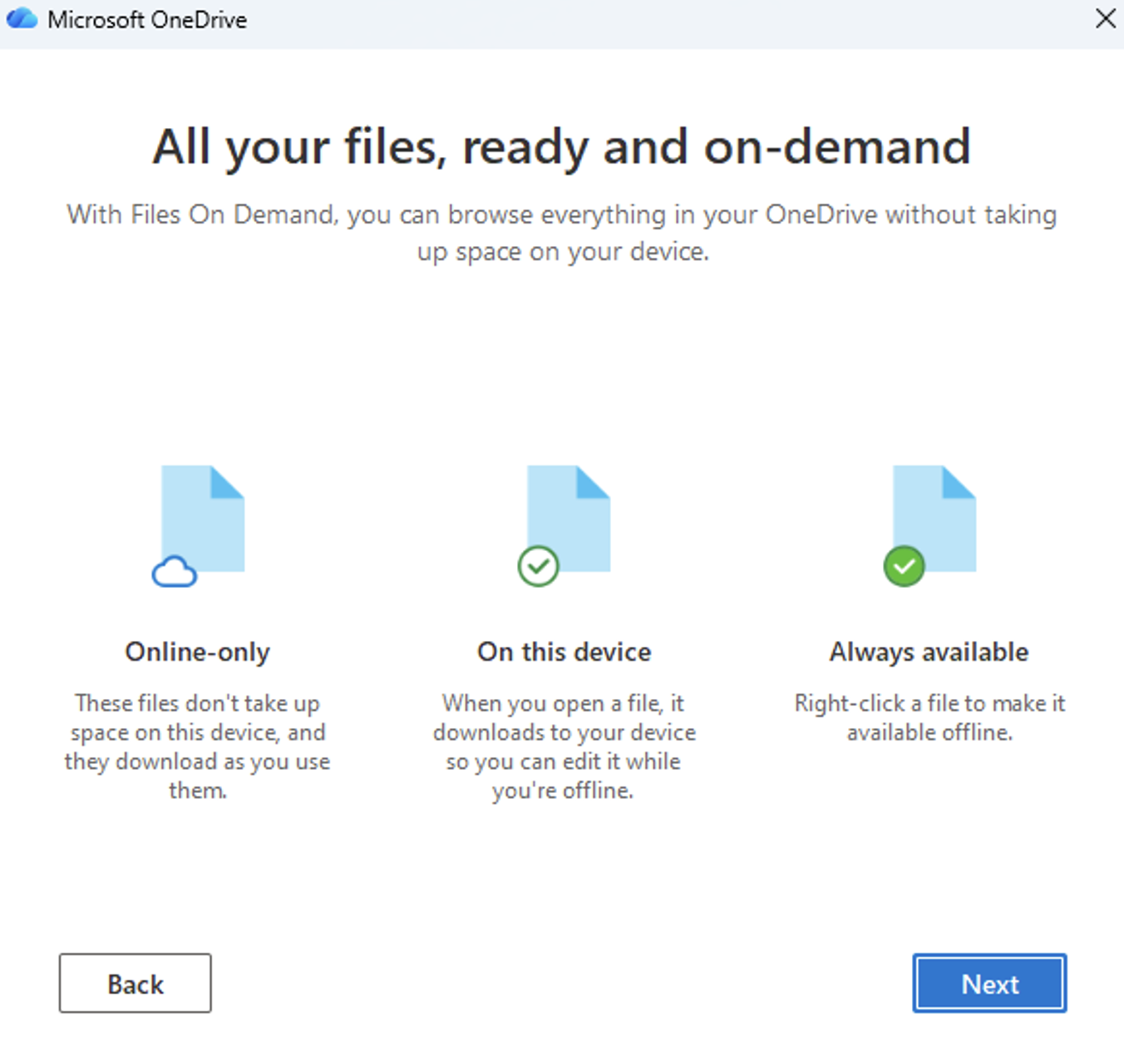
A brief overview will be given on OneDrive, to begin, click “Next“
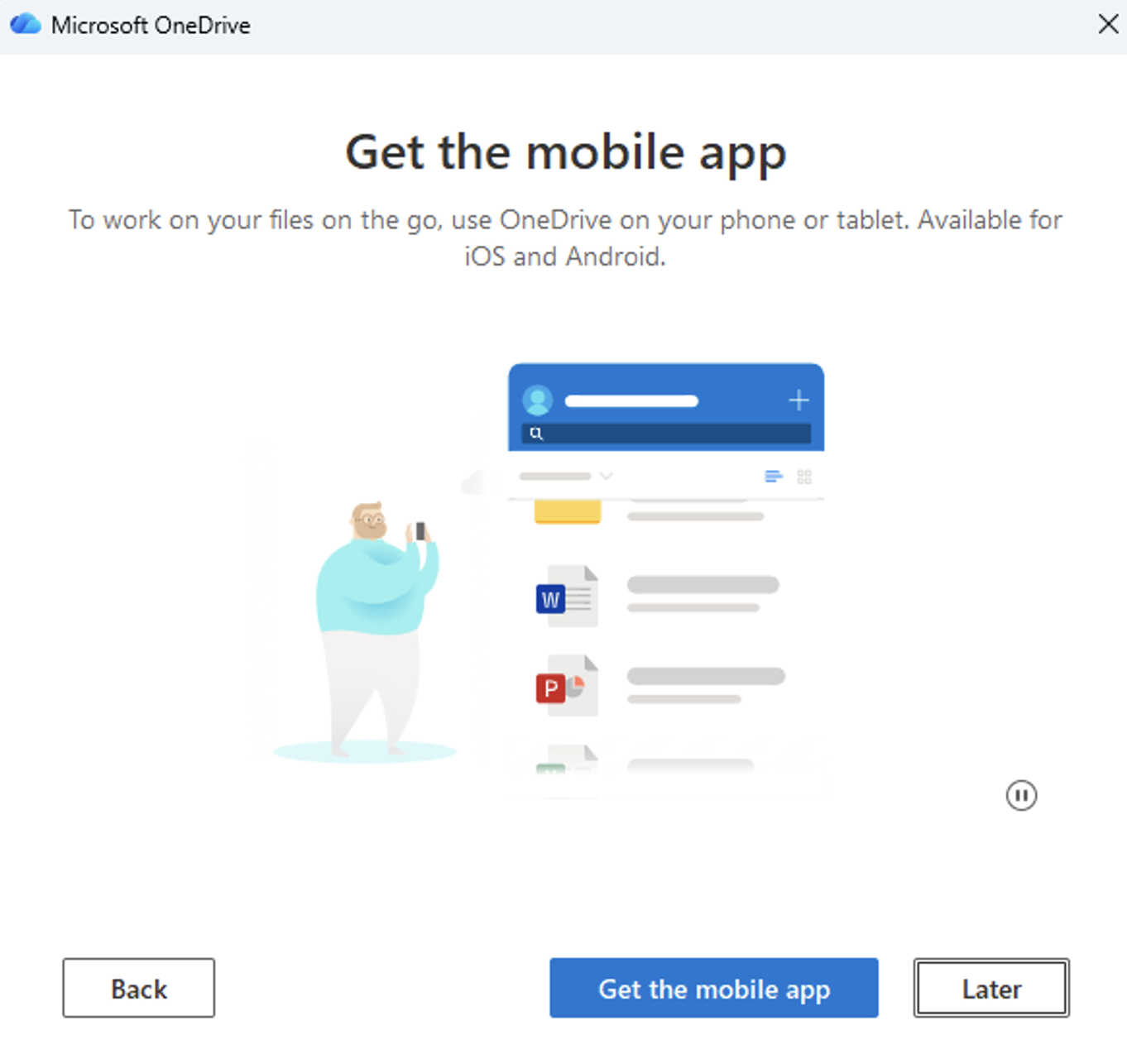
When the tutorial is finished, click “Later“
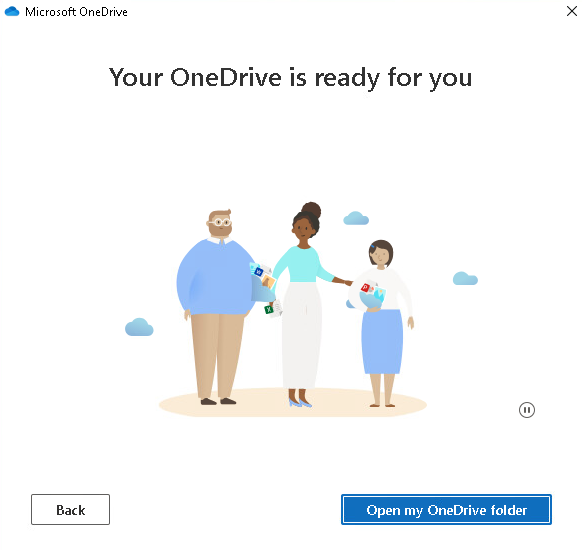
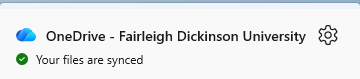
OneDrive setup is complete and ready to use. Click the “X” to close the window or “Open My OneDrive Folder” to access files
Using OneDrive
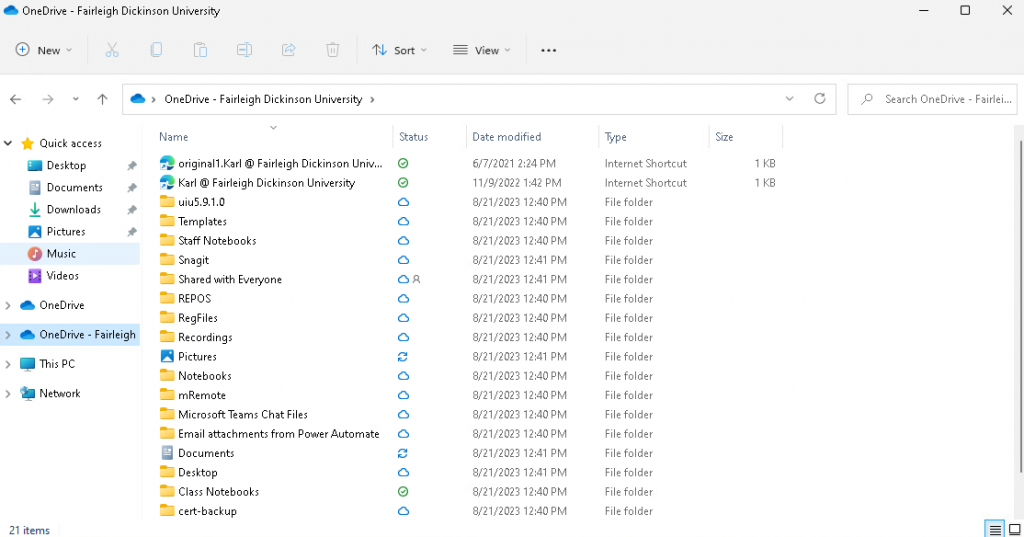
Using Microsoft OneDrive within FDU Anywhere is very similar to accessing, saving, and opening files on a computer. Just open up File Explorer and look for OneDrive – Fairleigh Dickinson University.
if you need to zip files to submit them to Webcampus, please follow these instructions:
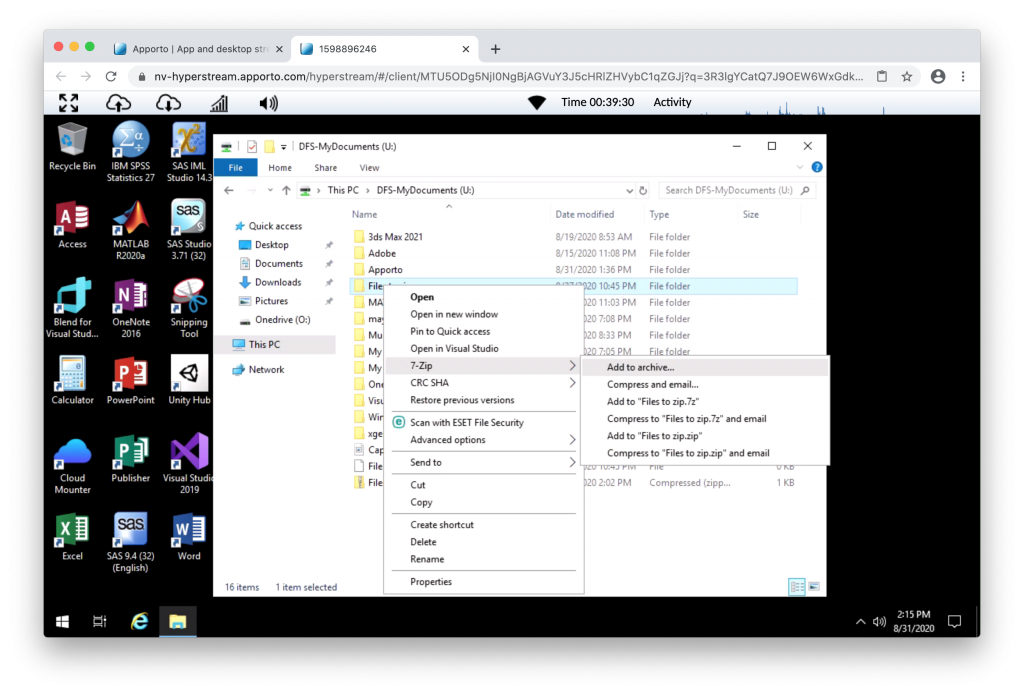
Click the file or folder
Note
For macOS users, you can use the “Two Finger” click method on the trackpad in order to initiate the right click. For additional information, please see the link below for “FDU Anywhere – Keyboard Shortcuts”.
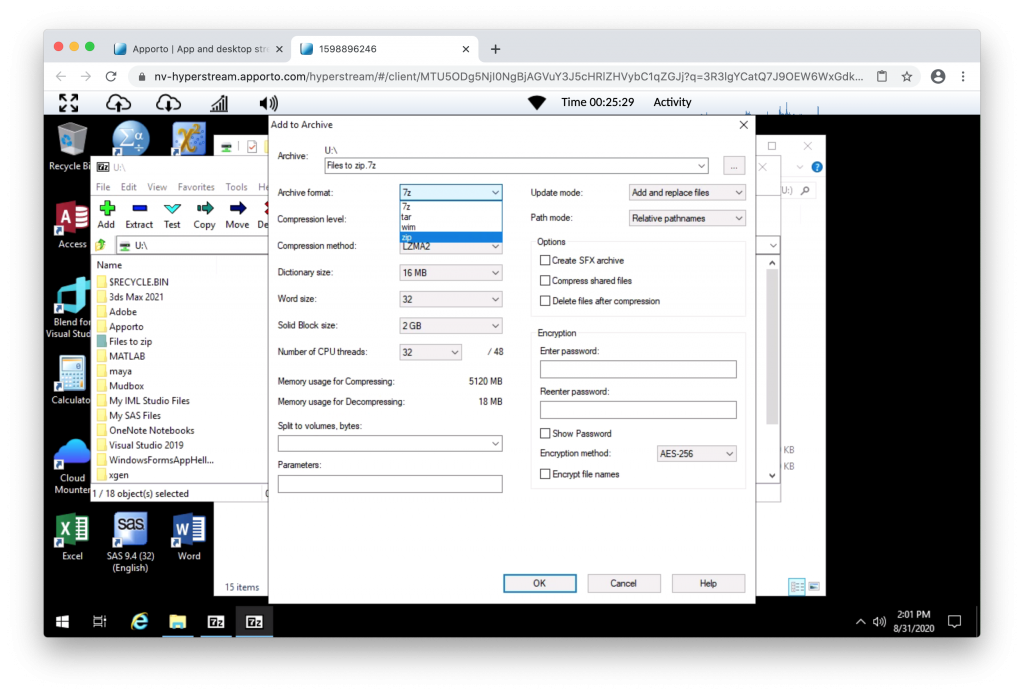
Click on 7-zip then click “Add to Archive“
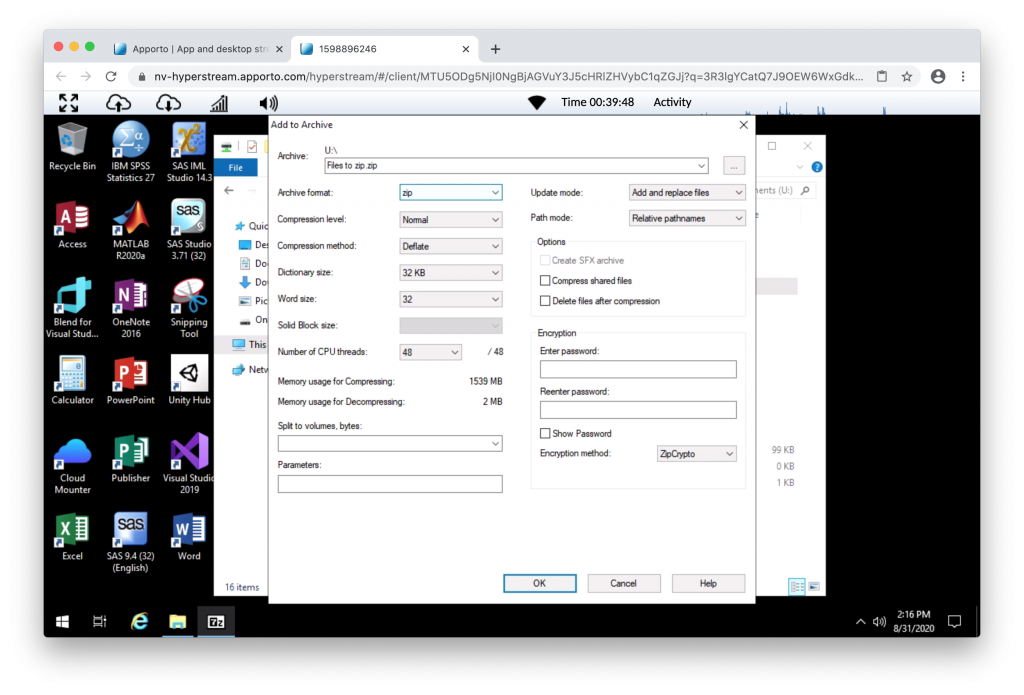
Change Archive Format to “zip” like in the picture below, then click “OK” to zip your files
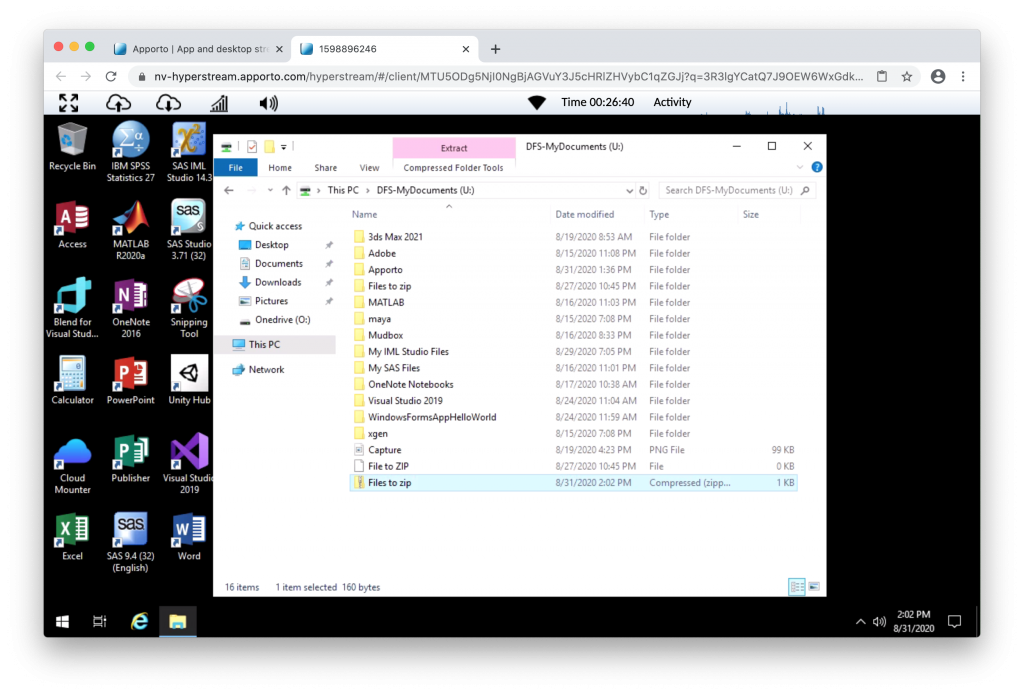
The zip archiving process could take some time depending on the size of the file. Once completed, the file will be in the same location as the folder. You can then email or upload your file to your professor.
Alternate Way to Zip Files
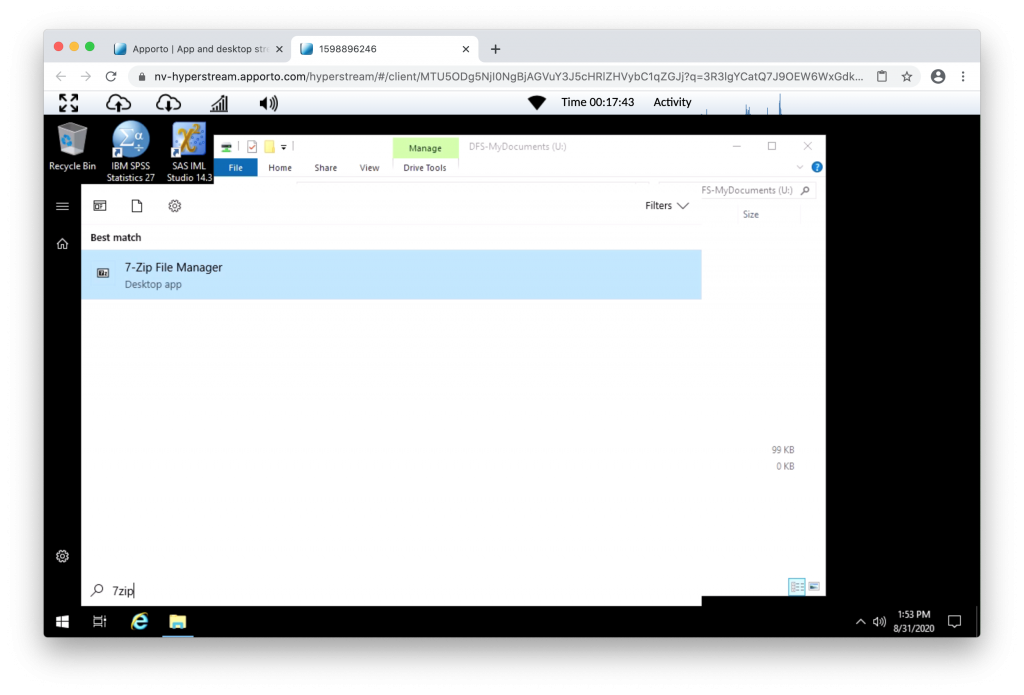
Click “Start” on the taskbar on the left-hand side
Type “7zip” and click on 7-zip File Manager that appears
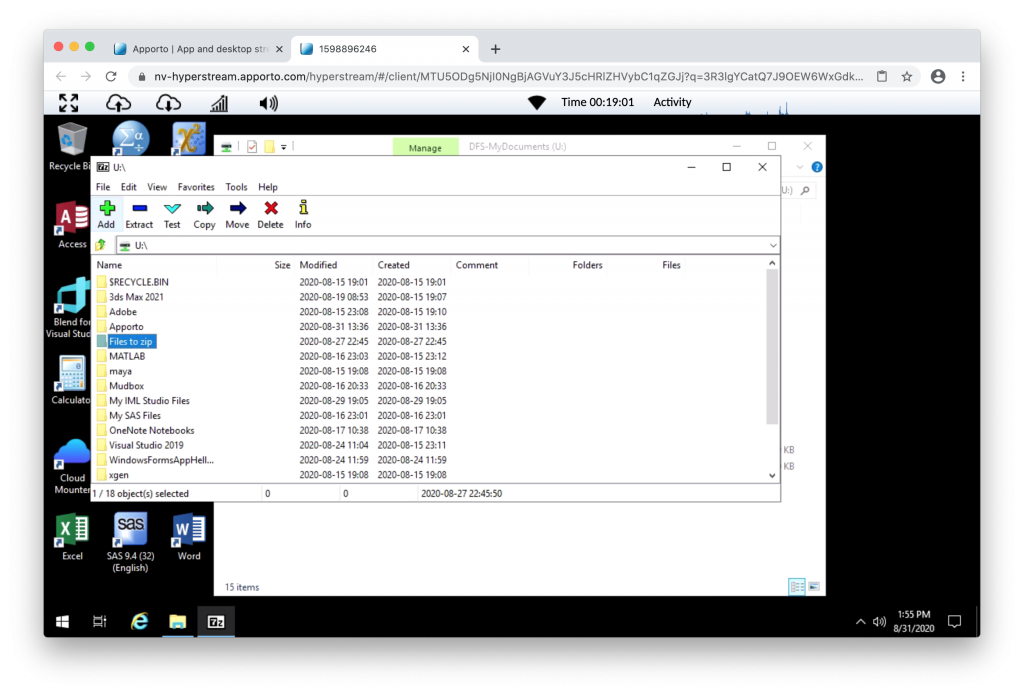
Navigate to the location of your saved file/folder and click to highlight, then click the “Add” button at the top
Change “Archive Format” to “zip” and then click “OK” to zip your files
The file will now be zipped and you will find your file in the same folder as the project folder or file you wanted to zip.
Note
The zip archive could take some time depending on the size of the file. Once completed, the file will be in the same location as the folder is. You can then email or upload your file to your professor.
Submitting Files to WebCampus
To successfully submit your coursework to WebCampus, it is best to use the Google Chrome, Mozilla Firefox, or Microsoft Edge web browser located on the desktop of FDU Anywhere.
To submit your coursework to Webcampus, you can log on from within FDU Anywhere. For more information on Webcampus visit:
Sometimes you may want to copy and paste content from your own computer to an FDU Anywhere desktop or application. You can do this using the copy-and-paste menus or keyboard shortcuts, for example, “Ctrl+C” and “Ctrl+V“.
Note
FDU Anywhere only allows copying from your personal computer into the FDU Anywhere desktop.
If you cannot copy and paste for any reason, we recommend using our FDU OneDrive service to access any files not found in FDU Anywhere.
Copy files from Windows OS Devices
Windows OS to FDU Anywhere
Highlight the text you want to copy from your computer
Press “CTRL+C” to copy the selected text
Move the cursor to the paste location in FDU Anywhere
Press “CTRL+V” to paste the text
close
Copy Files from Apple OS Devices
Your macOS to FDU Anywhere
Highlight the text you want to copy from your computer
Press “COMMAND+C “to copy the selected text
macOS also supports “CTRL+C“
Tip
You may find it easier to use CTRL + C when copying content to FDU Anywhere, so you don’t have to switch back and forth between COMMAND + CTRL.
Move the cursor to the paste location in “FDU Anywhere“
Press “CTRL+V” to paste the text
close
Note
The copy and paste functions DO NOT work across all applications and browsers, including the copying and pasting of images. This is a limitation inherent in browser clipboards. We recommend the Google Chrome web browser for optimal clipboard capabilities.
If you are experiencing issues while using FDU Anywhere, please use the following tips as guidelines to help improve your experience.
Power-cycle your Modem/Router
Power cycling your modem and router allows them to reset and re-establish a connection to your Internet Service Provider (ISP). Shut down your computer and unplug your modem/router. Plug them back in after 60 seconds and watch the lights on your modem/router. Once the lights are on and steady, start your computer.
Keep all your Local Components Up-to-date
Check that your modem/router and your local computer are totally up to date. This includes the operating system, driver, and browser updates.
Disconnect/Turn off any Devices that are not in use
Some devices could be using bandwidth while on standby. Gaming consoles, for example, might download and install updates. Turn off these devices to keep your bandwidth free.
Use an Ethernet Cable
Using a wired Ethernet connection will make your connection more stable and eliminate additional latency compared to a wireless connection.
Change your Wi-Fi Configuration
If a wired Ethernet connection is not possible or your device requires a wireless connection:
Connect to a 5GHz wireless network. Some routers offer both 2.4GHz connections and 5GHz
Place your devices (such as a computer or smartphone) and your router closer to each other
Note
You may need to contact your internet service provider for help with rebooting your router and/or to configure your wireless settings correctly.
As part of an ongoing effort to combat phishing scams and enhance email security, the Office of Information Resources and Technology (OIRT) is implementing the Domain-based Message Authentication, Reporting & Conformance (DMARC) protocol. DMARC monitors mass mailing, hosted vendor applications, and mail servers used to send emails on behalf of the University (e.g., fdu.edu, wc.fdu.edu).
Important Email Delivery Requirements
For Individual FDU NetID Users
No action is required. You can continue to use Outlook as you normally would.
For Mass FDU Email Users
Fairleigh Dickinson University prioritizes information security and is enforcing these email authentication standards to ensure reliable and secure email delivery. All non-FDU services used by FDU users and departments must adhere to these best practices to ensure proper delivery of emails to FDU recipients. Failure to comply will result in email delivery failures.
If you plan to use any new service to send emails to FDU users, you must submit a DMARC Request form at least one month in advance. For any existing email delivery issues, submit a SAMI ticket.
As an FDU user, you generally won’t need to manage the technical details of DMARC unless specifically requested by OIRT. While DMARC is typically managed by your email provider, individuals or departments using external services like CRM tools (e.g., Constant Contact, MailChimp) for bulk emailing must ensure that DMARC is enabled within those platforms. This helps prevent messages from being marked as spam.
OIRT will provide guidance and work with the service provider after you submit a DMARC Request form.
For those interested in the technical aspects of this email security standard, continue reading below.
How DMARC Works
DMARC is an email authentication, policy, and reporting protocol that operates in two primary ways:
It detects unauthorized activity and specifies how to handle unauthorized emails (e.g., placing them in the spam folder).
It identifies legitimate senders, including emails sent by FDU or approved/verified email services.
DMARC uses two key technologies to verify emails:
Domain Keys Identified Mail (DKIM)
What is it?
Domain Keys Identified Mail (DKIM) verifies the identity of an email sender to prevent email spoofing. It acts as a unique electronic signature, allowing recipients to confirm that a message claiming to be from you was indeed sent by you.
Why is it important?
DKIM helps email hosts (e.g., Microsoft, Google) detect phishing attempts. By verifying the message’s signature, DKIM ensures that the sender address belongs to its rightful owner and confirms that the message has not been tampered with during transit.
How does it work?
DKIM adds a hidden, unique digital signature to your outgoing emails. A public “key” is published online under your domain or subdomain. When a recipient receives your email, their system uses this public key to verify the signature. If it matches, the email is confirmed as authentic and unaltered, helping it reach the inbox and preventing spoofing.
close
Sender Policy Framework (SPF)
What is it?
Sender Policy Framework (SPF) is like a digital “authorized senders” list for a domain. When an email arrives, the recipient’s system checks whether the sending server is approved by the domain owner. If the server isn’t on the list, the email may be flagged as spam or rejected.
Why is it important?
SPF helps prevent spammers and phishers from forging the “from” address in email messages. It allows email hosts (e.g., Microsoft, Google) to verify that the server sending the email is authorized to send on behalf of the specified domain.
How does it work?
Your email provider (e.g., Microsoft 365) publishes a list of authorized servers that can send emails on behalf of your domain. When a recipient’s mail server receives a message, it checks this list to verify the sending server. If the server is authorized, the message is considered legitimate. If not, the recipient’s mail server may reject, quarantine, or flag the message as spam based on its policy.
Technology enables nearly every part of Fairleigh Dickinson University’s mission. As that dependence grows, the way the Office of Information Resources and Technology (OIRT) engages with academic and administrative departments must evolve from reactive support to intentional partnership.
BRMO is the relationship layer of OIRT governance. It operates continuously through regular meetings, conversations, and planning cycles, ensuring IT stays connected to the University day to day and month to month. BRMO Practitioners are responsible for identifying significant needs through relationship conversations and ensuring those needs are properly shaped and elevated to IT leadership for planning, prioritization, and appropriate decision making.
Recognizing that different types of demand require different kinds of engagement, BRMO intentionally adapts how it partners with departments based on the nature of the demand. The Demand-to-Mindset model that follows makes this distinction explicit and actionable.
BRMO ensures that technology demand is not only surfaced, but aligned with the University’s strategic priorities, including academic excellence, student success, enrollment growth, and financial sustainability. Practitioners are expected to understand these institutional drivers and reflect them in how demand is shaped and elevated.
2. What BRMO Is (and Is Not)
BRMO is the relationship layer of OIRT, embedded in how IT leadership operates across the University. It does not introduce a new team; it formalizes a function that existing IT leaders already perform and raises it to a consistent institutional standard.
BRMO is a structured model for how OIRT builds and maintains partnerships with University departments. It is a proactive engagement function that surfaces technology needs, challenges, and ideas before they become formal requests. It is a bridge between departmental goals and IT planning and governance, and a feedback loop that helps OIRT understand whether it is delivering genuine value.
BRMO is not a help desk or escalation queue for IT support issues. It is not a project management or PMO function. It is not a replacement for existing IT service channels. It is not a guarantee that every request will be fulfilled. And it is not a committee that meets and produces reports; it is a living practice embedded in how IT leads.
BRMO operates within the reality of finite institutional resources. Not all demands can be fulfilled, and sequencing decisions are required. A core responsibility of the Practitioner is to help Business Partners understand constraints, tradeoffs, and timelines, ensuring expectations are realistic and aligned with OIRT capacity.
3. How BRMO Operates: Demand-Based Mindsets
BRMO operates through ongoing relationships between OIRT leaders and their assigned University departments. While relationships are continuous, the way BRMO engages is deliberately adjusted based on the type of demand being discussed.
The three BRMO mindsets are not roles, job titles, or maturity stages. They are intentional engagement postures, applied situationally based on the nature of the demand at hand. A single department may experience all three mindsets over time.
Type of Demand
Typical Characteristics
BRMO Mindset
Primary Focus
Key Capabilities Required
Run the University
Operational services, reliability, established processes
Broker
Clarity, predictability, and follow through
Service knowledge, communication, expectation management
Grow the University
Outcome improvement, prioritization, trade-offs
Account Executive
Shaping demand and aligning outcomes
Strong business acumen, outcome thinking, ability to challenge requests
Innovate for the University
Exploratory ideas, pilots, uncertainty
Innovation Incubator
Speed, learning, and experimentation
Comfort with ambiguity, facilitation, learning mindset
Run the University: Broker
Applied when demand is operational or stability focused: a service is not working, a process needs reliable support, or a department needs clarity on what IT is doing and when. Success is defined by reliability, clear communication, and trust. Business partners need to know that commitments will be kept and that they will be proactively informed rather than left to wonder.
Grow the University: Account Executive
Applied when demand is outcome focused or improvement oriented. Success depends heavily on business acumen and the ability to shape and prioritize demand before it enters formal governance. The Practitioner does not simply receive a request and pass it along; they engage deeply enough to ensure that what reaches IT planning reflects the department’s actual goals, not just its initial ask.
Innovate for the University: Innovation Incubator
Applied when demand is early stage or uncertain. Success is measured by learning speed, reduced friction, and informed decision making rather than scale. The Practitioner facilitates exploration, tolerates ambiguity, and helps a department move from a hypothesis to a proposition worth evaluating.
4. Roles and Responsibilities
BRMO Practitioners
BRMO Practitioners are IT leaders assigned accountability for managing the relationship with one or more University departments. They are typically directors, managers, or senior staff. Each Practitioner serves as the primary OIRT point of contact, advocate, and communications channel for their assigned business partners. Being a BRMO Practitioner is not an additional role; it is a core expectation of IT leadership at FDU.
Each Practitioner is accountable for the following:
Maintaining a regular meeting cadence with assigned business partners, at minimum quarterly and ideally monthly for active or complex relationships.
Setting and sharing a standing agenda that covers ongoing OIRT activities relevant to the department, open items, and dedicated space for the business partner to raise new topics.
Surfacing project ideas and technology needs from the University into OIRT planning and the appropriate prioritization processes.
Communicating proactively. Partners should never learn about OIRT changes, outages, or initiatives from someone other than their BRMO contact.
Serving as the escalation path when a business partner has a concern that normal service channels have not resolved.
Representing the business perspective in internal OIRT conversations, planning sessions, and prioritization discussions.
Tracking and following up on open commitments. If OIRT has committed to something, the Practitioner is accountable for ensuring it happens or for communicating clearly why it has not.
Sharing an annual OIRT roadmap summary relevant to each department so partners understand what is planned and why.
In addition to these responsibilities, Practitioners are expected to apply informed judgment and constructive challenge in their engagements. This includes questioning assumptions, guiding Business Partners toward outcome-based thinking, and ensuring that requests are aligned with institutional priorities rather than treated as transactional inputs. Practitioners represent both the voice of the business within OIRT and the broader interests of the University in their interactions with departments.
Business Partners
Business Partners are the leaders or designated representatives of FDU’s departments who engage with their assigned BRMO Practitioner. They may include deans, department heads, administrative directors, or their delegates. Their role is to represent the technology needs and priorities of their department, participate in regular engagement sessions, surface ideas and challenges, and provide feedback on OIRT services and initiatives. Business Partners are not expected to be technical; they are expected to be candid about what is working, what is not, and where technology could better support their goals.
Relationship Alignment
Each major University department or functional area will be assigned a primary BRMO Practitioner. The CIO’s office will maintain the master relationship map and review assignments annually or when organizational changes occur. Assignments should reflect the Practitioner’s domain knowledge, existing relationships, and workload. Where a department has complex or high volume technology needs, a secondary Practitioner may be assigned. The goal is that no department ever has to wonder who their IT contact is.
5. Engagement Model
Meeting Cadence
The standard BRMO engagement model is built around a regular rhythm of structured touchpoints. Monthly or bimonthly meetings between the Practitioner and the primary Business Partner form the core cadence, typically thirty to sixty minutes each. Quarterly business reviews are held for more complex relationships and include a broader view of IT services, performance, and upcoming changes. Annual planning conversations align IT priorities with departmental goals for the year ahead. Ad hoc check-ins address time-sensitive issues, major projects, or significant changes as they arise.
Practitioners should maintain brief notes from each meeting and a running list of open items for sharing and tracking with the CIO. The goal is continuity, not documentation for its own sake. The CIO will determine the preferred mechanism for note sharing, which may include shared documents or email summaries.
BRMO does not determine final prioritization decisions but ensures transparency into how those decisions are made. All significant demand entering IT planning is evaluated against consistent criteria, including alignment to institutional priorities, impact, risk, and resource capacity. Practitioners are responsible for helping Business Partners understand how decisions are reached and what tradeoffs are involved.
How Needs Surface and Get Addressed
When a Business Partner identifies a technology need, challenge, or idea, the Practitioner’s job is to receive it, assess it, and connect it to the right path within IT. Operational issues are directed to the appropriate IT service team, with the Practitioner monitoring for resolution. Enhancement requests, meaning improvements to existing systems or services, are logged and brought into the relevant IT planning cycle. New capability ideas involving significant investments, new systems, or cross-departmental initiatives are assessed for fit and, if viable, brought to IT leadership for prioritization and planning. Information needs are addressed directly by the Practitioner.
BRMO serves as the front door for technology demand. Once a need is appropriately shaped, it transitions into formal OIRT processes, including governance review, architecture assessment, prioritization, and delivery through project and service management functions. BRMO remains engaged throughout to ensure continuity of communication and alignment with the originating business need.
No idea or need should go unacknowledged. If IT cannot address something, the Practitioner is responsible for explaining why and, where possible, offering alternatives.
Escalation Path
If a business partner has a concern that cannot be resolved at the Practitioner level, the escalation path is: BRMO Practitioner, then IT Director or Manager, then CIO. Business Partners should always have a clear understanding of where their issue stands and who is accountable for it.
6. Desired Outcomes
For Business Partners
Every department should have a known, trusted OIRT contact who understands their goals and constraints and keeps them informed without being asked. Partners should feel confident that OIRT is aware of their needs and actively working to address them. They should have advance visibility into OIRT changes and initiatives that will affect their department, a clear path to surface ideas and escalate concerns, and the consistent experience of OIRT as a solutions-oriented partner in advancing their department’s mission.
For the IT Team
BRMO gives OIRT a structured understanding of each department’s priorities, challenges, and technology maturity. It provides earlier visibility into demand, enabling more effective planning and resource allocation. It reduces surprises for both OIRT and the FDU community it serves, and creates a more informed basis for prioritizing projects and investments. It also produces a clearer and more visible demonstration of the role technology plays in advancing FDU’s goals.
For FDU
At the institutional level, BRMO produces technology investments that more accurately reflect the University’s actual needs and priorities, increased transparency and confidence between OIRT and the departments it serves, and a stronger foundation for strategic planning and governance. Over time, OIRT should be recognized not as a technical utility but as a genuine partner in achieving FDU’s academic and operational mission.
7. Measuring Success
BRMO success is assessed through a focused set of experience-based measures that emphasize trust, clarity, and follow-through rather than activity volume.
Business Partner Satisfaction Score: an annual survey measuring partners’ experience of OIRT responsiveness, communication, and perceived value. Target: establish baseline within three months; improve by ten or more points by the end of Year 1.
Engagement Coverage: the percentage of assigned relationships with an active, documented engagement cadence. Target: 100 percent within six months.
Demand Visibility: the number of project ideas and technology needs surfaced through BRMO into OIRT planning. Target: establish baseline within three months and track the trend over time.
Open Item Resolution Rate: the percentage of commitments resolved or formally communicated within thirty days.
Escalation Frequency: tracked as a relationship health indicator. Sustained high escalation volume signals an engagement or process issue that warrants attention.
8. Maturity Milestones
BRMO is designed to mature deliberately over time, with each phase building on the one before it.
In the first six months, the focus is establishing the foundation. All relationships are assigned and visible. Meeting cadences are in place. An initial relationship health baseline is captured. The predominant mindset in this phase will be Broker: building trust, reducing ambiguity, and demonstrating consistent follow-through.
From six to twelve months, the emphasis shifts toward shaping demand. The first satisfaction survey is completed. Open item tracking is in place. An initial pipeline of University-sourced project ideas becomes visible in OIRT planning. Practitioners begin applying the Account Executive mindset in relationships where the conditions support it.
From twelve to twenty-four months, BRMO becomes embedded in IT leadership and planning routines. Business partners consistently report feeling informed, heard, and well served. All three mindsets are being applied situationally and with confidence.
Beyond twenty-four months, BRMO is a recognized and valued institutional capability. OIRT is consistently perceived as a strategic partner in advancing FDU’s mission. The demand pipeline is active, and BRMO insights inform OIRT’s annual planning process in a meaningful way.
9. Governance and Accountability
The BRMO function is owned by the CIO. Day-to-day operation is the responsibility of each BRMO Practitioner within their assigned relationships. The CIO, or a designated BRMO Lead, is responsible for maintaining the relationship assignment map, facilitating periodic Practitioner sync meetings, reviewing satisfaction data, and ensuring the framework is being applied consistently across the OIRT team.
Metrics and maturity progress are reviewed periodically to ensure the model continues to serve the University effectively. Where patterns of escalation, low satisfaction, or disengagement emerge, the CIO and relevant Practitioners will assess whether the issue reflects an individual relationship, a structural gap in the model, or a broader organizational need.
This charter will be reviewed annually. The CIO’s office will assess whether the framework is operating as intended, whether any structural changes are needed, and whether metric targets require adjustment. Business Partners will be invited to contribute to the review. Material changes to the charter require approval from the CIO and acknowledgment from IT leadership.
10. BRMO Assignments
The tables below show the current Strategic Points of Contact (SPOC) alignment for the University. Each OIRT department serves as the primary BRMO point of contact for the academic and administrative units listed beneath it.
Management Information Systems
Office of Enrollment Management, including:
• All Admissions
• Financial Aid
• Enrollment Services
Finance Department
Human Resources
University Advancement
Chief Information Officer
President’s Office & Leadership Team — CIO, including:
• SVP and University Provost
• SVP for University Operations
• SVP for Finance and Administration
• SVP for University Advancement
• VP Student Affairs
Vancouver Campus
Risk Management
Academic Technologies
All Academic Colleges & Schools
University Libraries
Office of the General Counsel
Educational Resources and Assessment
Institutional Research & Assessment
Center for Psychological Services
S CAPS
Computing Services
Student Affairs & Residence Life, including:
• Dean of Students
• Student Health Services
• Career Development
• Academic Support
Metro Athletics
Florham Athletics
Business Services
Facilities
Public Safety – Metro
Public Safety – Florham
University Operations, including:
• Auxiliary Services
• Mailroom
• Dining Services
Systems & Networking
University Communications
Appendix: Key Definitions
Term
Definition
BRMO
The Business Relationship Management Office is the collection of BRMO Practitioners and functions within FDU OIRT responsible for managing and developing the relationship between IT and the University’s academic and administrative departments. It is not a help desk escalation path; it is a strategic partnership function.
BRMO Practitioner
An IT leader assigned accountability for managing the relationship with one or more business units. Practitioners are typically existing IT leaders, not a separate team.
Business Partner
A leader or representative from a University department who engages with IT to surface needs, share priorities, and participate in planning conversations.
Stakeholder
Any faculty, staff, or student impacted by technology decisions made by IT. Each stakeholder group should have a Business Partner who can represent their interests.
Welcome to our comprehensive guide on utilizing the FDU Jamf Connect for login and NETID credential synchronization on macOS. This article is tailored for the staff, faculty, and students at FDU, providing a detailed walkthrough of the Jamf Connect login interface.
Tip
Connecting to FDU-Secure is not supported on this login screen. Please use a wired connection while on campus.
Jamf Connect Interface Walkthrough
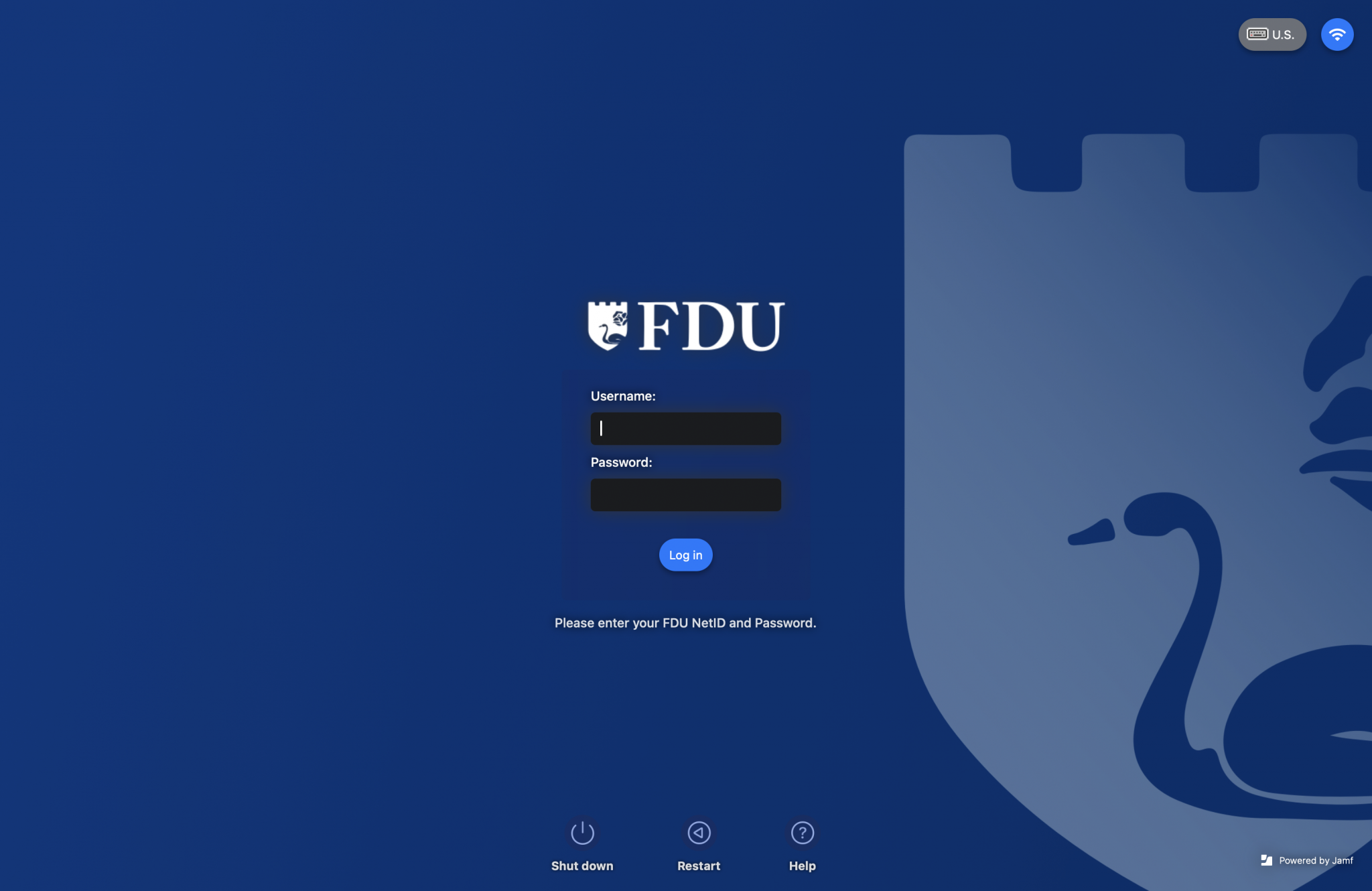
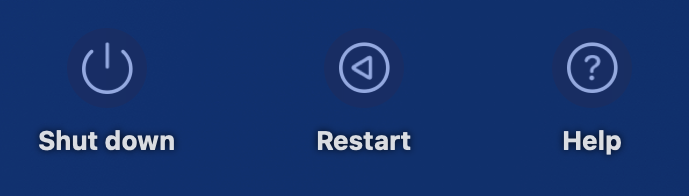
The Jamf Connect login screen consists of three sections: The login fields, the function buttons, and language and Wi-Fi.
The login fields are used to enter the NetID and password while the login button initiates the login. The username can be entered in any form that is recognized by Okta.
Shut down: Powers the machine off
Restart: Reboot the machine
Help: Opens a mini browser to the FDU IT site
Language Selection: Changes language
Wi-Fi: Allows selection of wireless network
close
Logging into Jamf Connect
Enter your “FDU NetID” and “Password” and click the “Login” button
You will see the message “Creating your account on this Mac” while the account is being created on the Mac
If you are using a non-standard account name that does not match your FDU NetID, you will be able to select this account at login and link it to your NetID
Locate the account and click “Connect” to link it to your NetID. If you do not wish to link the existing, account click “Create Account” to proceed with a new account
Note
Any data stored under the old account will not be accessible if choose not to link it.
You will be prompted to enter the “existing password” for the local account. Click “Connect” to complete the link.
close
Synchronize NETID Password via Jamf Connect App
The Jamf Connect app is used to synchronize domain credentials with the local machine credentials.
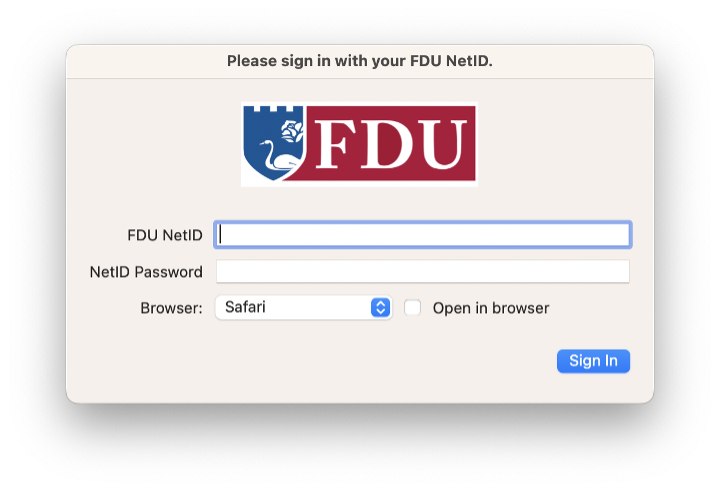
Enter your “FDU NETID” and “Password” and click the “Sign In” button
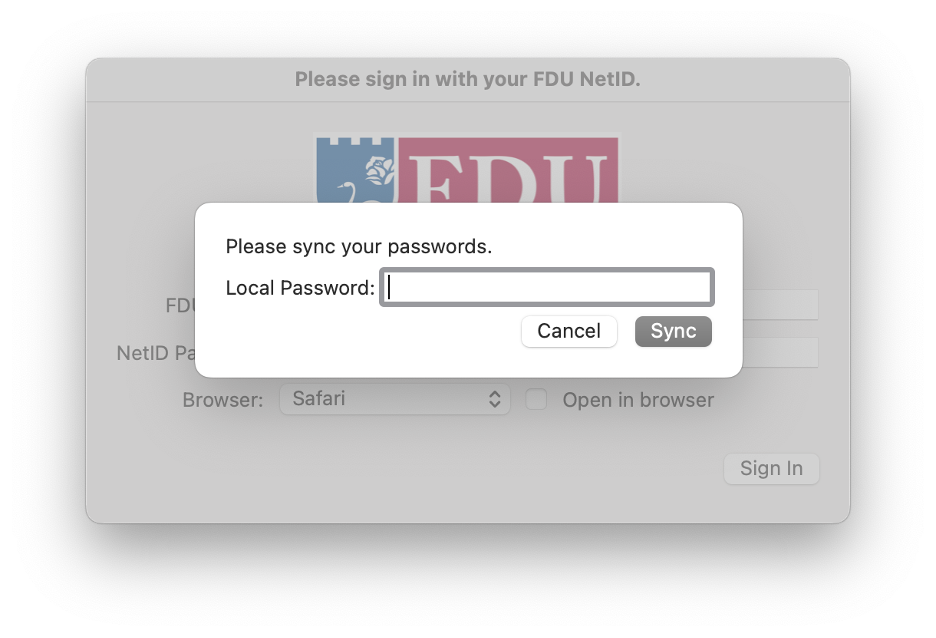
If your NETID password is out-of-sync, you will be prompted to sync them by entering the Local Password you use to sign into the machine. Click “Sync” to sync the new NETID password
To access Forms, you will be directed to our SAMI Support Portal where you will be asked to log in using your NETID and authenticate using Duo. Once you click “Next,” you will be forwarded to samisupport.fdu.edu in a new window or tab.





 Feedback
 Copy Link

















 Warning